In SUPY, items must be activated in the correct location to be used in daily operations. Even if an item exists in the central repository, it will not appear in workflows such as GRN receiving, stock counts, transfers, or recipe usage unless it is properly activated for that location.
This commonly occurs during onboarding, when new branches are added, or when items are created centrally but not rolled out to all required locations.
When items are not activated in the correct location:
The item does not appear in operational workflows
Teams are unable to order, receive, count, or transfer the item
Users create duplicate items as a workaround
Inventory tracking becomes fragmented
Reporting becomes incomplete or misleading
You may notice:
The same item is visible in some branches but missing in others
The item does not appear in:
GRN item selection
Stock count lists
Transfer requests or issues
Store teams report that they “can’t find the item”
New items are created even though they already exist in the system
In SUPY:
Items can exist in the repository without being activated in all locations
Each branch must have the item enabled to appear in operational workflows
This typically happens when:
Items are imported but not assigned to all branches
New locations are added after initial setup
Manual branch-level item creation is used instead of central activation
To avoid activation issues:
Centralize item creation
Maintain one master repository for all items
Activate items in all relevant locations
Ensure new items are rolled out to every branch that uses them
Use bulk actions
Activate items across multiple locations at once
Review activation after changes
Always review item availability when adding new branches or locations
Using Bulk Actions:
Go to Repository → Items
Search for and select the affected item(s)
Use Actions / Bulk Actions
Choose:
Add to Locations to activate missing branches, or
Replace Locations if current assignments are incorrect
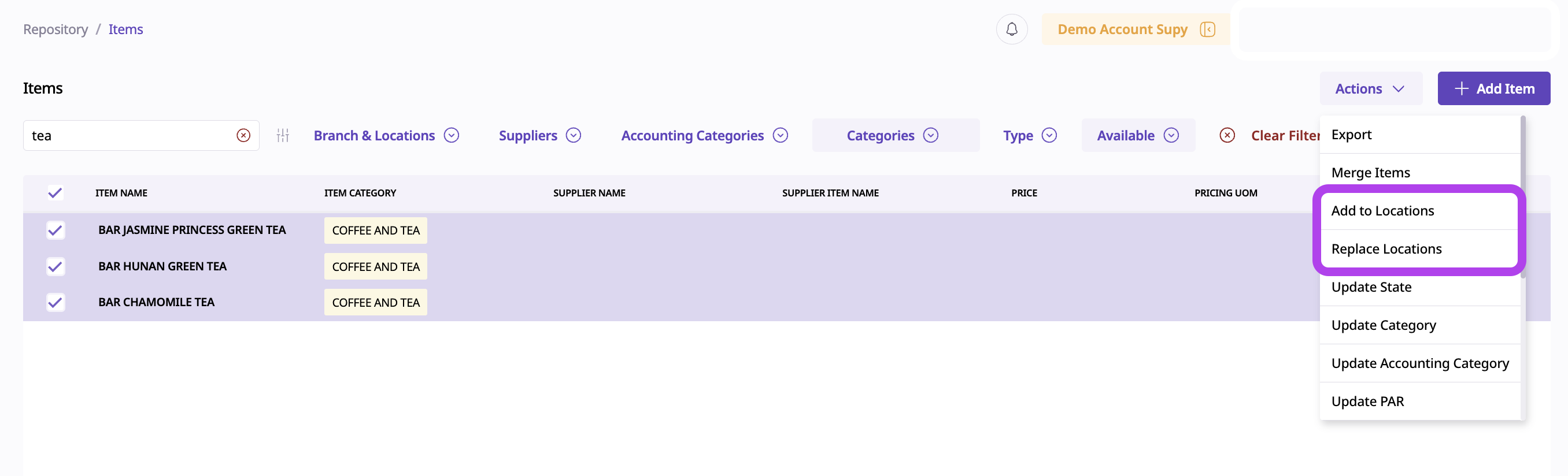
(Using Add to Locations/Replace Locations Bulk Actions)
Activating Items Location Manually:
Go to Repository → Items
Search for and choose one affected item
Toggle on the buttons for its Active Location(s)
Click Save
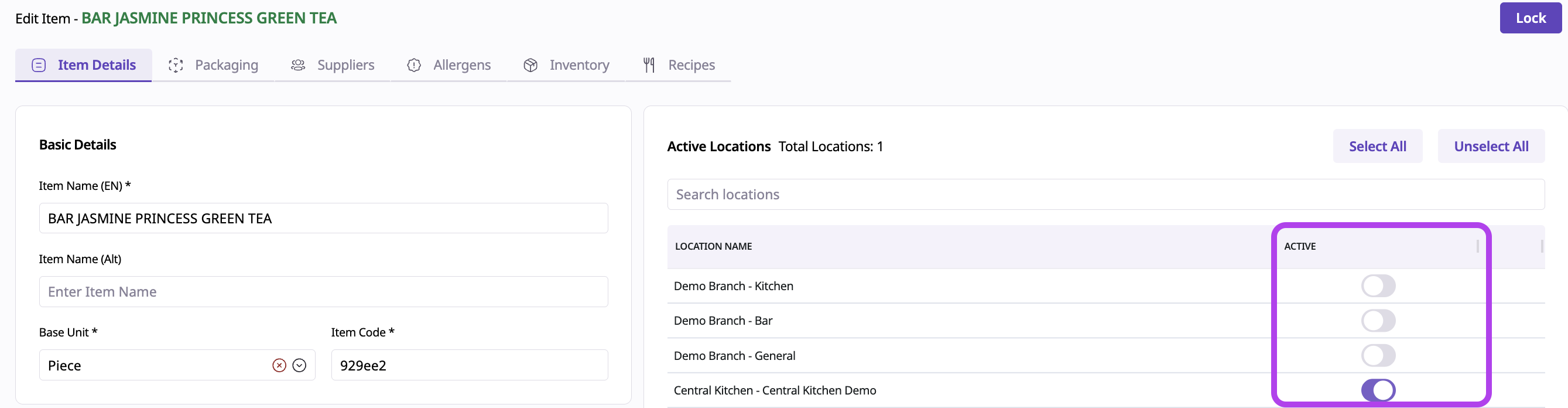
(Manual Activation of Items Location)

If teams request new items because they “can’t see” an existing one, always check item activation first. Resolving this early prevents duplication and long-term reporting issues.
Correct item activation ensures:
Smooth operations across all branches
Clean and consistent inventory tracking
Reliable COGS and variance reporting
Less confusion for store teams
Proper activation keeps your item repository clean, scalable, and easy to manage.
Related Articles
