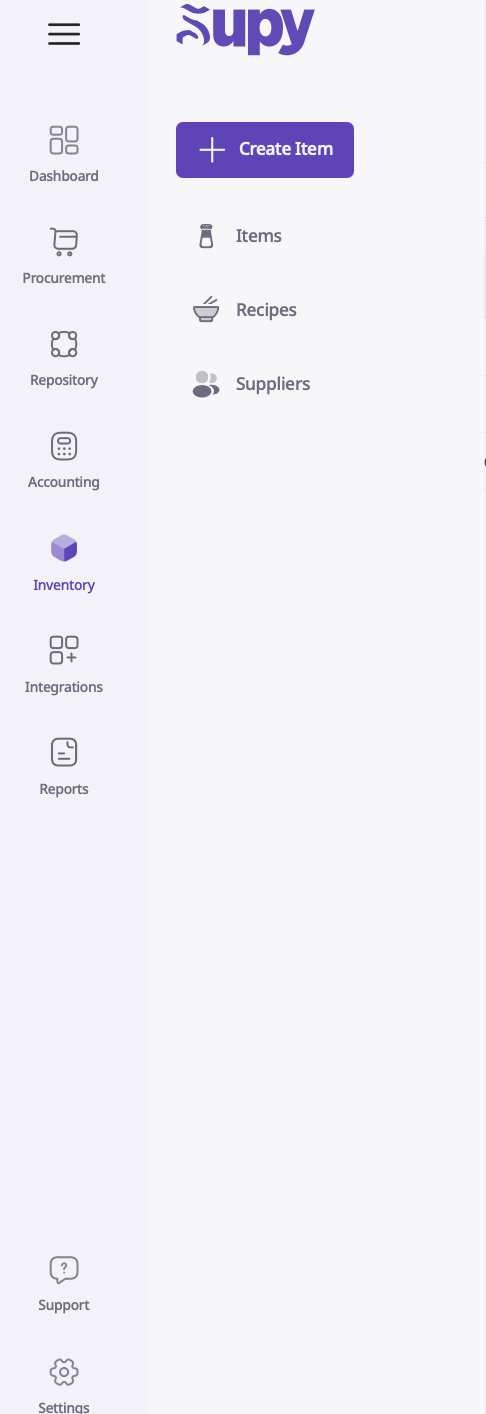
The first thing that you do is go on “Inventory” and then on “Items”. This will then redirect you to your items page.
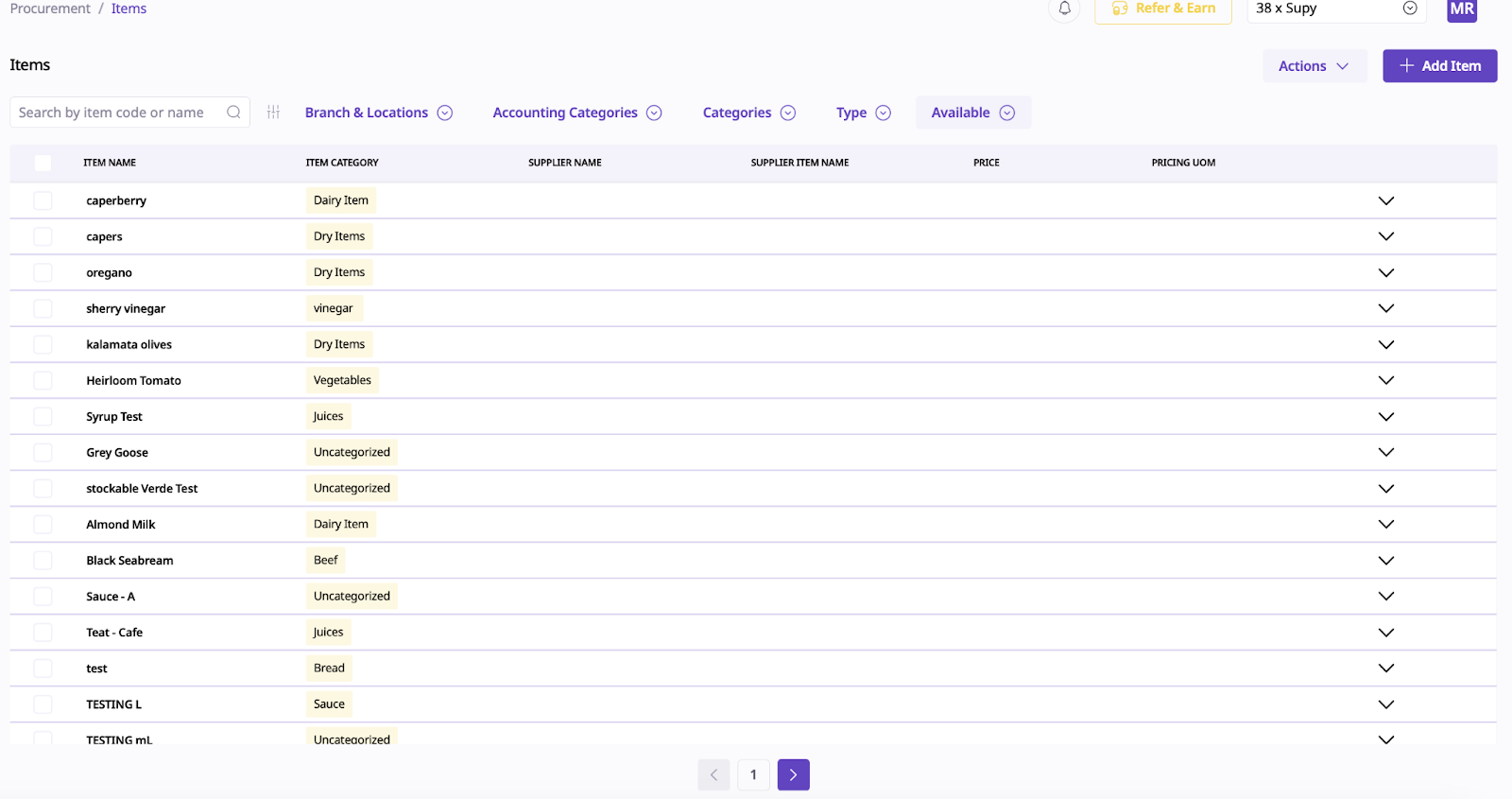
Once on the items page, search for the item you want to edit by scrolling or by either utilizing the search field, which you can search an item by code or name.
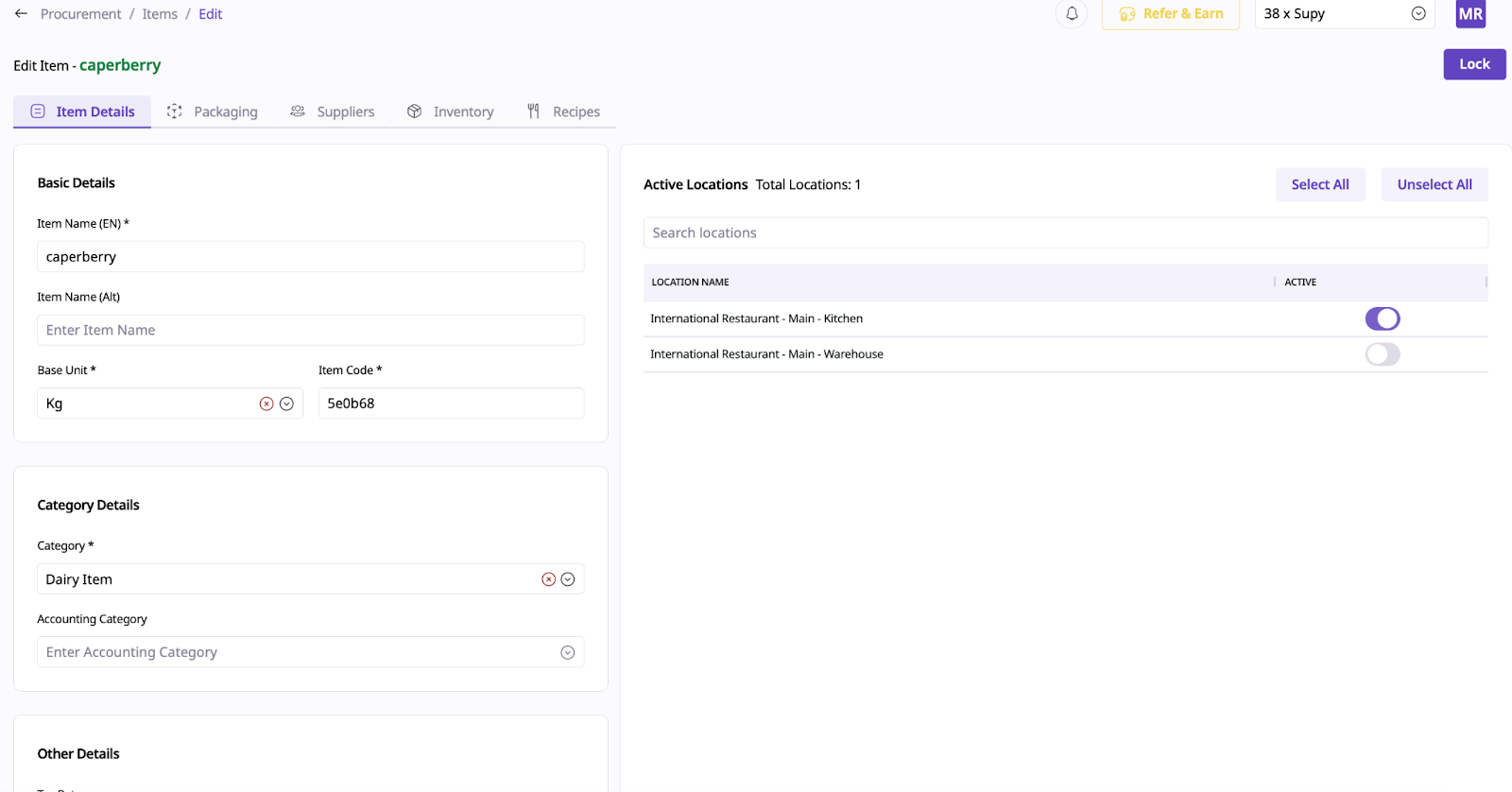
3. Click on an item from this page to open the item page details in which you can edit specific item details. Such as the Item Name (English and Arabic), Category, Accounting Category and the locations in which the item is activated or visible.
4. Next, when you proceed to the "Packaging" page, you can add 3 levels of how an item is packaged which is the Base, Pack and Container. Click on "+ Add Packaging" to add how an item is packaged in your inventory.

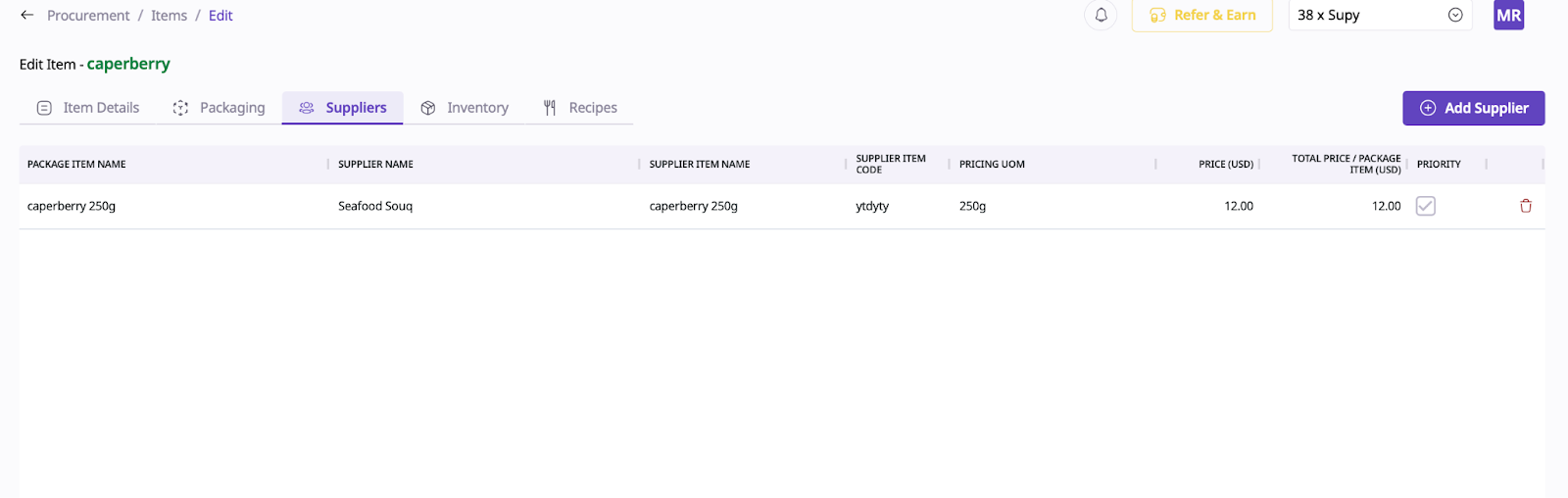
5. In the "Suppliers" page, you can add a supplier and which item is ordered through that supplier along with the price, name, UoM, and priority. To edit a supplier package item, click and edit the values within the same row. To add a new supplier for the item, Click on "Click to add new supplier for this item" and fill in the column details.
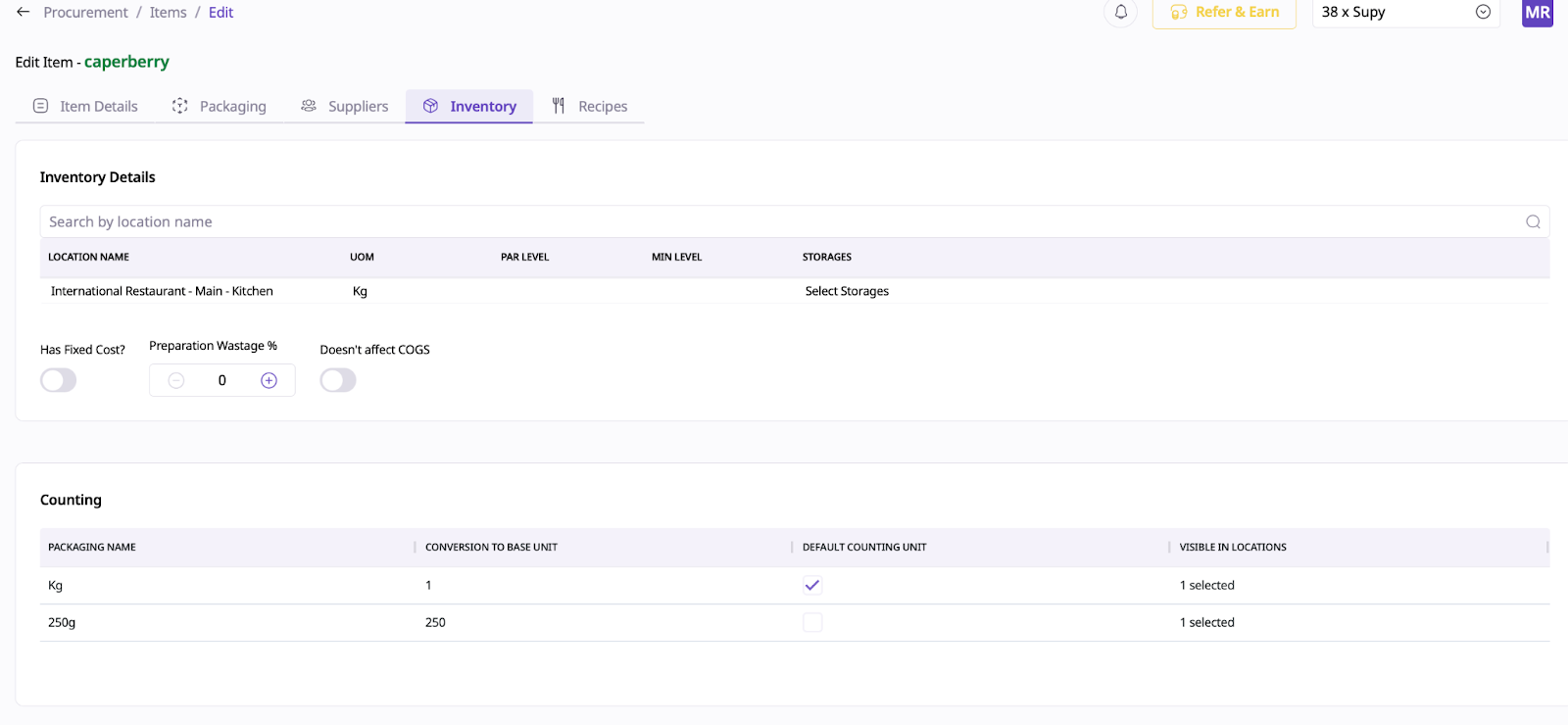
6. For the "Inventory" page, you can edit the Par Level, Min Level and Storage location of the item. Just click on each of the column details to edit the values.
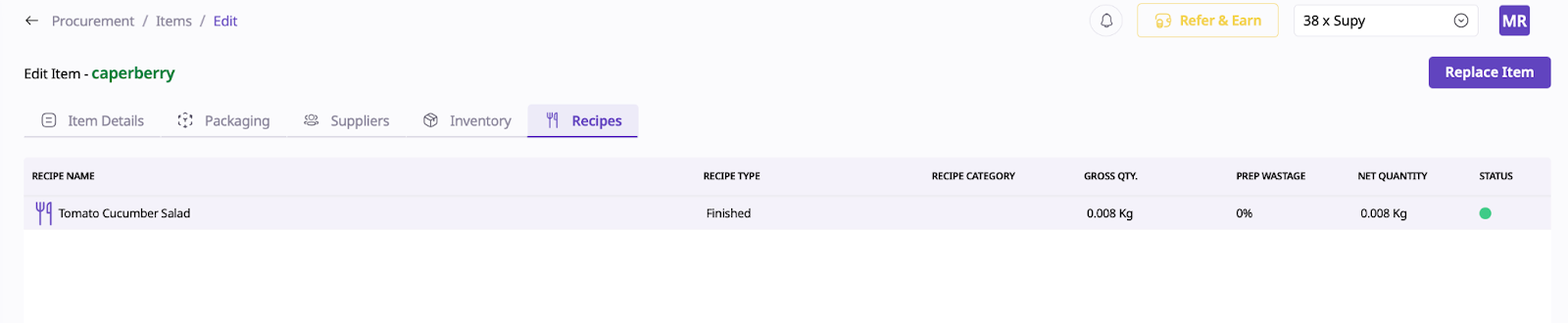
7. Lastly, in the "Recipes" page, select by clicking a recipe to which an item belongs to be able to edit it. This will redirect you to the recipe page in which you can edit the recipe details and ingredients one-by-one.