If you’ve tried a hard refresh (Ctrl/Cmd+R) and the portal is still not functioning as expected, or you're not seeing the latest features, follow these steps to resolve the issue. This guide focuses on Chrome, the most commonly used browser.
Reset using a direct link
To hard-reset proceed to retailer.supy.io/purge
Attempt a Hard Refresh
First, press Ctrl+R (Windows) or Cmd+R (Mac) to perform a basic cache reset.
If this doesn’t resolve the issue, proceed with the steps below.
Clear Cookies and Site Data
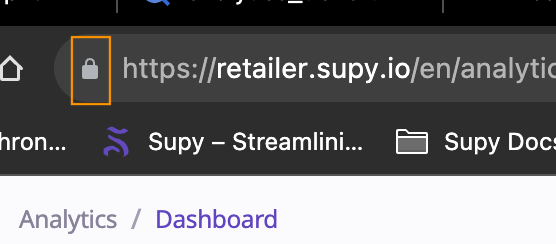
Right-click on the Lock Icon
Locate the lock icon in the address bar of your browser.
Right-click on it to bring up a menu.
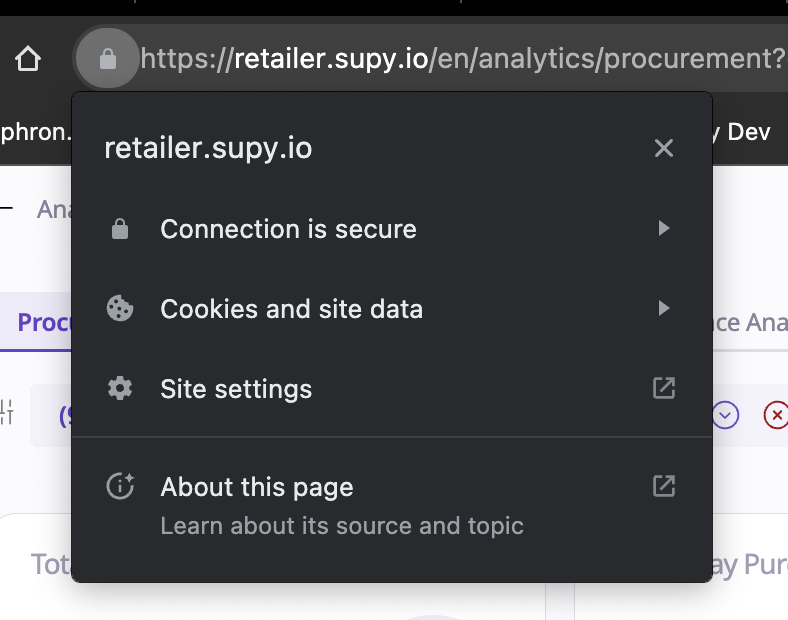
Select ‘Cookies and Site Data’
From the menu, choose Cookies and Site Data.
Then, click on Manage cookies and site data.
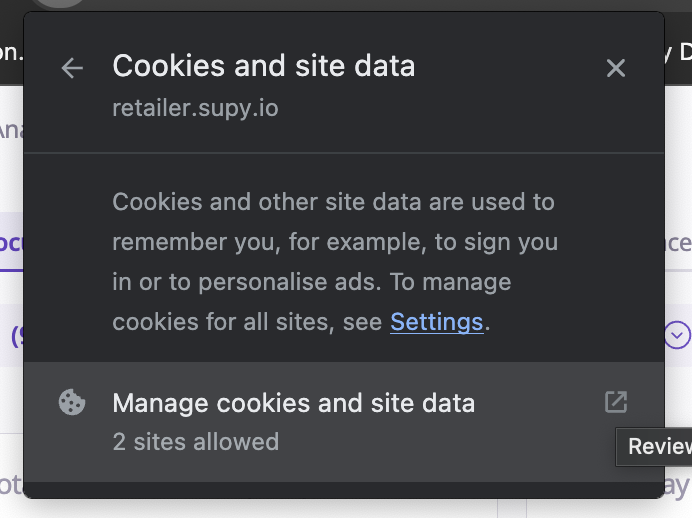
Delete Site Data
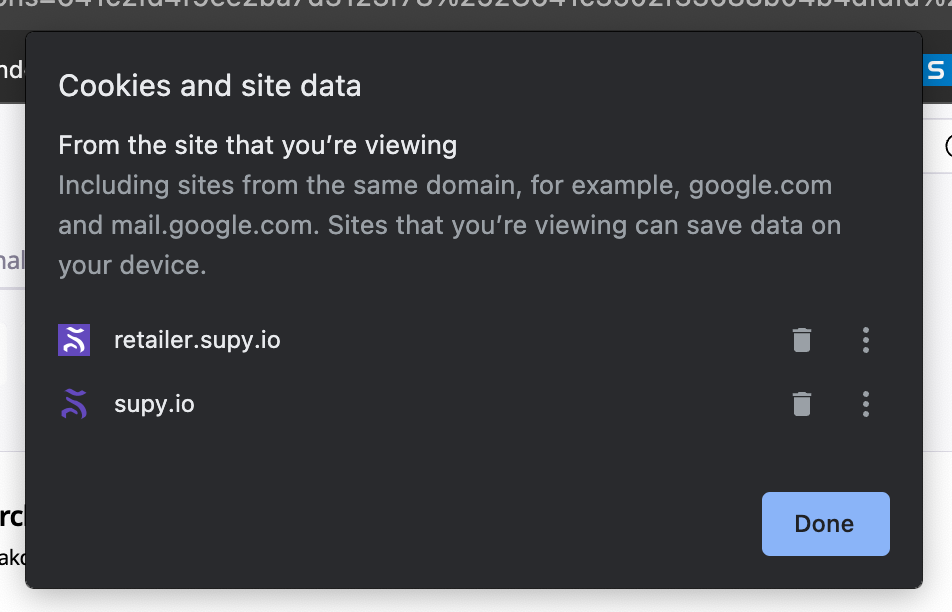
A pop-up will appear showing all stored cookies and data for the site.
Click the delete or 🗑️ icon next to each entry to clear them all and click on Done.
Perform Another Hard Refresh
After clearing the cookies and site data, press Ctrl+R (Windows) or Cmd+R (Mac) to refresh the site again.
Note: This process will log you out of the site, so be prepared to log in again.
By following these steps, you should be able to resolve most issues related to the portal not updating or functioning correctly.
If the issue persists after following the above steps, try using a different browser or another computer or you can reach out to our customer support channels that can be found on your app or portal.
