It is important to note that Supy is not a "two-sided marketplace" software in which you can browse for new suppliers and their items catalog. When it comes to managing suppliers in Supy, it's about managing information about your existing relationships with suppliers so that you can streamline the procurement (ordering and receiving) process with them.
The conventional procurement process is to submit an order for a branch from the Supy portal or mobile app to a supplier which sends an automated email and/or Whatsapp message with the order details. Subsequently, the order can be processed and eventually received by the branch by creating a goods received note (GRN) which serves as a digital copy of the supplier's invoice.
If you are procuring items from other sources such as (super)markets or online ordering platforms (e.g. Amazon), then in that case you should still create a "supplier" for the purpose of creating goods received notes (GRNs) to receive those items in the inventory. A common practice for this scenario is to create a supplier named "Cash Purchases" or "Supermarket" in which all receivings for any cash purchase are registered.
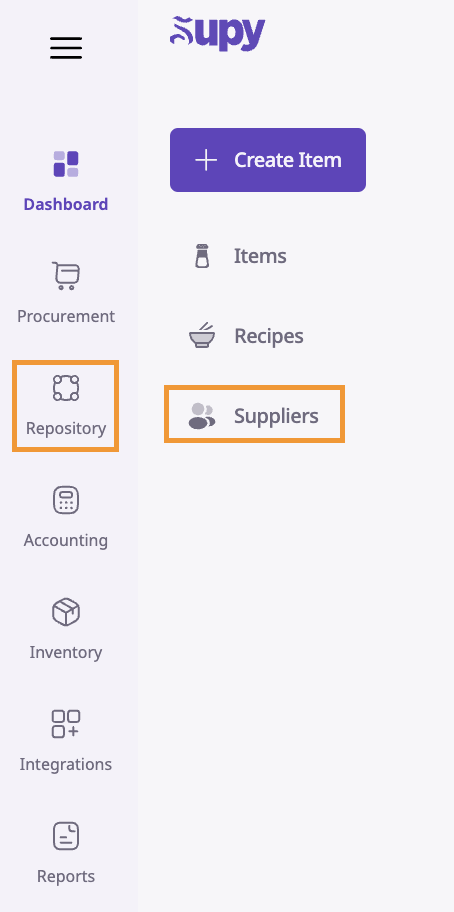
Access your Supy portal and click on the "Repository" tab. From the options that appear, select "Suppliers."
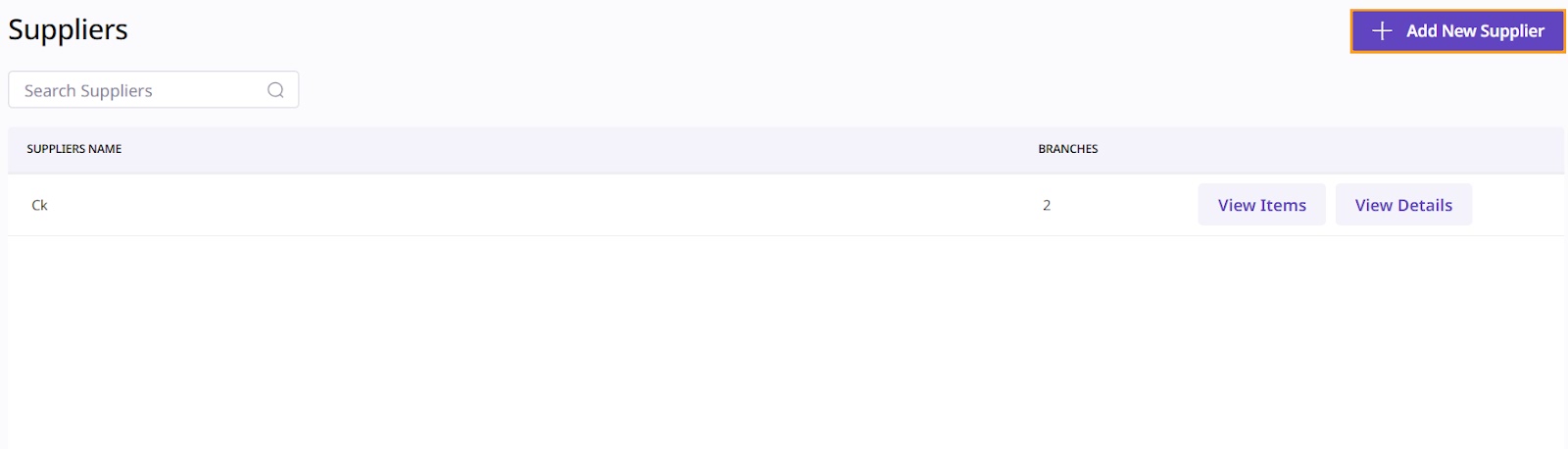
You will be directed to a page listing all your current active suppliers. Click the "Add New Supplier" button located in the top right corner.
From here, there are several sections:
Supplier Details
Contact Details
Preferences
Active Branches
Supplier Items
Supplier Details is the section where you give a general description/summary of your supplier.
In the "Supplier Legal Name" field, you can either search for supplier's from our existing database (to simplify the process) or you can fill out the supplier's legal name yourself.
The "Supplier Display Name" is how this supplier will appear in the portal and mobile app; this is by default equal to the "Supplier Legal Name" but can be changed (best to keep this short).
The "Supplier Country" is automatically filled out in case you chose a supplier legal name from the search; if not you can select the country yourself.

If applicable, fill the Tax Registration Number out in that field.

Next, put in any Remarks/Comments that you may have.

As mentioned in the introduction: when you submit an order, you have the ability to send an automated email and/or Whatsapp message to the supplier. The purpose of adding supplier emails and/or Whatsapp numbers in this contact details section is to enable such order messages. When you enter the inputs, hit "enter" so that it is added to the list; you can add one or multiple.

To further streamline the procurement process, you can set the below optional configurations for each supplier.
If you set the "Minimum Order Limit", you will get a warning if you try to submit an order for this supplier for which the order value doesn't reach this minimum order value. You will still be able to submit the order although the supplier may reject it or impose an additional delivery charge.

When you select the "default payment" method, you can choose between "Cash" or "Credit". If you choose "Cash", this means that any goods received note (GRN) created for this supplier will by default be flagged as "paid", meaning it will assume the payment is happening upon receiving or in advance. if you choose "Credit", this means that any GRN for this supplier will by default not be flagged as "paid" because the invoice be payable at a later date.

When you set the "Cut-off time", you will get a warning if you attempt to submit an order to this supplier after this time, indicating that you may not get this order delivered the next day. You will still be able to submit the order.
The "Credit Period" refers to the number of days that the supplier gives you to pay the invoice (GRN) after the invoicing date. When filling this out, this will calculate the default "Payment Due Date" for any GRN from this supplier based on the invoicing date.
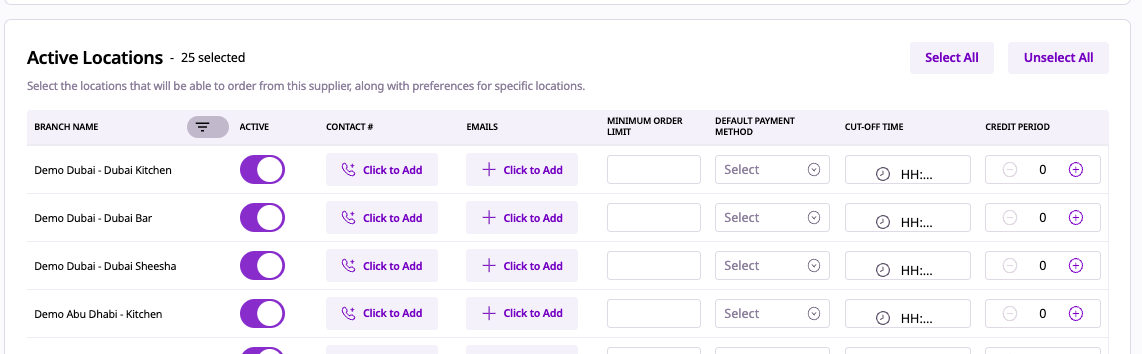
In this section, you can select which locations are "active" for this supplier, meaning that these locations will be able to submit orders and create goods received notes (GRNs) from these suppliers.
Any of the contact & preferences details entered previously will also appear here, where they can be added, modified or removed for each individual locations.
When finished, click ‘Save Details’ to save your new supplier which will now appear on the suppliers listing page:
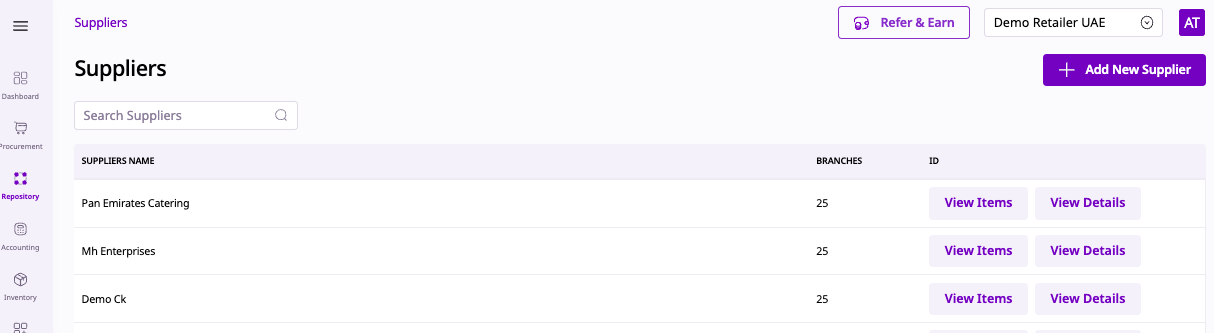
On this listing page, for each supplier, you can click on:
View Details: allows you to modify the above-mentioned details
View Items: brings you to a page to view the package items you purchase from this supplier (see next section).
In this table, each line represents a package item which is purchased from this supplier, along with all of items details. To understand this section better, check out the article on "How to create items".
Item Code: the package item code
Item Name: the package item name
Item Category: the level-1 item category (parent category, e.g. Vegetables)
Item Sub-category: the level-2 item category (child category part of the parent category, e.g. Tomatoes)
Supplier Item Name: the name of the item as listed by the supplier (appears on the order sent to the supplier)
Supplier Item Code: the item code by the supplier (appears on the order sent to the supplier)
Current Price ({currency}): the current price provided by the supplier for this item, subject to the pricing unit of measurement (UOM)
Pricing UOM: the unit of measurement (UOM) by which the price of the package is defined. It is common for meat products to be sold in packages of for example "Angus Beef 3Kg" but then the price provided by the supplier is per "Kg".
Pricing per package ({currency}): the final price for the package item, based on the pricing UOM. If for the above example package item "Angus Beef 3Kg" the pricing UOM is "Kg" and the supplier's price is $10, then the pricing per package is ($10 per kg)*(3 Kg in the package) = $30
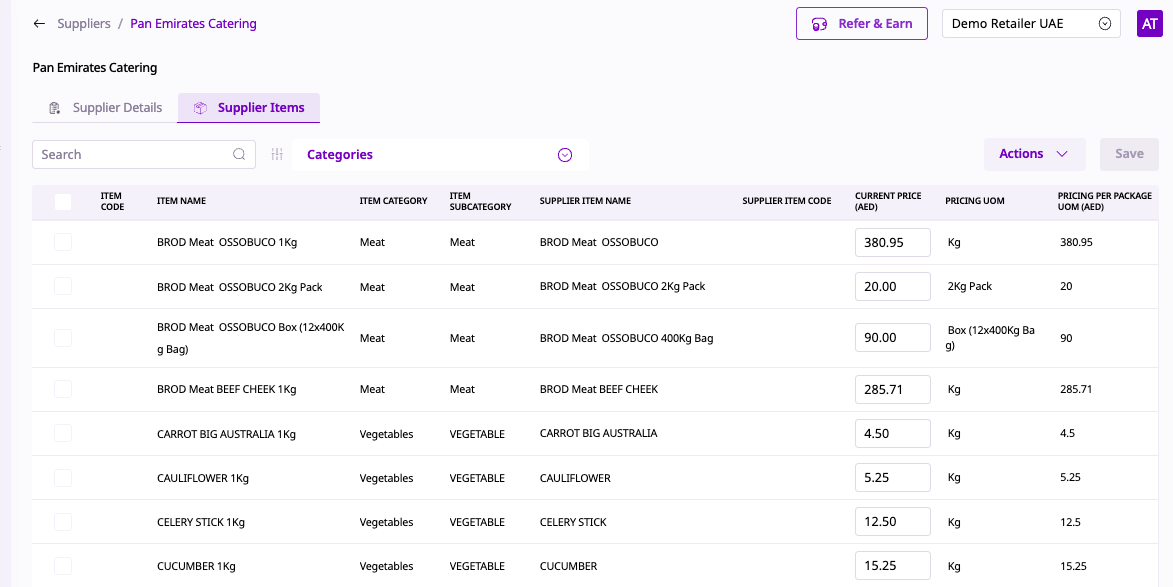
In this page, the user can do the following actions:
Search & filter for any package item
Update the price of any package item for this supplier (click on "save" once finished)
Export one, multiple or all package items for this supplier
Delete package items for this supplier (this will not delete the actual package item, it will simply un-assign it from this supplier so that it can no longer be ordered & received from this supplier)
