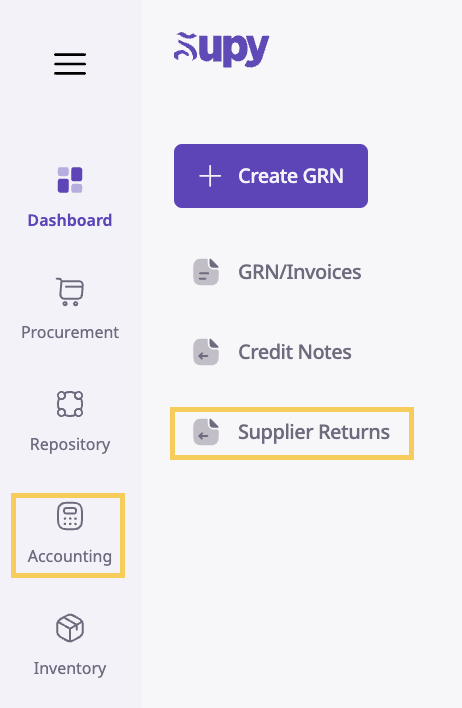
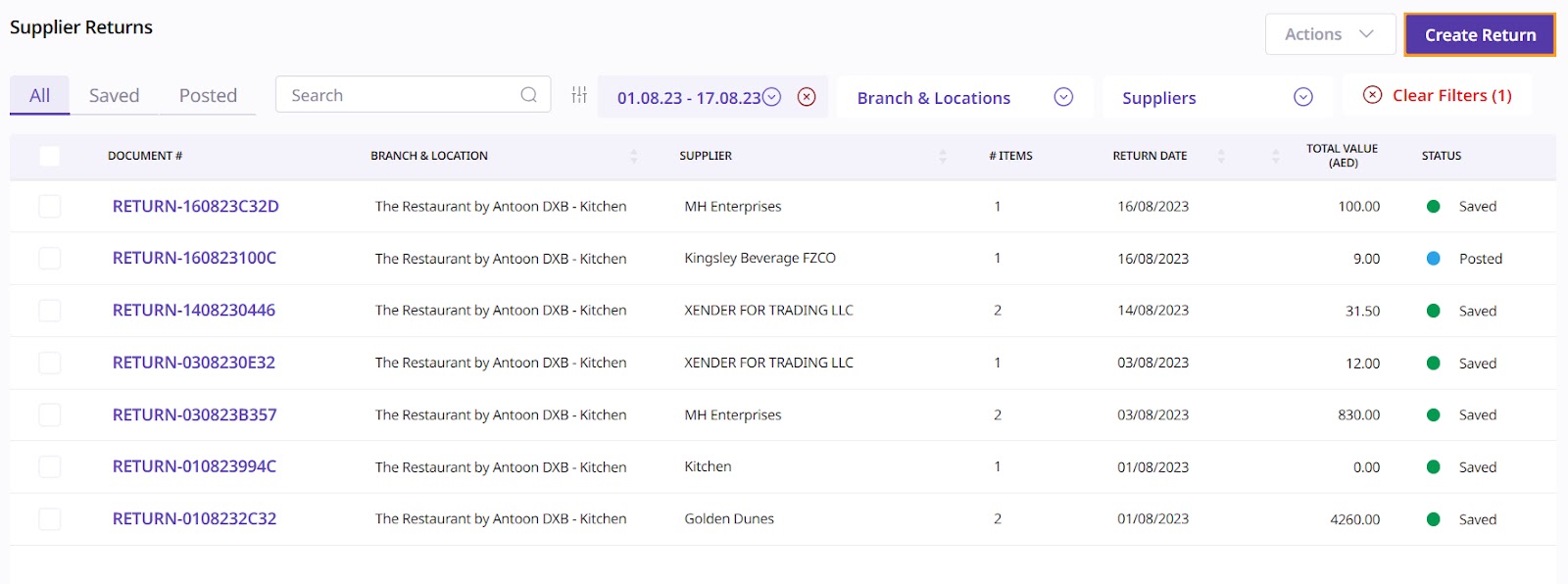
Go to Accounting, then select 'Supplier Returns'. This will bring you to a list of all supplier returns.
Retailer Portal
Mobile App
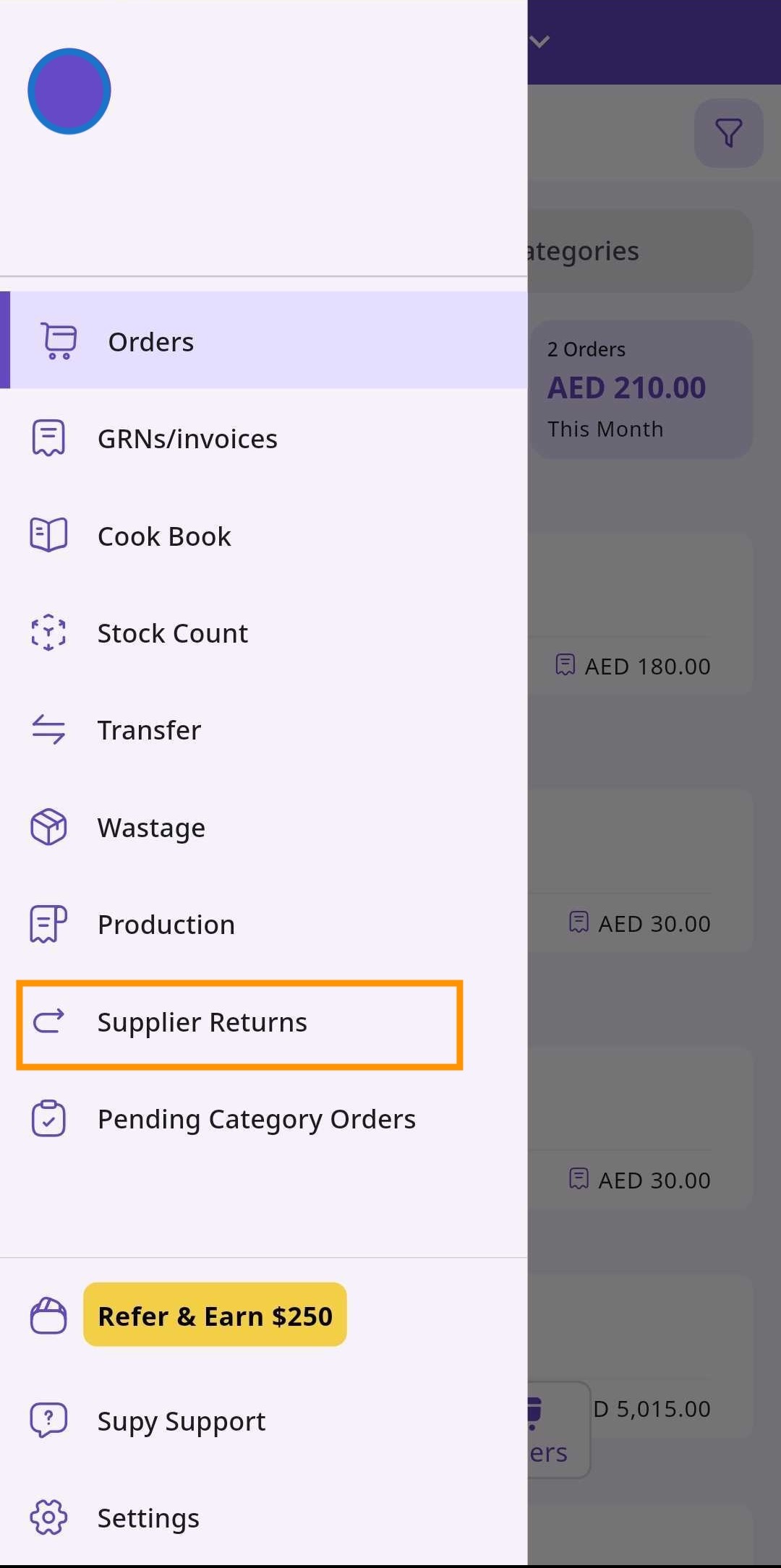
In the top right hand corner of the screen, there is a button that says 'Create Return'. Click this button to start the return process.
Retailer Portal
Mobile App
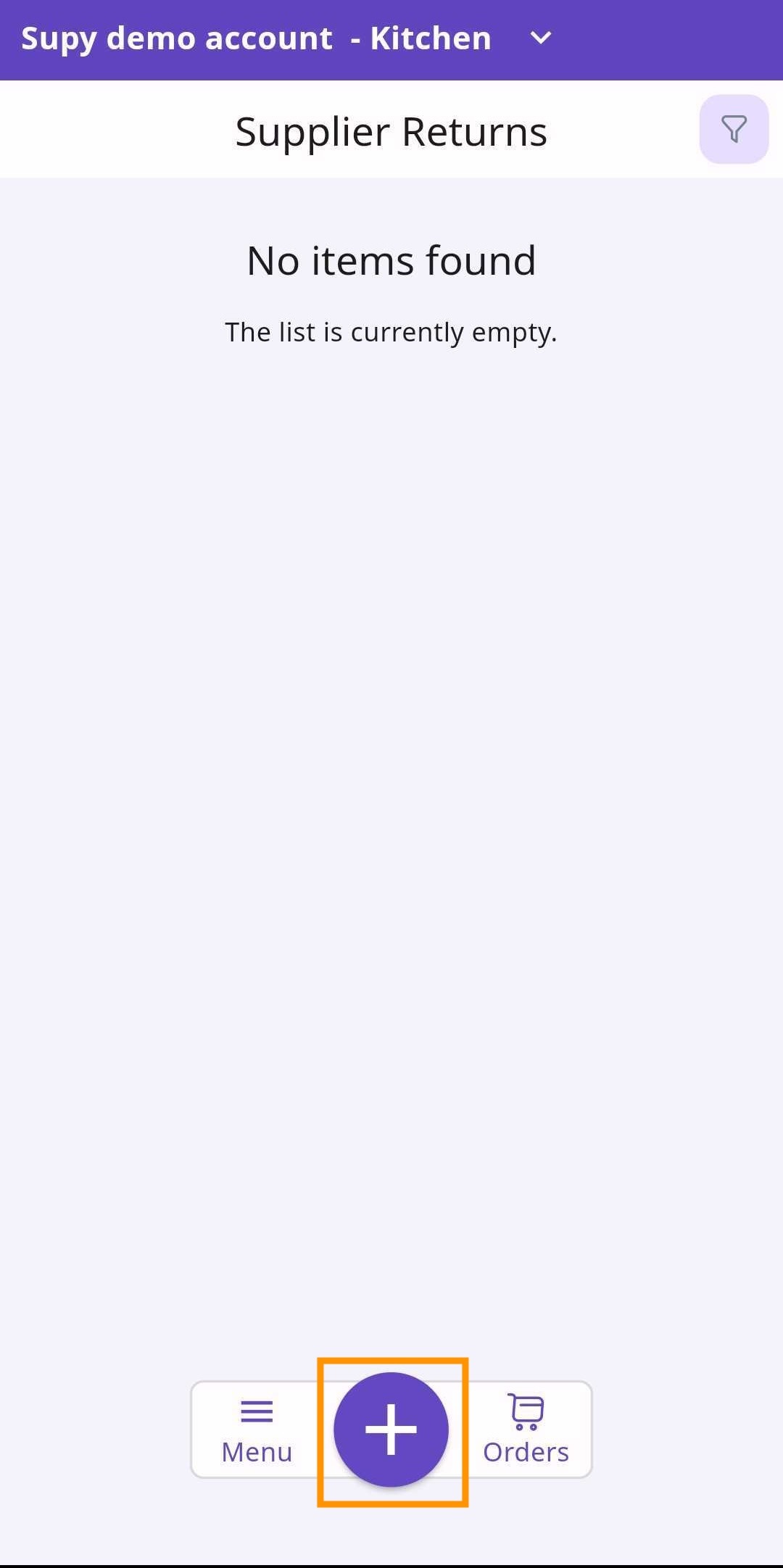
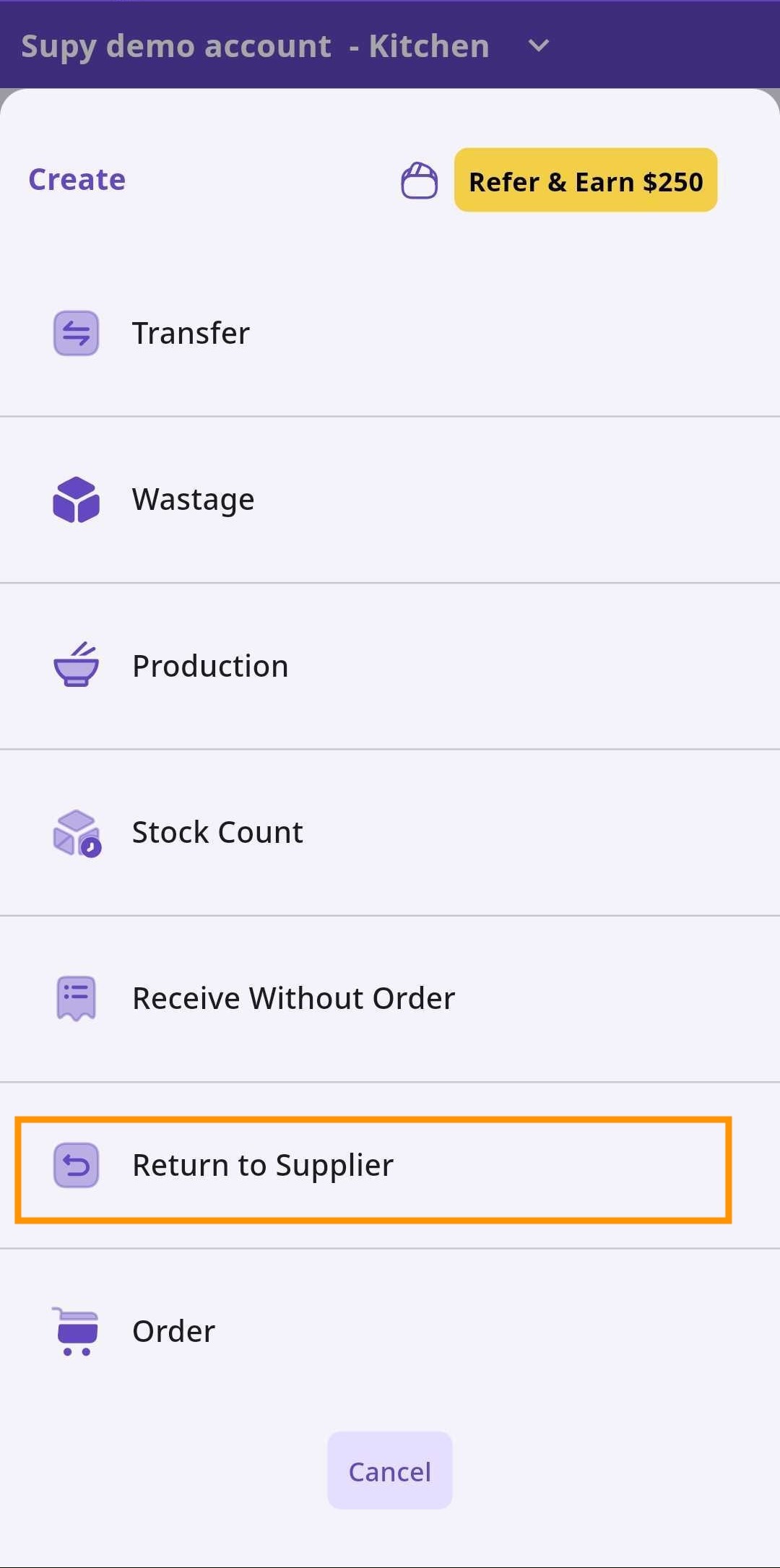
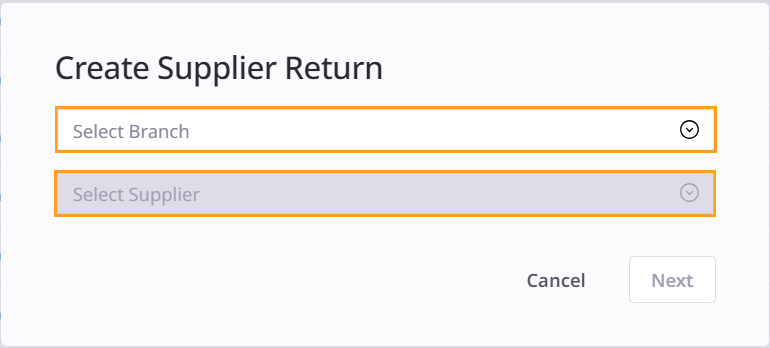
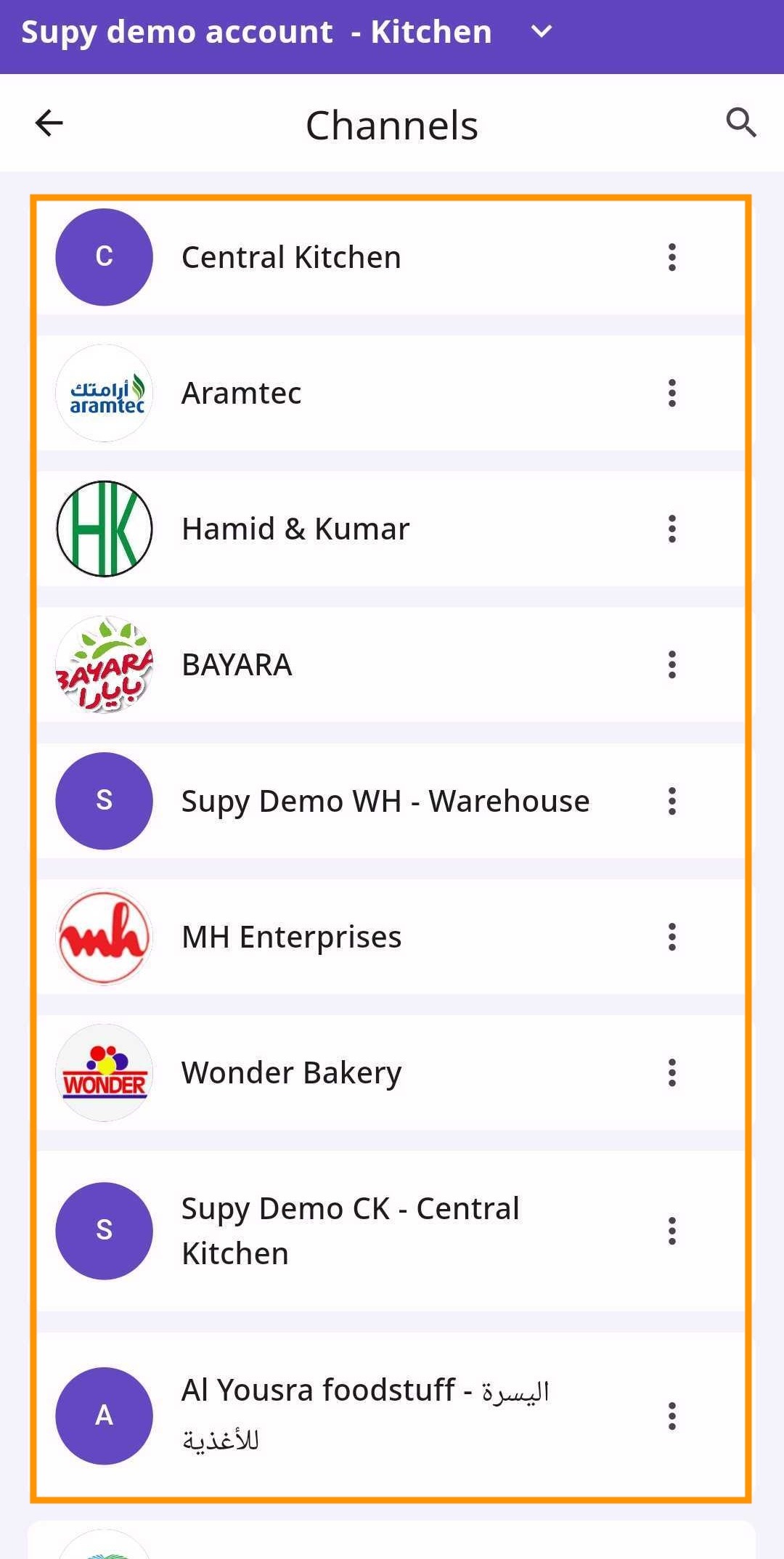
From here, select a branch and a supplier for which you are performing a return.
Retailer Portal
Mobile App
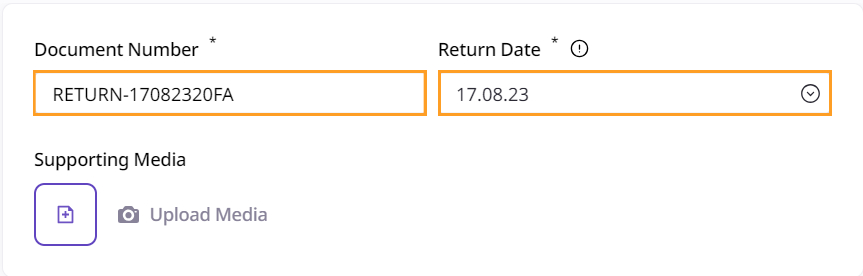
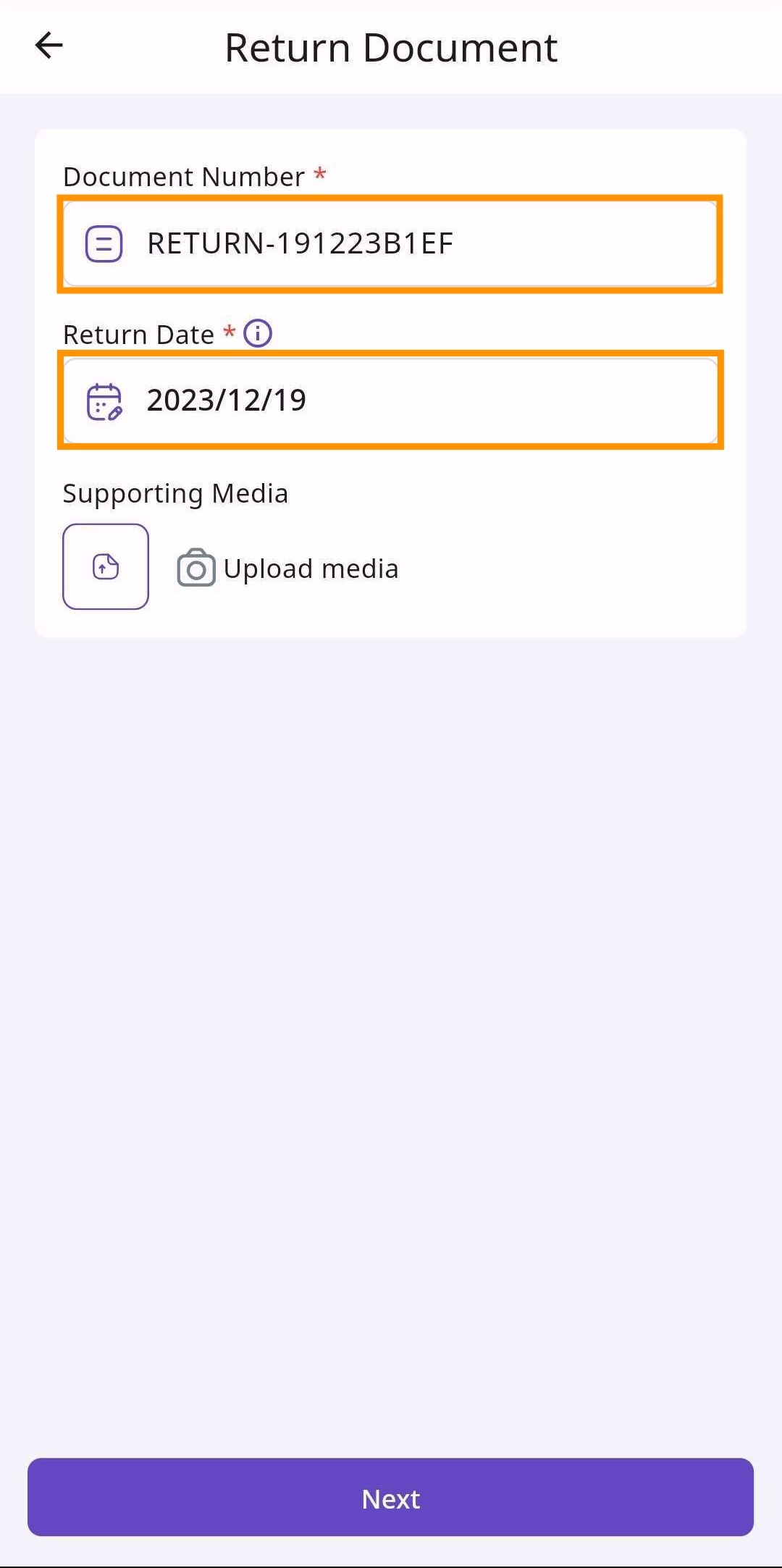
In the first section, input a document number and return date. The document number is auto-generated, but can be altered. The return date is the date that the goods were returned.
Retailer Portal
Mobile App
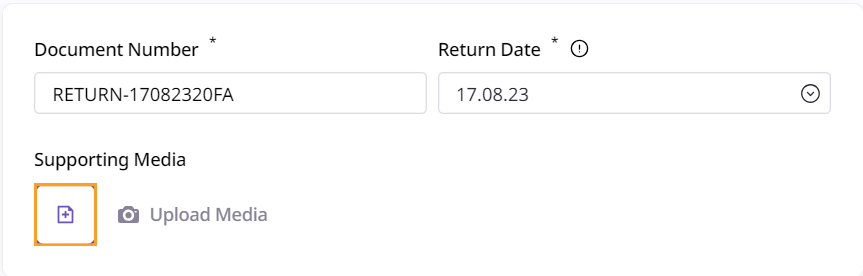
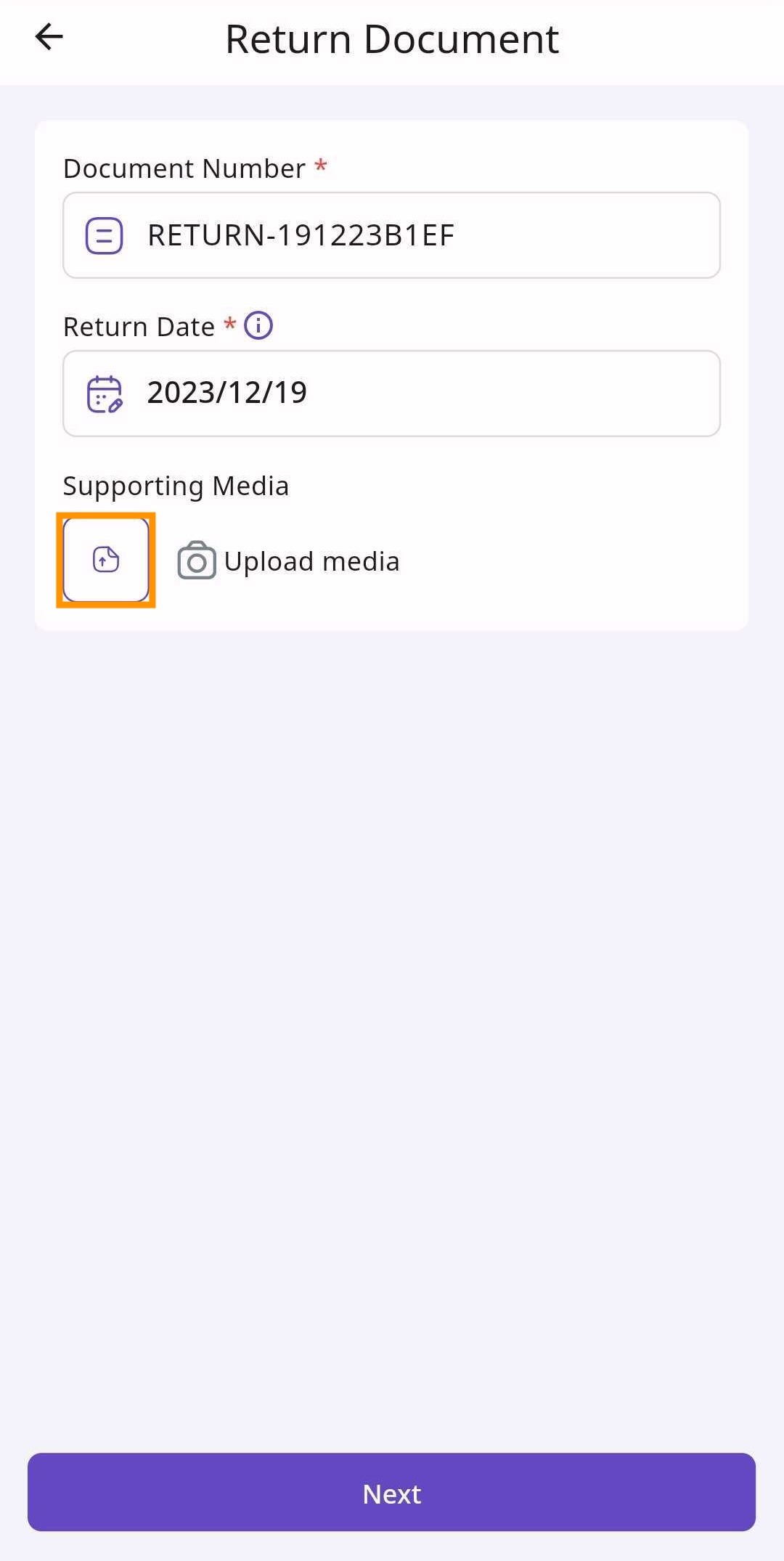
Attach any documents/media relevant to the return in ‘Supporting Media'.
Retailer Portal
Mobile App
At 'Return Items', click the plus icon to add each item.
Retailer Portal

Mobile App
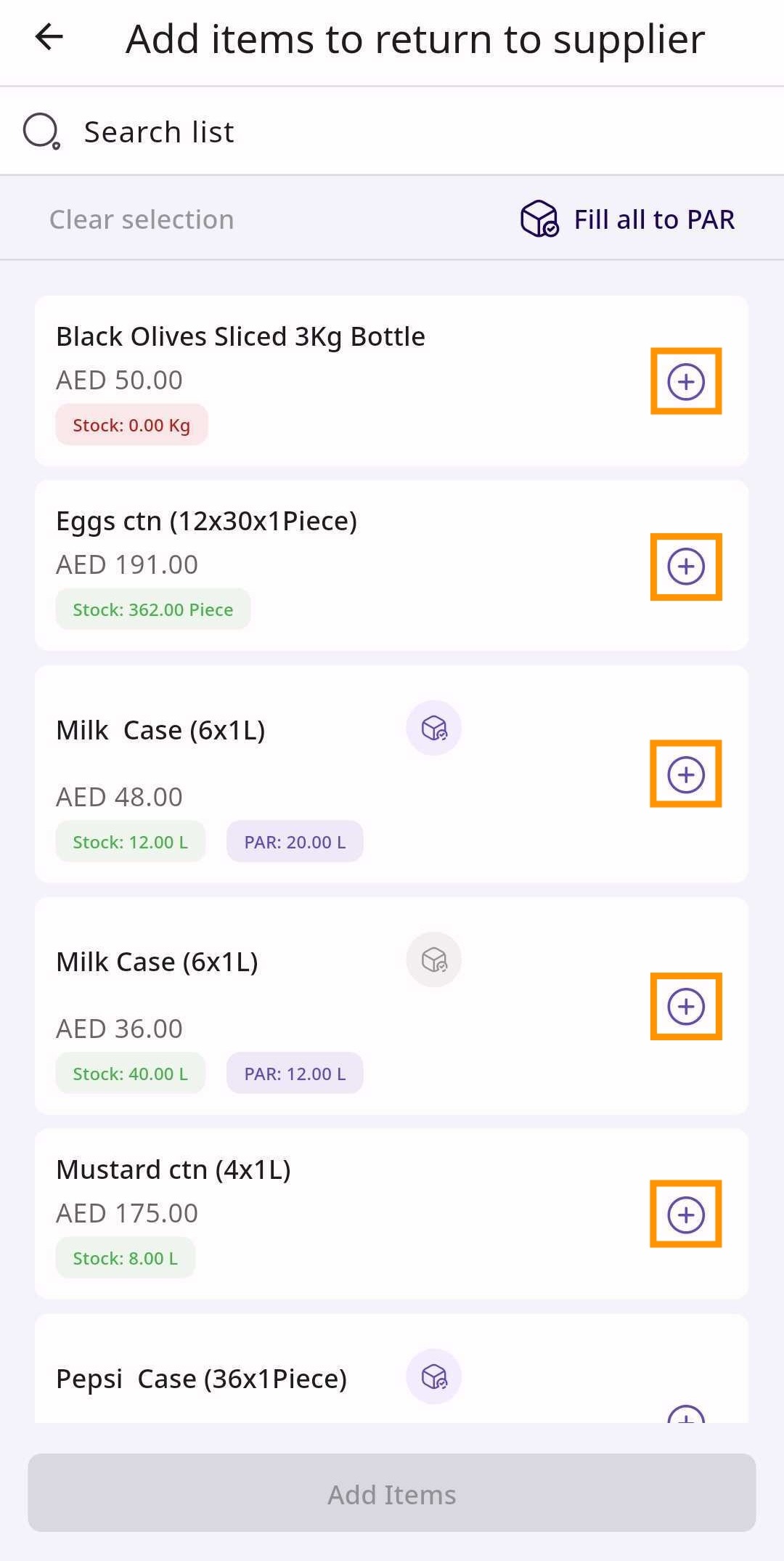
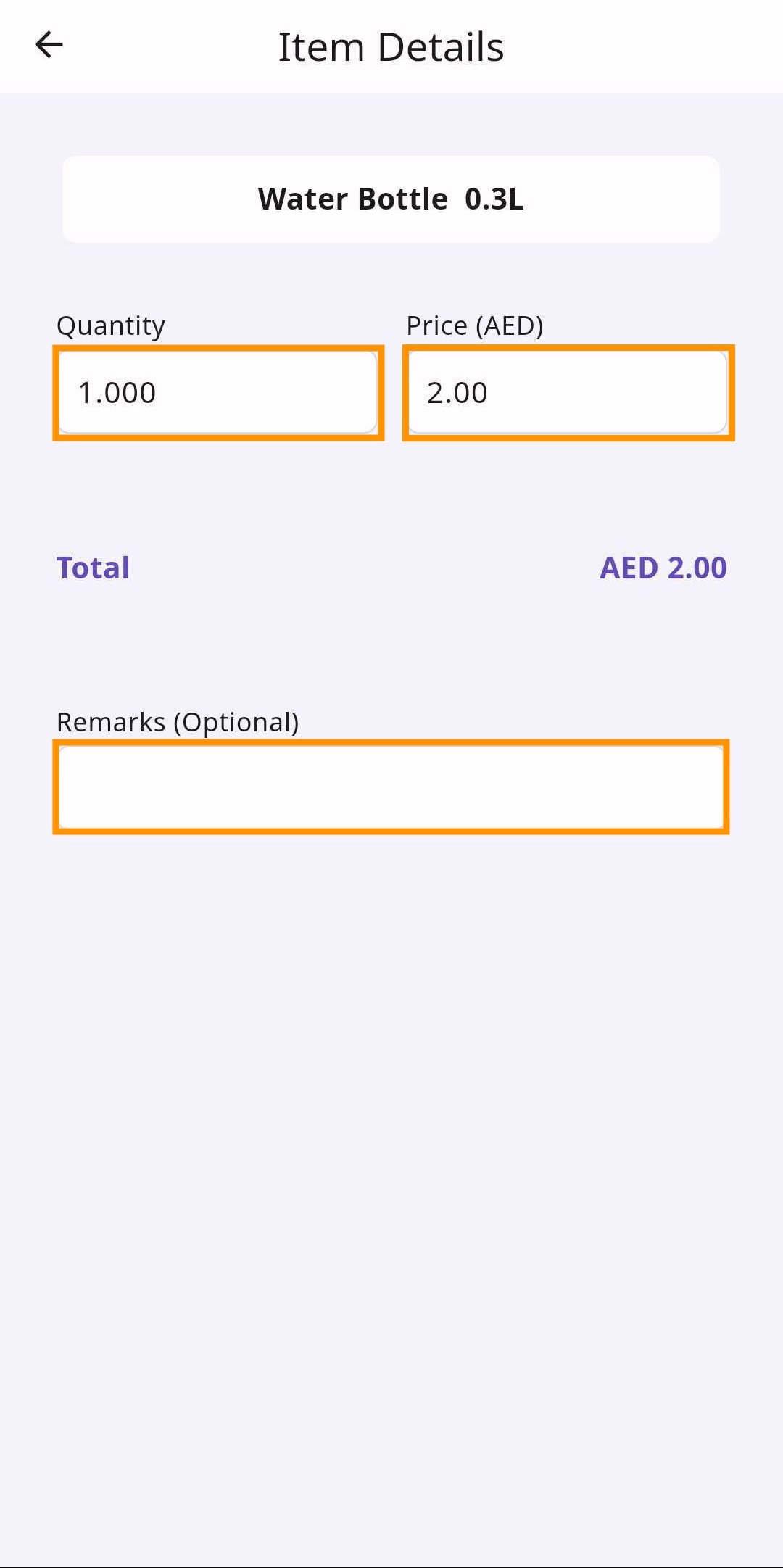
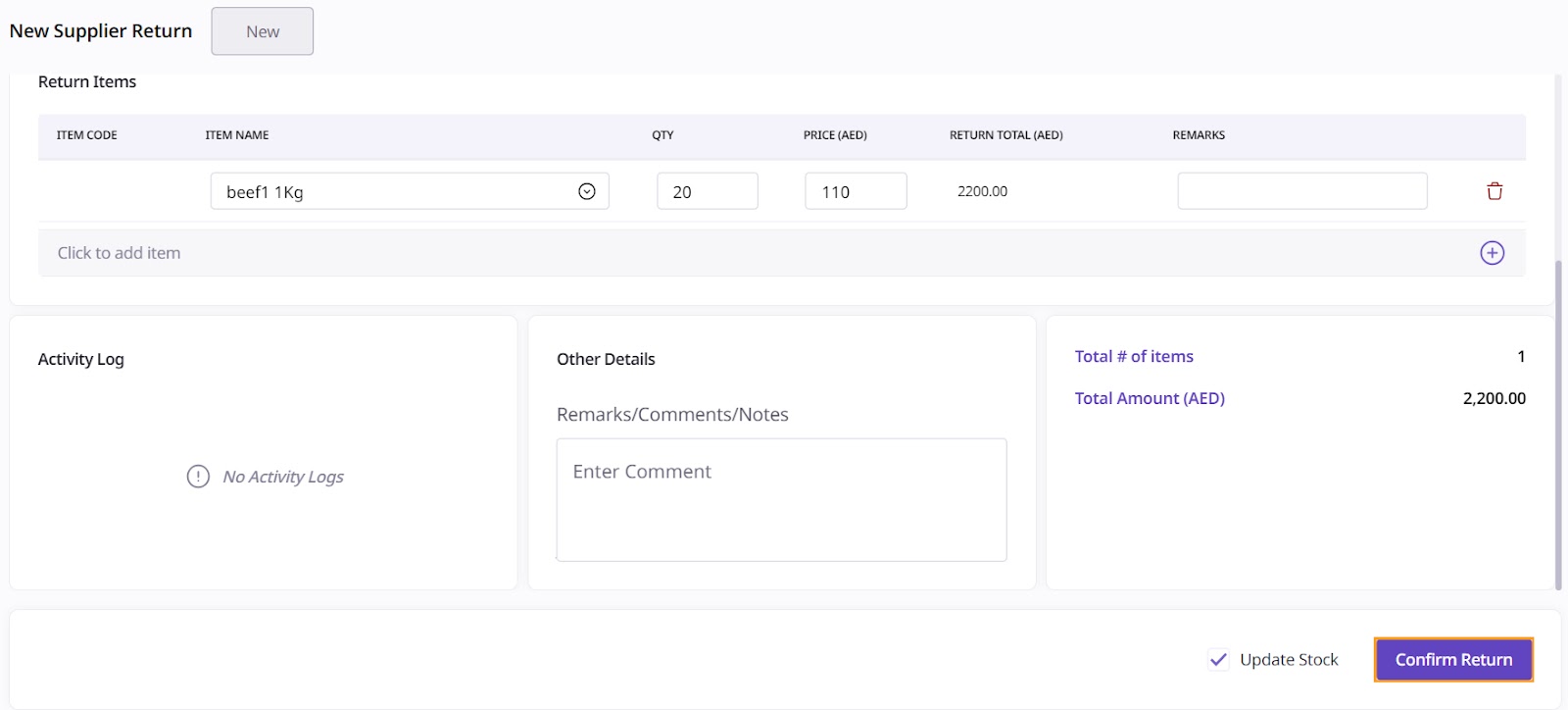
Once clicking the button, input your item name, the quantity of items returned, and any remarks/comments you have. Though the price is automatically filled in based on the previous purchase price, you are always able to edit it. A Return Total is automatically calculated based on the price/quantity.
Put in as many items as you returned to the supplier into this space.
Retailer Portal

Mobile App
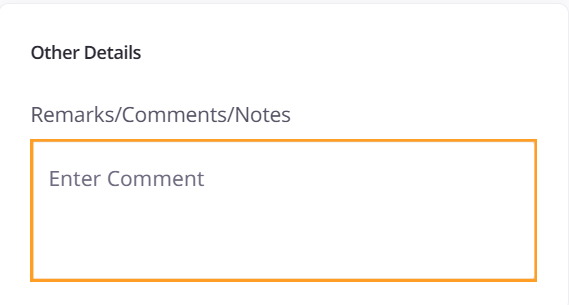
At 'Other Details' put any Remarks, Comments, or Notes that you have for the return.
Retailer Portal
Mobile App
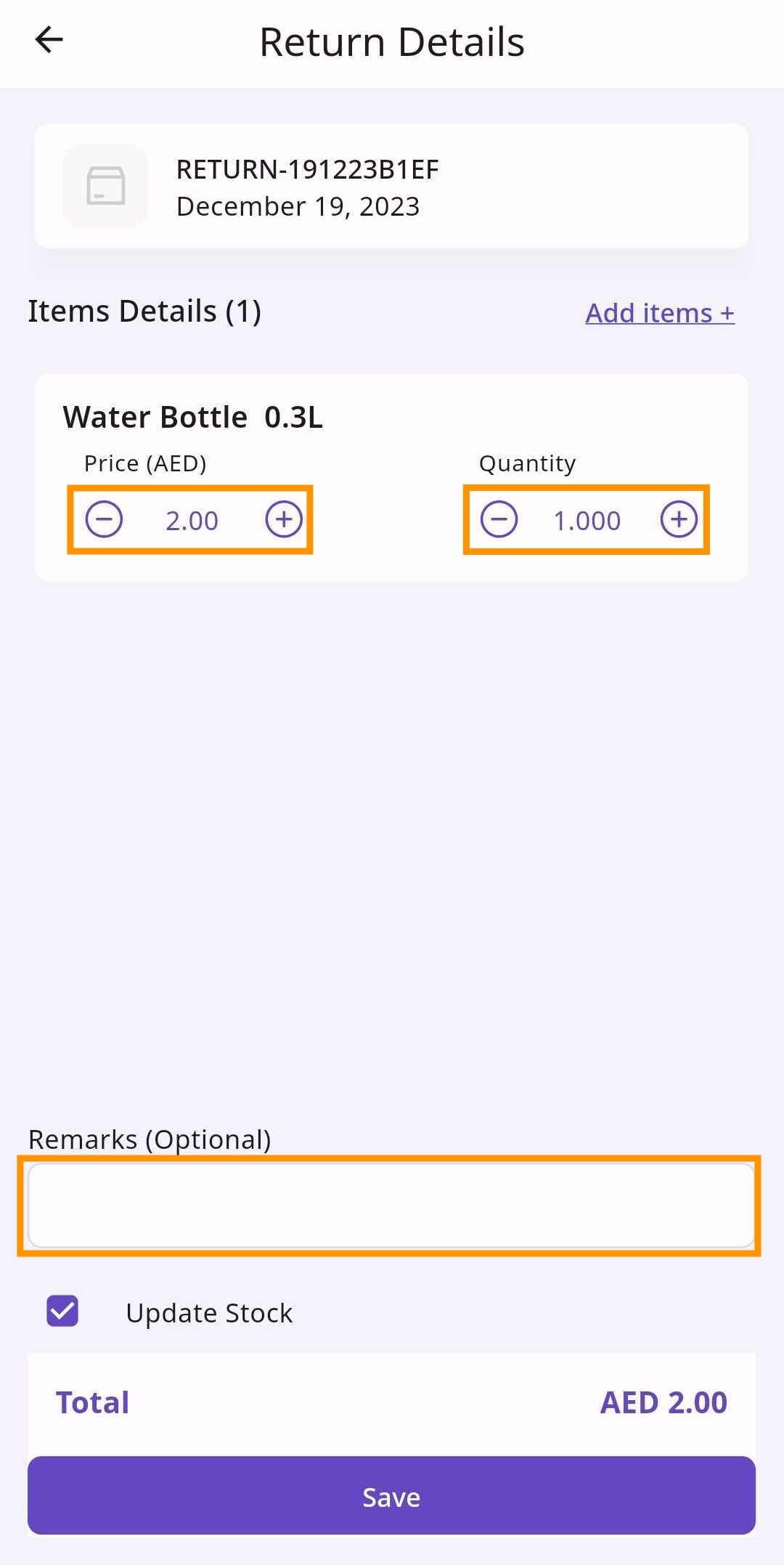
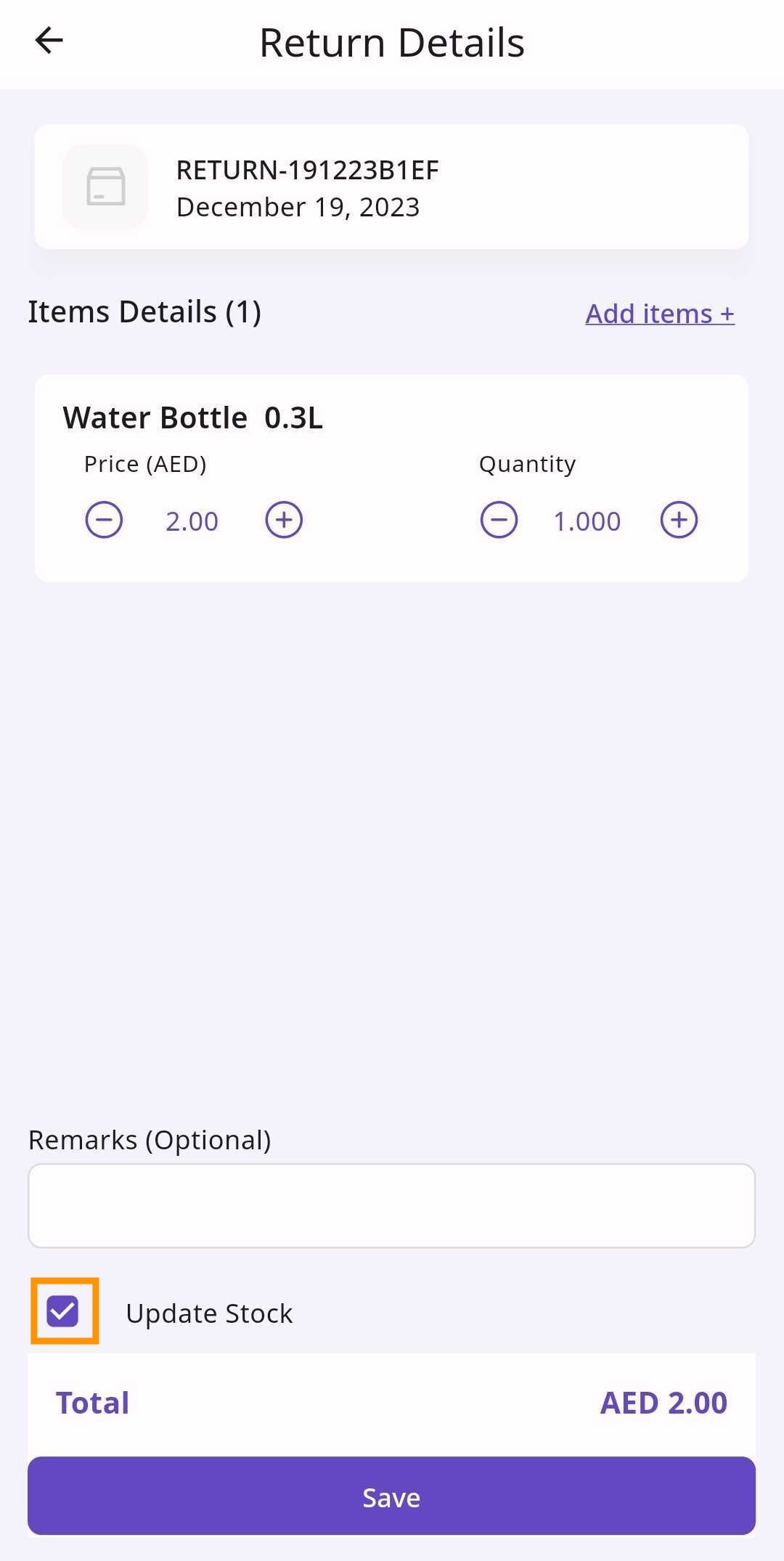
Selecting 'Update Stock' will update the stock based on how many items you return to the supplier.
Retailer Portal
Click 'Confirm Return' to finalize/submit the return.
Mobile App
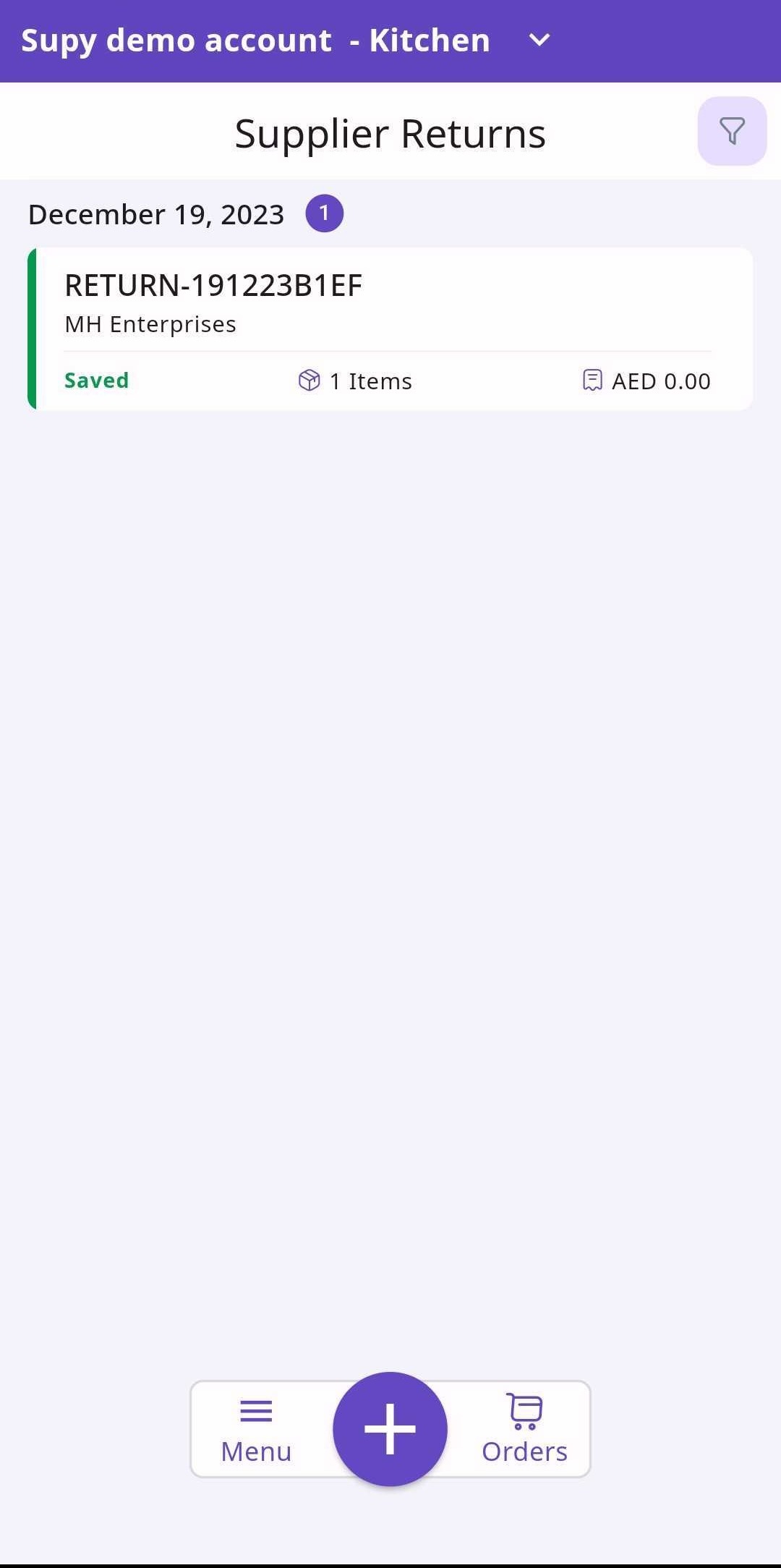
Your return will now be visible in the list of all returns.
