A credit note is a financial reconciliation note which can be created when handling goods received notes (GRNs), as a result of an error on the invoice provided by the supplier upon delivery. It occurs when a supplier's invoice is charging more than it should, because either the item price is higher than expected or the invoice quantity is higher than the received quantity. As a compensation for accepting an invoice with a higher amount than agreed upon, the restaurant receives a credit note. Once such a credit note is created during the GRN creation process, its lifecycle can be managed via the Supy portal in order to achieve the required financial compensation.
To understand the goods received notes (GRN) / receiving process in depth, please read its related article.
Consider a delivery by a supplier taking place and a goods received note is created with two items with the following scenarios:
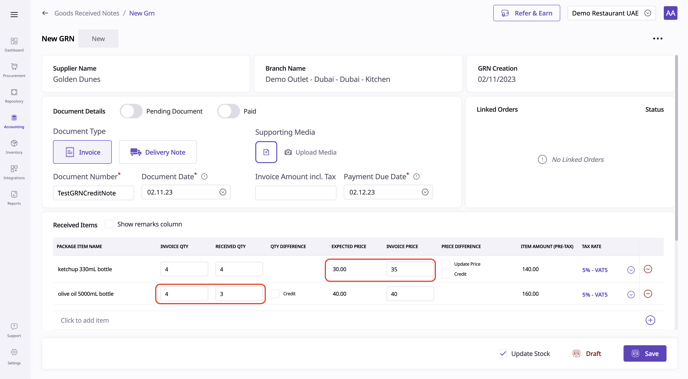
Ketchup 330ml bottle
The fixed price with the supplier is 30 AED per bottle (expected price), but the invoice which the supplier brought accidentally mentions 35 AED per bottle.
Olive oil 500ml bottle
The invoice mentions 4 bottles but the supplier only brought 3 (or he brought 4 but 1 broke on the way).
Retailer Portal
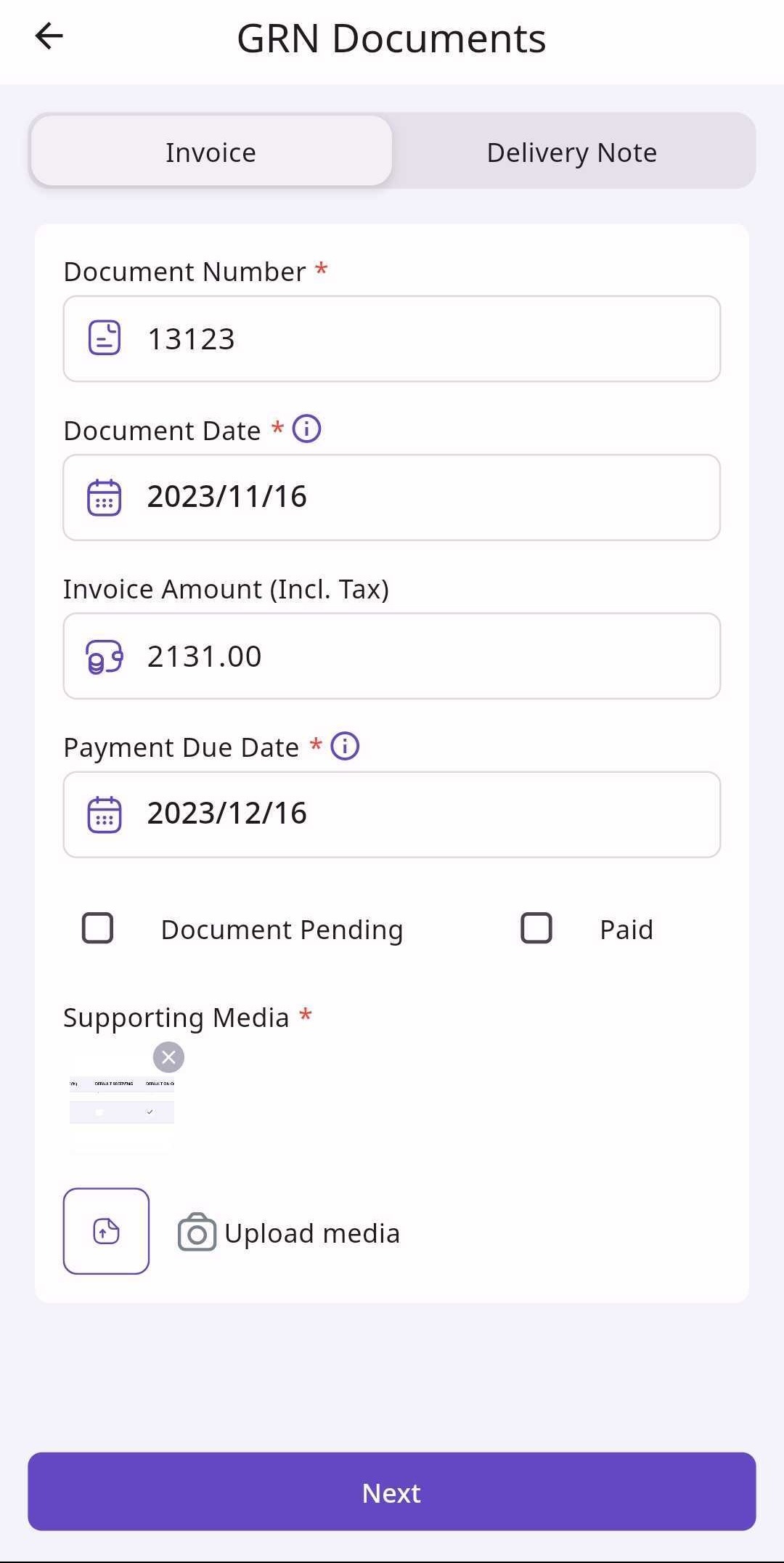
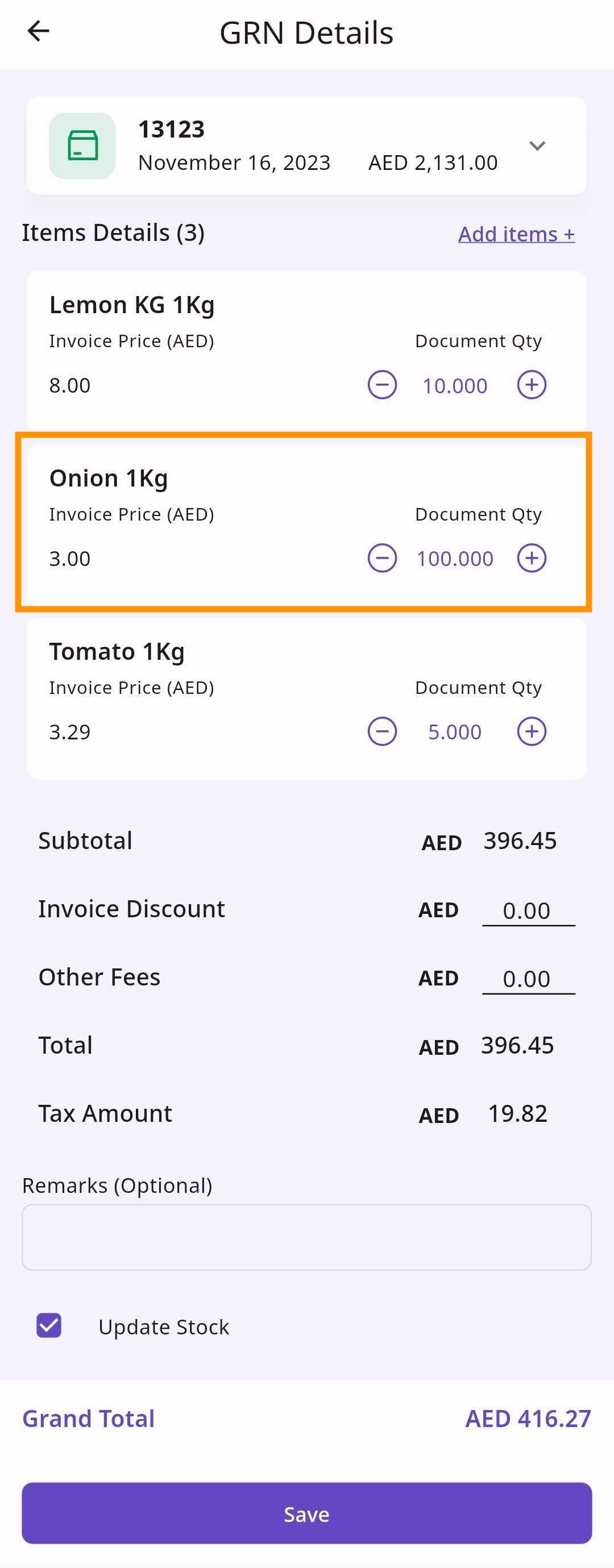
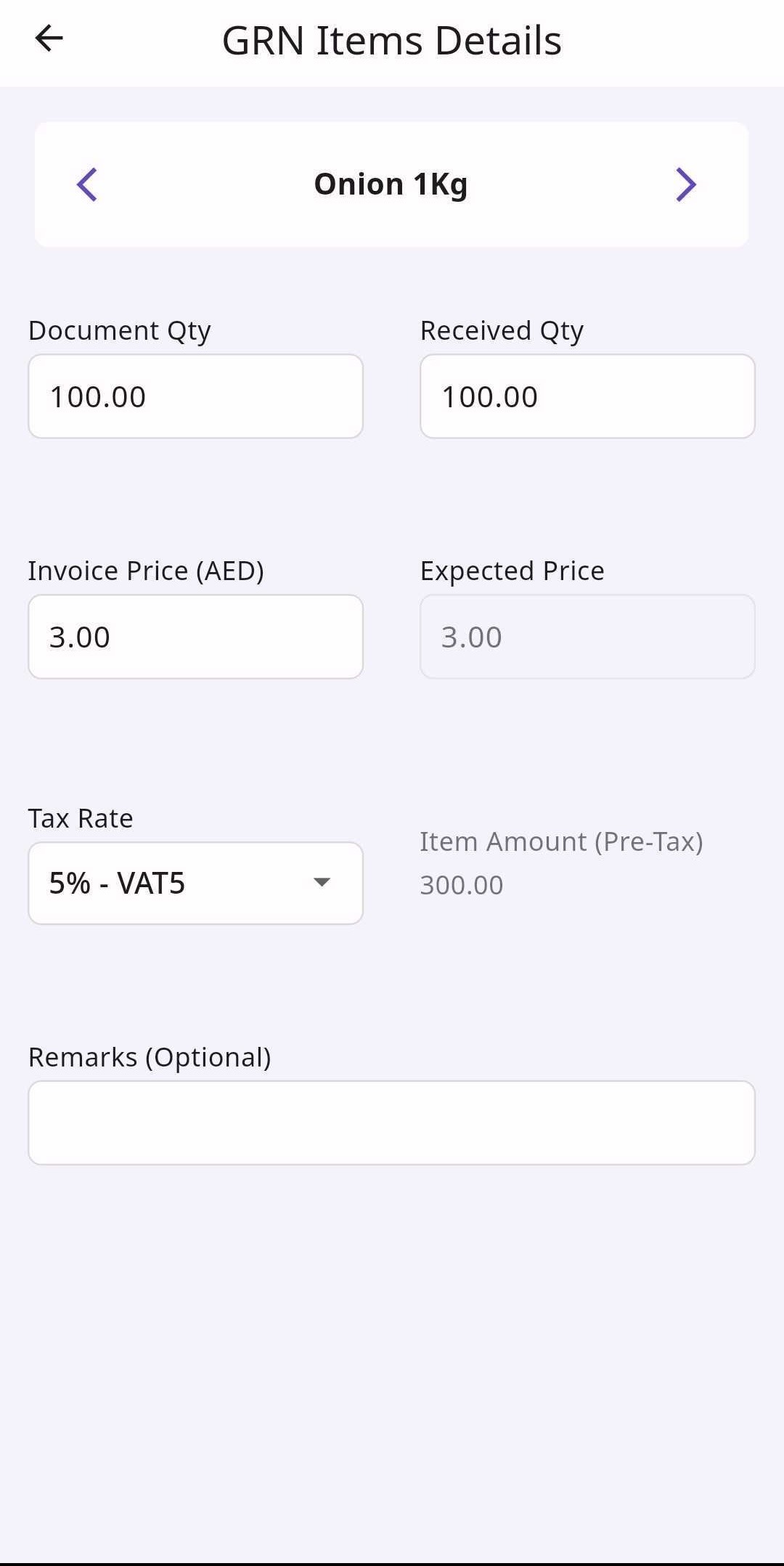
Mobile App
In such scenario, the supplier's invoice clearly is charging significantly more than what both parties agree upon; during delivery, this situation can be resolved as follows:
The supplier takes all the goods back to his delivery hub and comes back with all the goods and a corrected invoice (bad scenario for both).
The supplier delivers the goods and promises to send a corrected invoice at a later point in time.
In this case, when creating the GRN, it is important to enable the "Pending Document" toggle to flag that a (new) document still needs to be provided by the supplier. When that happened, the corrected document should be uploaded on the GRN and the values can be edited (e.g. change invoice price to 30 AED instead of 35 AED, in above example for olive oil).
The supplier delivers the goods and manually overwrites the invoice, e.g. writing "30" on the invoice price for the olive oil.
This practice is highly discouraged as it opens the door for fraud and is usually not accepted by accounting departments.
The supplier delivers the goods and provides a credit note as a compensation to the restaurant for accepting a wrong invoice.
Note that not every supplier has the ability or willingness to provide credit notes; this is usually subject to their internal policies.
Expanding upon scenario #4, the supplier will usually provide a signed credit note in a paper format which may look something like the below:
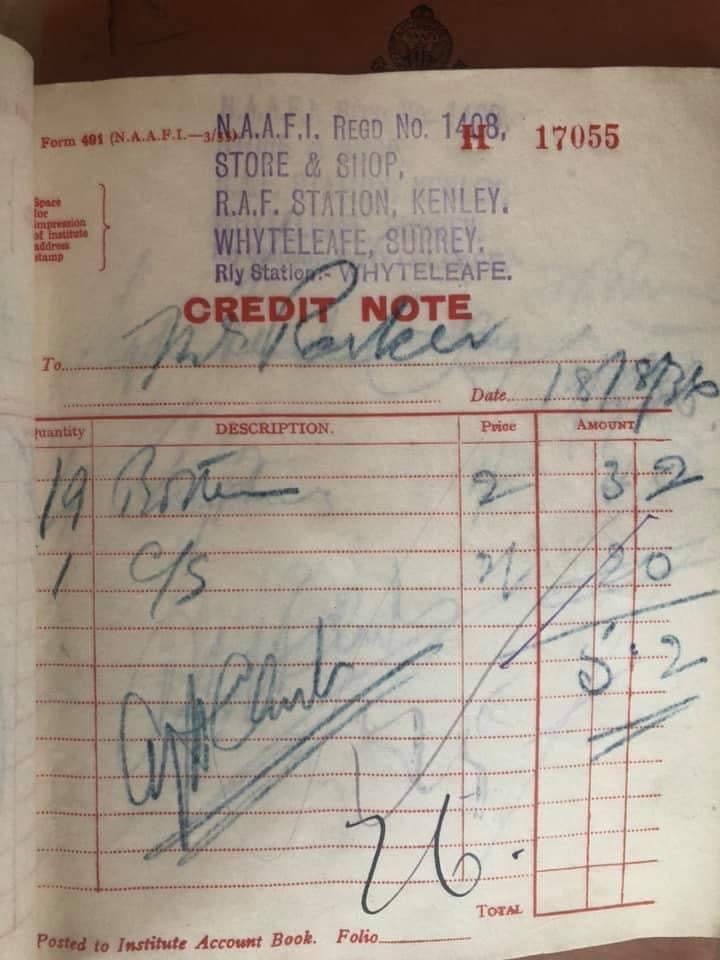
Such a credit note is always against the specific items for which there was a wrong quantity or price; this can be reflected on the GRN as follows:
if the invoice price > expected price: the user can click on the "credit" checkbox in the "price difference" column (see below example for Ketchup)
if the invoice quantity > received quantity: the user can click on the "credit" checkbox in the "qty difference" column (see below example for Olive oil)
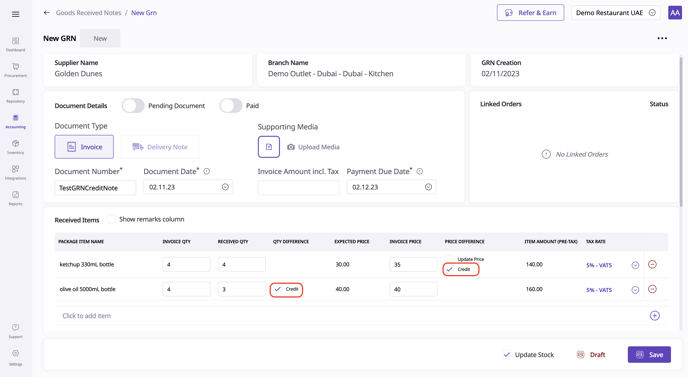
For each item for which you select the "credit" checkbox, a new line is created in the "credit notes" table at the bottom of the GRN, providing an overview of all the created credit notes for this GRN:
Item name: the item for which the credit was created
Quantity: the item quantity for which the credit applies:
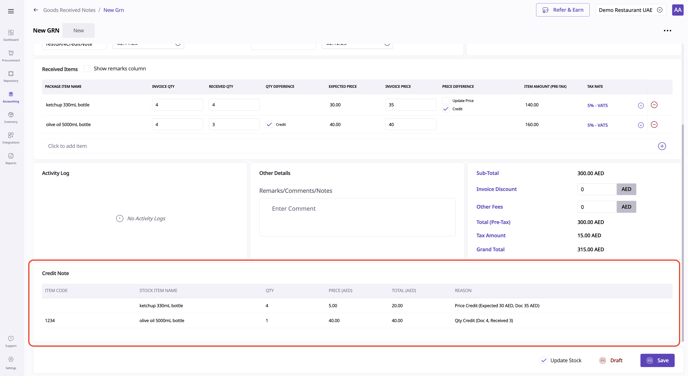
In the last column "reason" you can read more details about the credit note type/reason:
Price Credit: meaning the credit note was created as a result of the invoice pricing being higher than the expected price.
Quantity Credit: meaning the credit note was created as a result of the invoice quantity being higher than the received quantity.
The other columns in this credit notes table provide the following information:
Item name: the item for which the credit was created
Quantity: the item quantity applicable for the credit note
If Price Credit: Quantity = invoice quantity
If Quantity Credit: Quantity = invoice quantity - received quantity
Price: the item price applicable for the credit note
If Price Credit: Price = invoice price - expected price
If Quantity Credit: Price = invoice price
Total: Quantity multiplied by Price
You can have a price credit and a quantity credit on the same item. In this exceptional case, the Price Credit note will have a Quantity = received quantity instead of invoice quantity.
This will create two individual credit notes for the same item from the same GRN.
Upon saving the GRN, the credit notes listed in the above table will be created and will be available in the credit notes listing page. In the above example, we have created 2 individual credit notes.
Once a credit note has been created, these are visible when visiting the credit notes listing page via "Accounting" > "Credit Notes".
On the credit notes listing page, each line will represent one individual credit note.
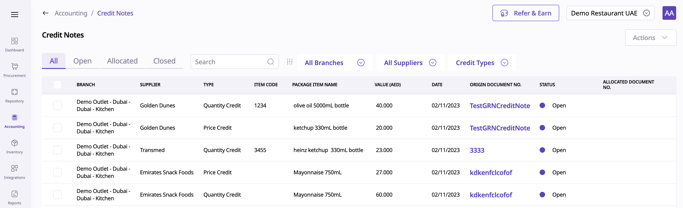
The credit notes are represented with the following columns:
Branch: the branch and location for which the credit note applies (based on the GRN from which it was created).
Supplier: the supplier who provided the credit note
Type: Price Credit or Quantity Credit (see above definitions)
Item Code: the base item code of the item on which the credit note applies
Package item name: the package item name on which the credit note applies
Value: the total value of the credit note
Date: the document date of the GRN from which the credit note was created
Origin Document No.: the document number of the GRN from which the credit note was created (clicking on this will redirect you to the GRN detail page)
Status: the current status of this credit note (see below section to understand more)
"Open" status: a new credit note which is currently not allocated to any GRN
"Allocated" status: a credit note which is currently allocated to a GRN but that GRN is not yet posted
"Closed" status: a credit note which is currently allocated to a posted GRN.
"Archived" status: a credit not which is not allocated to any GRN and is flagged as "archived"
Allocated Document No.: the document number of the GRN to which the credit note is currently allocated (see below to understand more).
A credit note can be "used" by allocating it to another GRN between the same supplier and the same location.
A credit note can be "used" by allocating it to another GRN between the same location and supplier; this can happen in two ways:
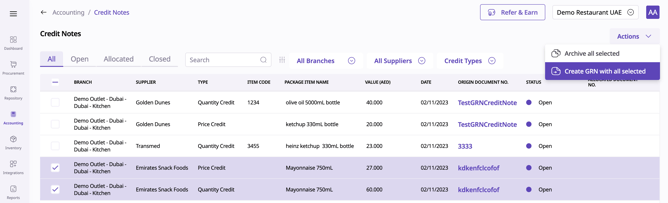
Selecting one or more credit notes on "open" status from the same location & supplier in the credit notes listing page and creating a new GRN with those credit notes.
Visiting an existing GRN and adding credit notes on "open" status from the same location & supplier to this GRN.
This is the scenario that occurs mostly and is commonly referred to as creating a "Negative Invoice" which is essentially a GRN with only allocated credit notes. This process occurs when the supplier sends a formal negative invoice or confirms the adjustment in the statement of accounts (SOA); see below example in an SOA:
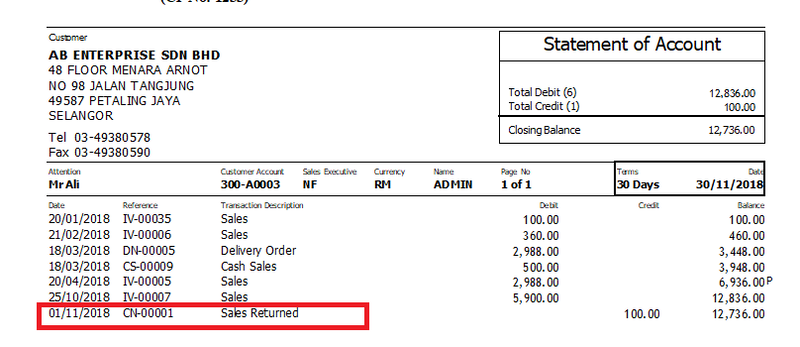
To create such negative invoice on the Supy portal, select one or more credit notes from the same location & supplier and select "actions" > "create GRN with all selected".
This will create a new GRN which looks as follows:
document type will always be "invoice"
no invoice discounts or other fees can be applied
no tax amounts applicable
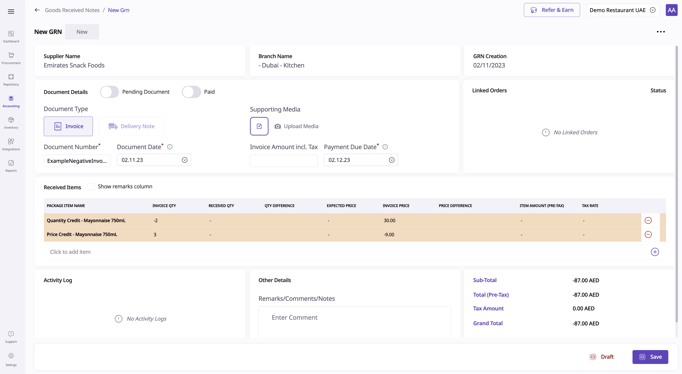
Each line item represents an individual allocated credit note with the following characteristics:
Item name: the credit type + the item name
Invoice quantity: the "Quantity" element of the allocated credit note
If type "Quantity Credit": the quantity is negative
If type "Price Credit": the quantity is positive
Invoice price: the "Price" element of the allocated credit note
If type "Quantity Credit": the price is positive
if type "Price Credit": the price is negative
NOTE 1: It is important to note that a GRN with only allocated credit notes does not have any inventory impact, only a financial impact. Despite that credit notes are allocated to a GRN which stands for "goods RECEIVED note", a GRN with only allocated credit notes does not have any "received quantity", only "invoice quantity".
A credit note cannot be edited on the GRN on which it is allocated, it can only be added or removed with the "-" icon at the right of the table.
Once finalized, the GRN can be "saved" which effectively creates a GRN with a negative amount (see below).
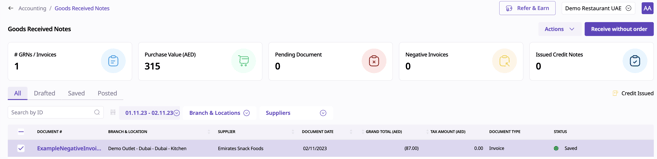
Process 2: allocating credit notes to an existing GRN
Alternatively, a credit note can also be used as a "discount" on an existing GRN by allocating it when there are already existing regular items. This may happen if the supplier wishes to compensate financially by discounting your next invoice in your next delivery instead of reflecting it as a separate adjustment on the statement of account (SOA) as in the previous example.
See below example GRN with regular items; you can click on "Allocate Credit Note" in the top-right menu.
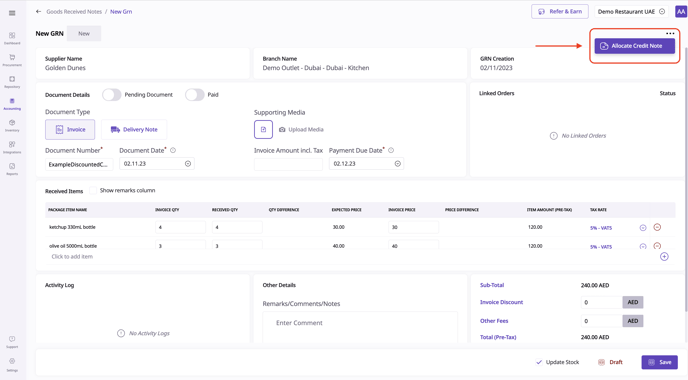
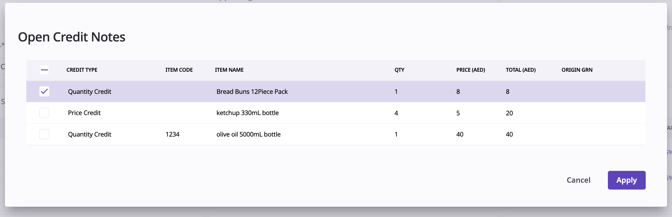
This open a popup with all credit notes for the same location & supplier which are on "open" status. You can select one or more of these and click "apply".
Once applied, you will see the allocated credit note in the same table with the regular items; it will now function as a "discount", subtracting from the sub-total of the GRN, though it is not to be confused with the "item discounts" and "invoice discounts" which are separate.
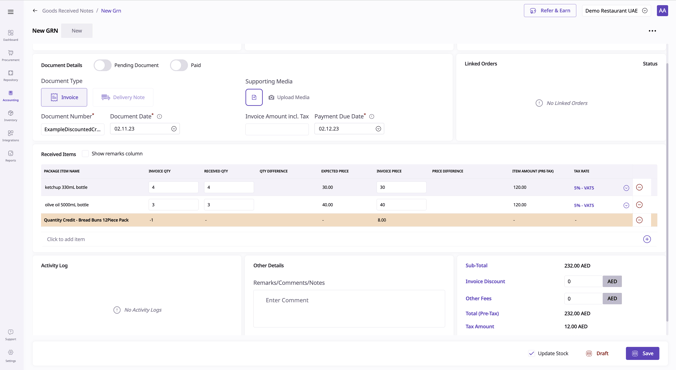
Once finished, hit "save" which will save the GRN and allocate the credit note to this GRN.
It is important to note that when a credit note is allocated to a saved GRN, the credit note status updates to "allocated" and not yet "closed". At this "allocated" stage, the credit note can still be modified:
If you go to the "origin GRN" (i.e. the GRN in which the credit note was created) and you make changes to the item from which the credit note was created, these changes will reflect on the credit note and hence on the GRN to which the credit note is currently allocated.
If you go to the "allocated GRN" (i.e. the GRN to which the credit note is currently allocated), you can still remove the credit note with the "-" sign which will update the credit note status from "allocated" back to "open".
To finish the credit note's lifecycle, you must post the GRN in which the credit note is currently allocated: this will update the status from "allocated" to "closed", meaning that this credit note can no longer be changed at all.
To post a GRN with allocated credit notes, you must first post all "origin GRNs" of all the allocated credit notes, i.e. the GRNs in which the credit notes were created. This rule is to avoid that credit notes can be modified once they reach the "closed" status.
To post a GRN with allocated credit notes, you must first post all "origin GRNs" of all the allocated credit notes, i.e. the GRNs in which the credit notes were created. This rule is to avoid that credit notes can be modified once they reach the "closed" status.
To post a GRN with allocated credit notes, you must first post all "origin GRNs" of all the allocated credit notes, i.e. the GRNs in which the credit notes were created. This rule is to avoid that credit notes can be modified once they reach the "closed" status.
