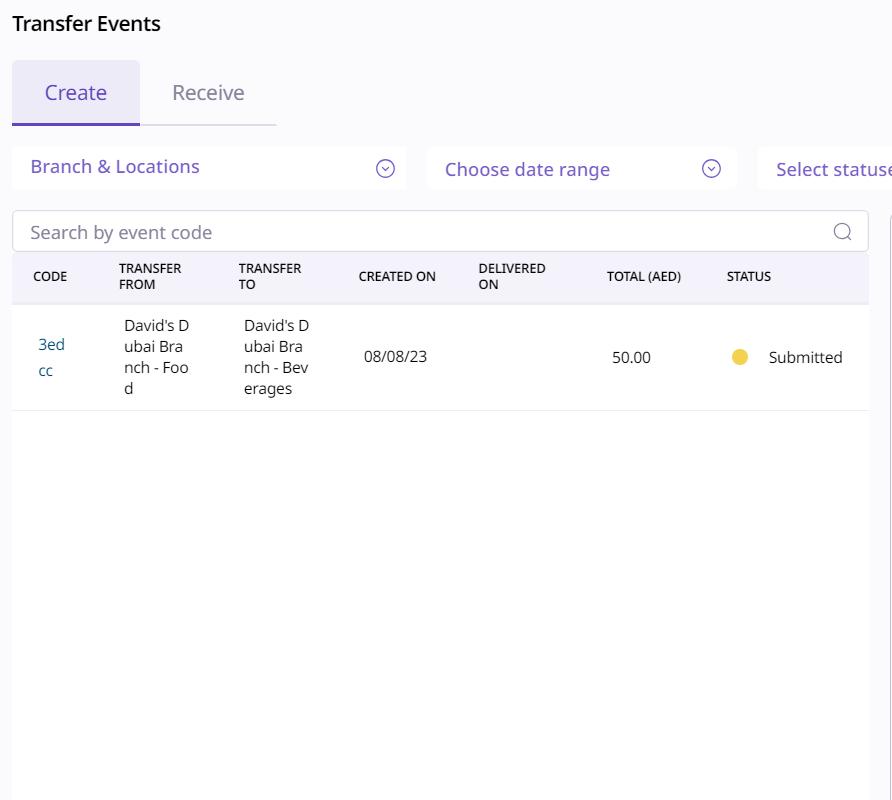
Transfers are a way to keep track of transfers between two different branches or two different inventories.
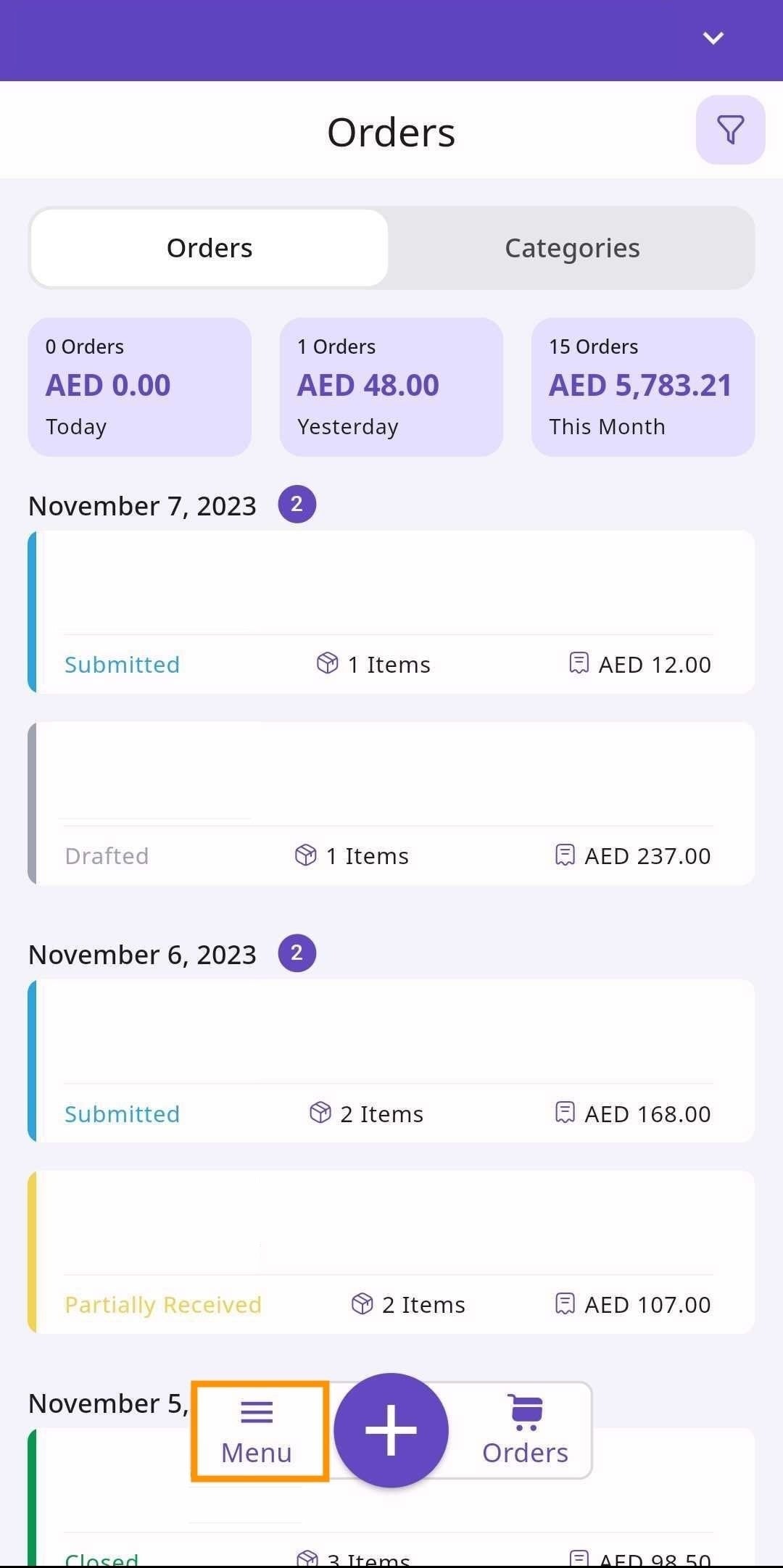
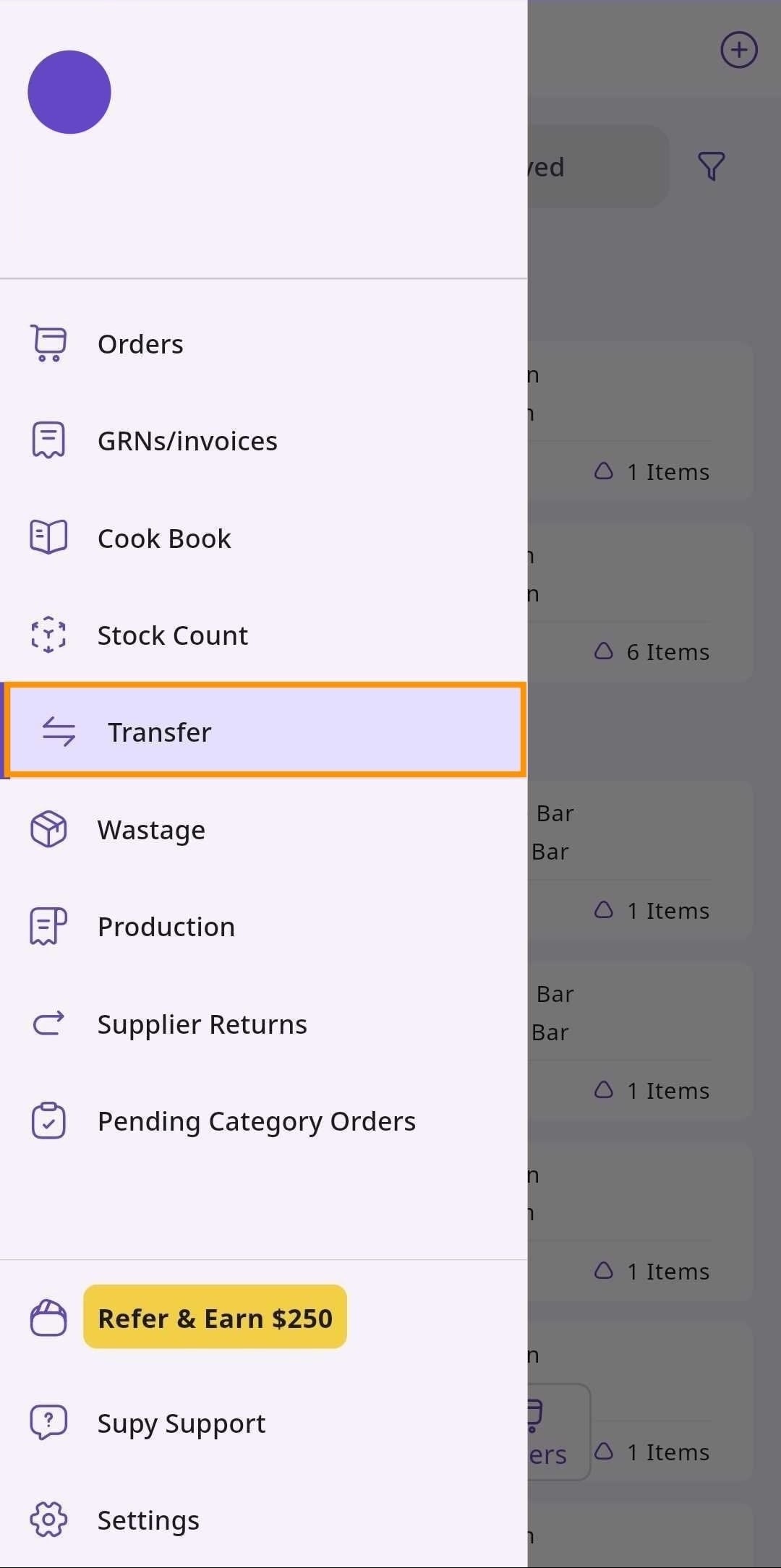
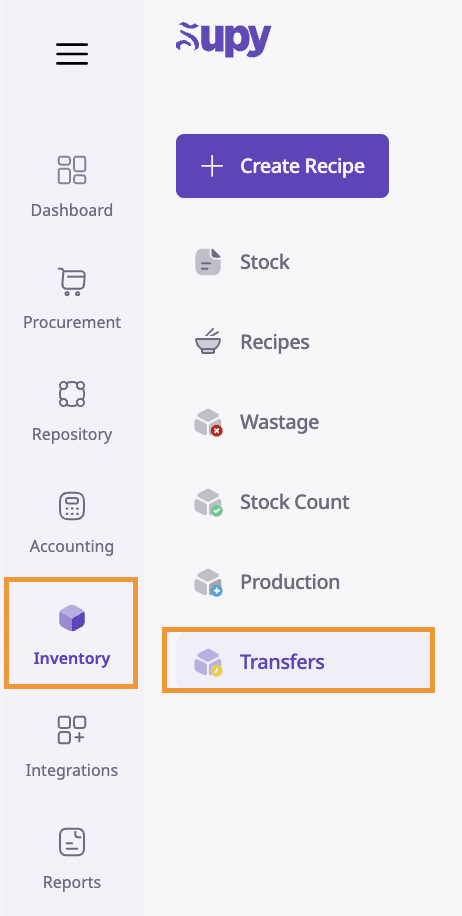
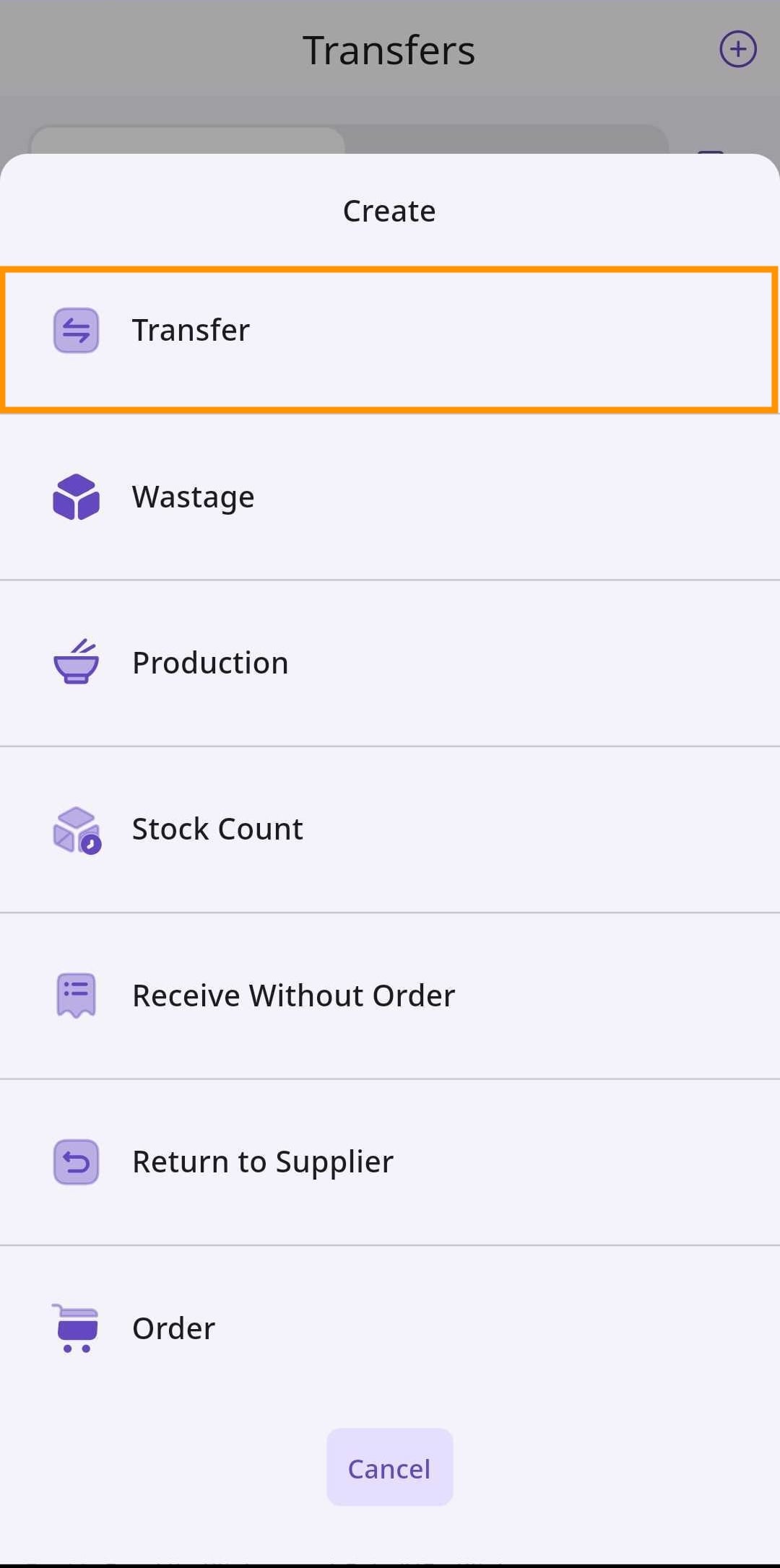
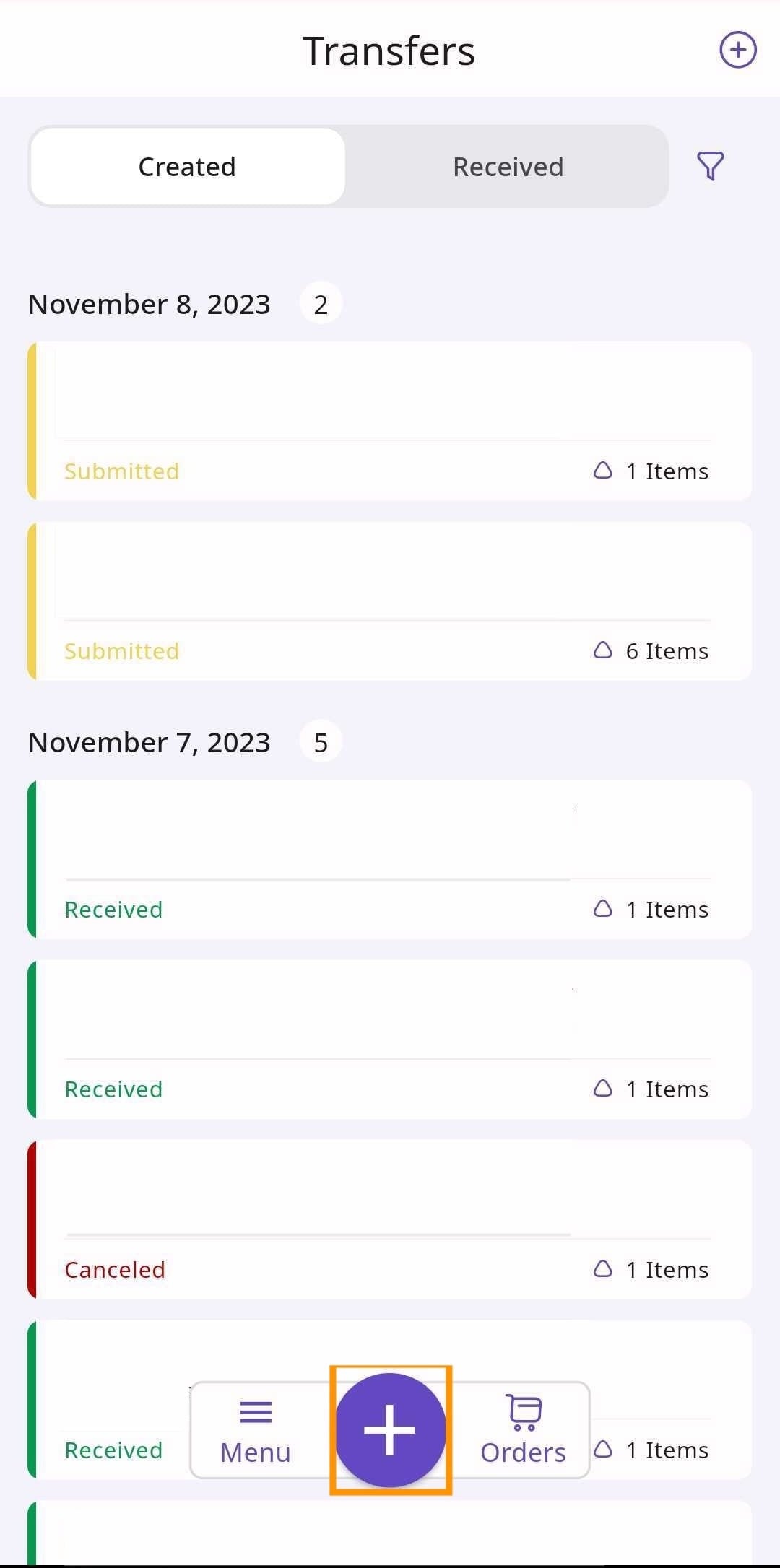
To register a transfer, navigate to the Inventory module and click ‘Transfers’.
Mobile App
Supy Portal
From here, click ‘Create Transfer’.
Mobile App
Supy Portal
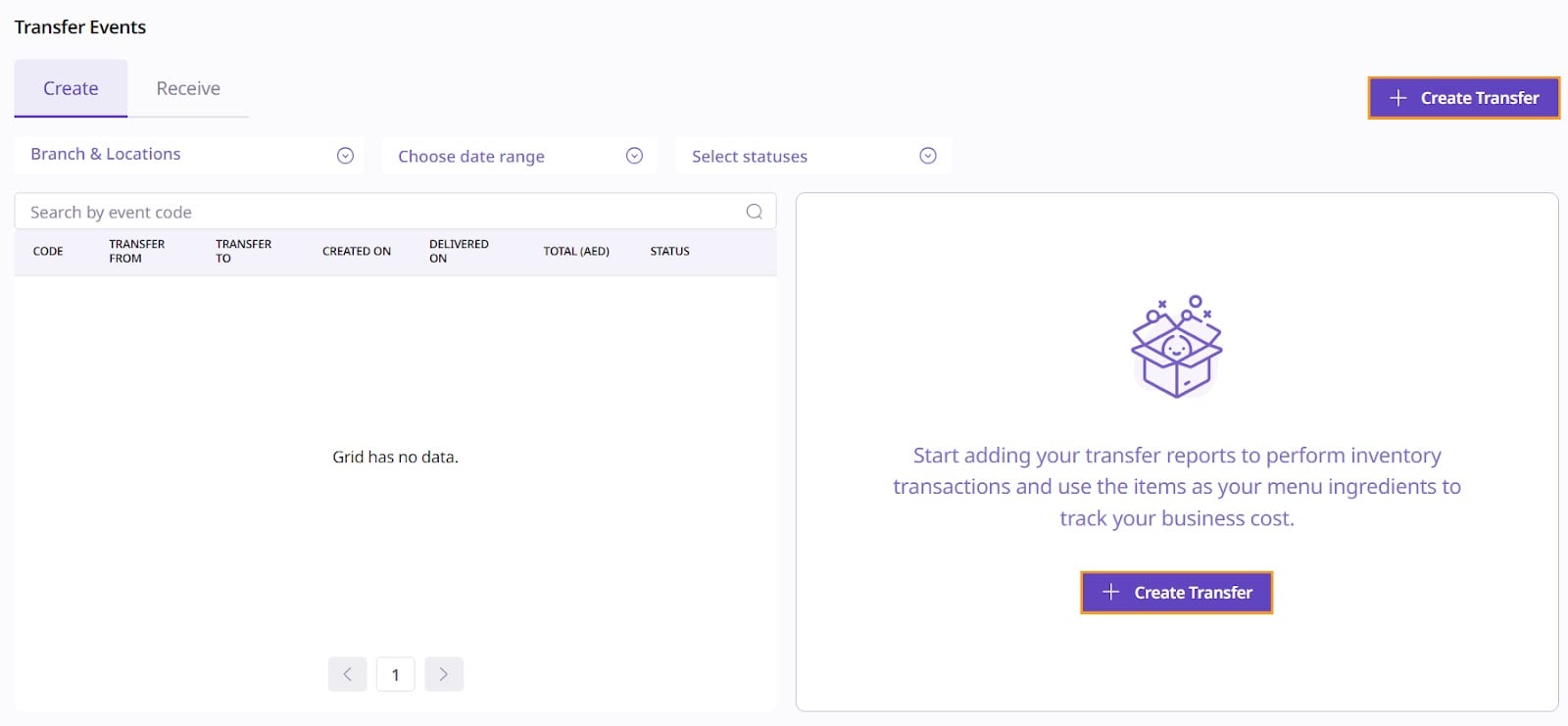
After clicking ‘Create Transfer’, you will encounter these following sections:
Event Details
Event Items
Notes/Remarks
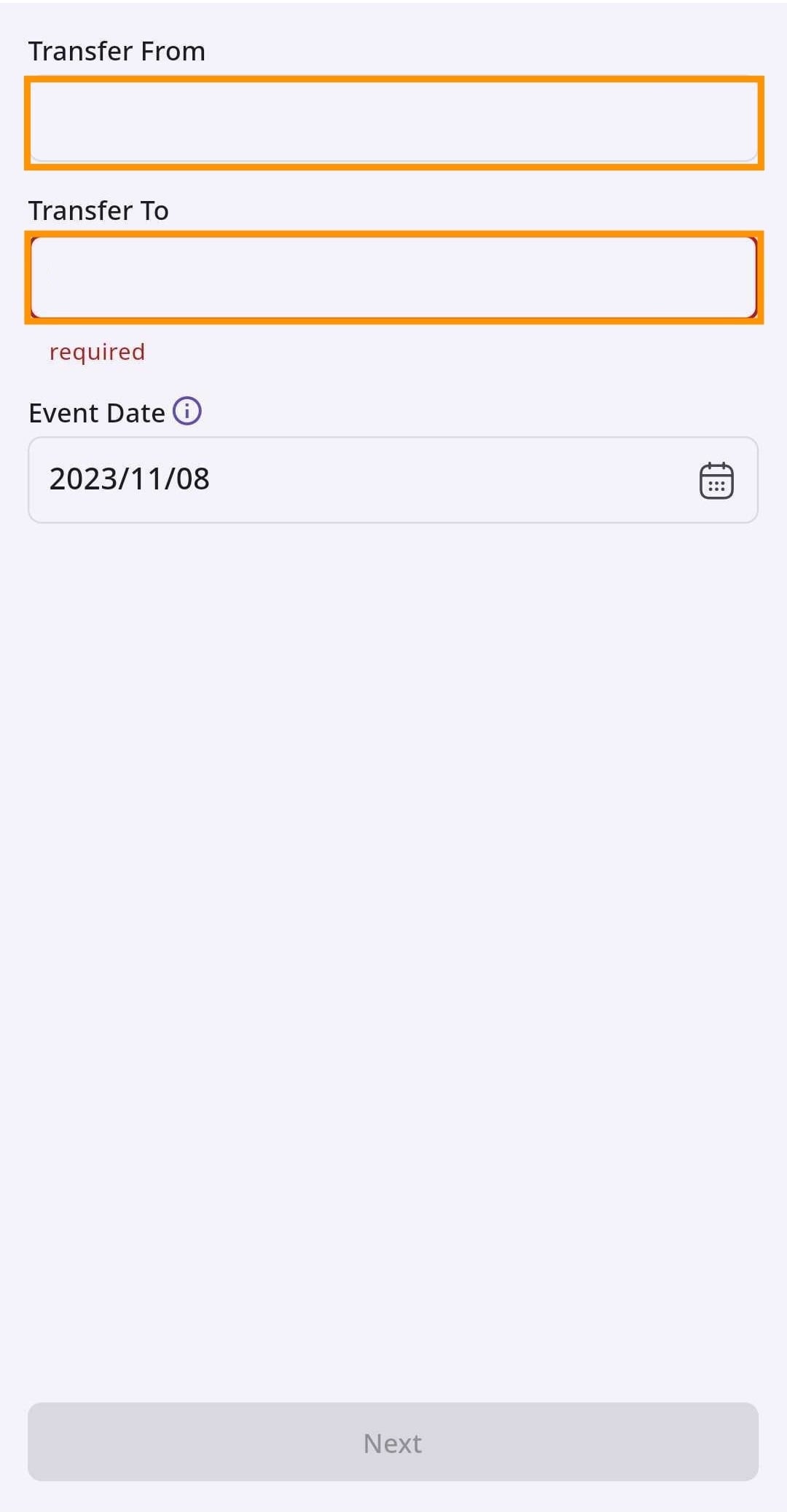
First, select a ‘Transfer From’ and a ‘2’ for your transfer.
Mobile App
Supy Portal
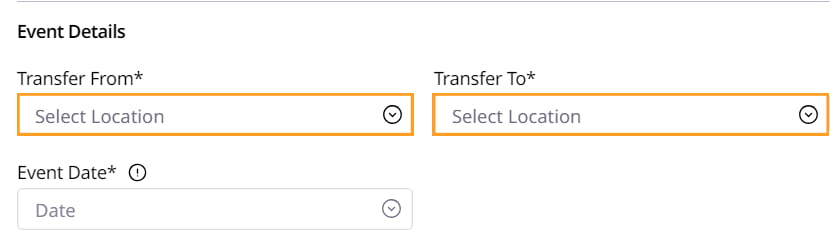
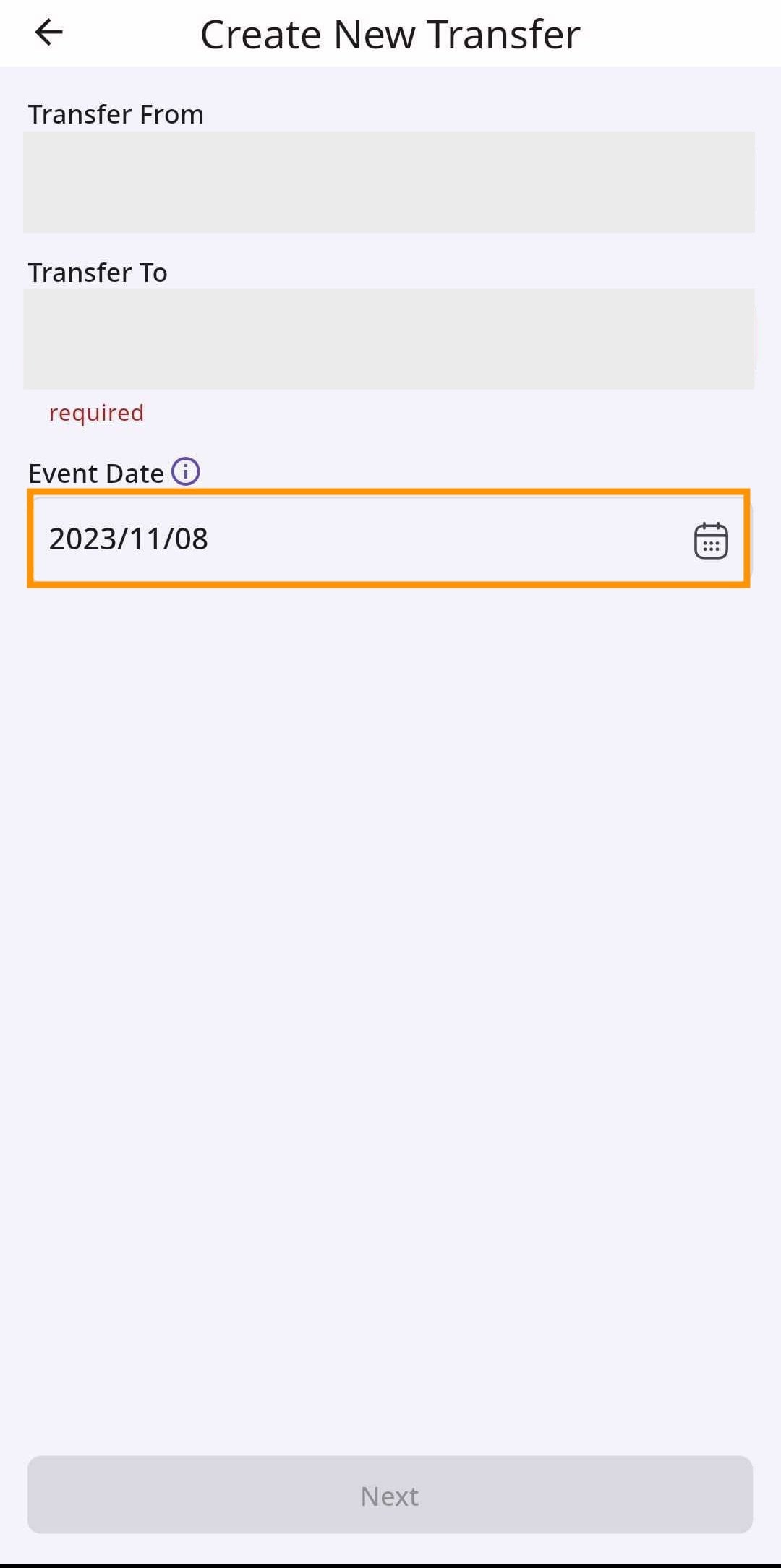
Fill out the ‘Event Date’ with the day on which the transfer happened. Note that this is as per the retailer’s time-zone.
Mobile App
Supy Portal
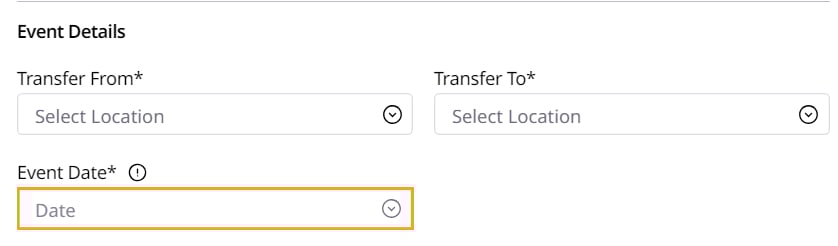
When finished, scroll down to Event Items.
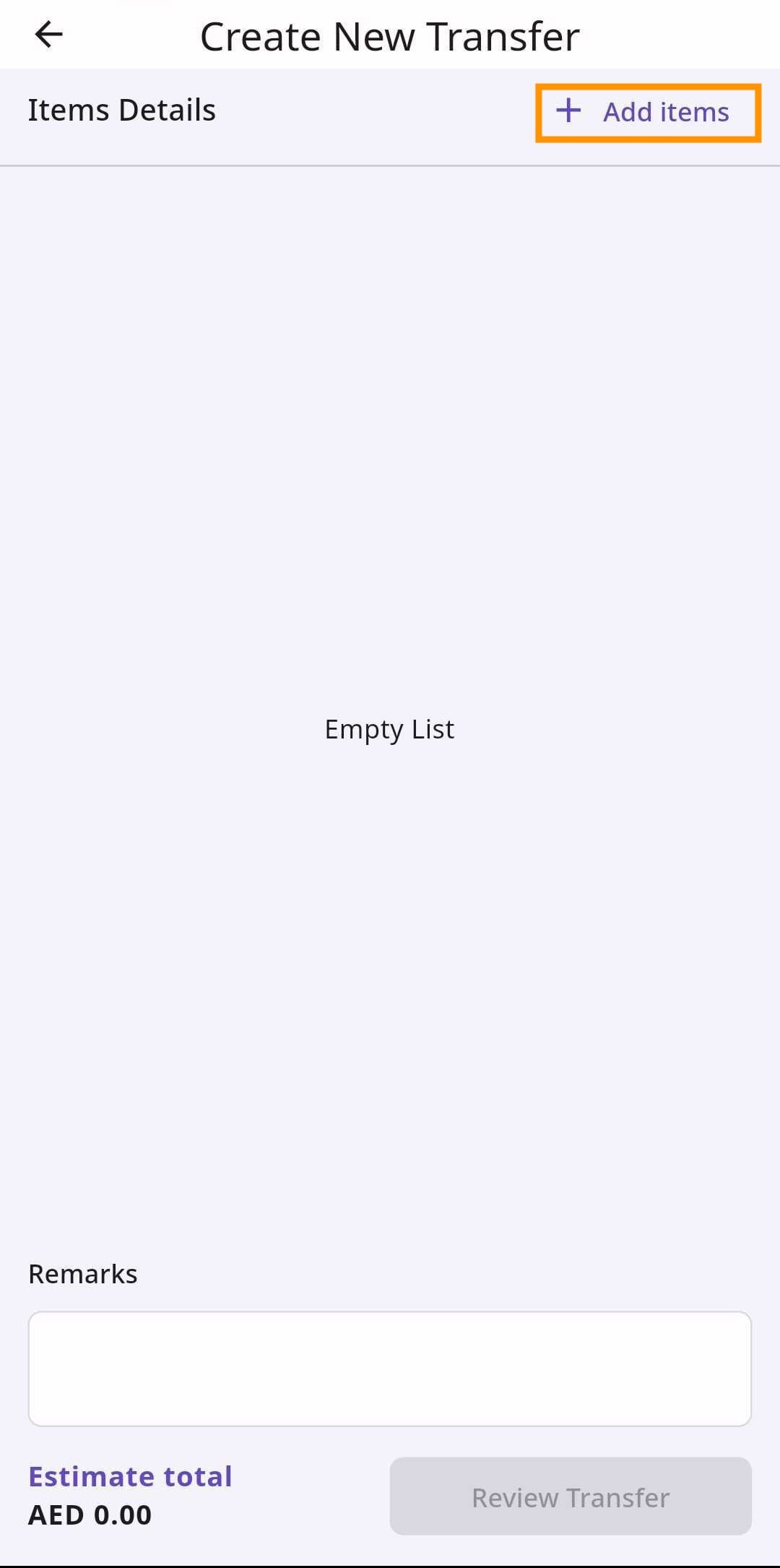
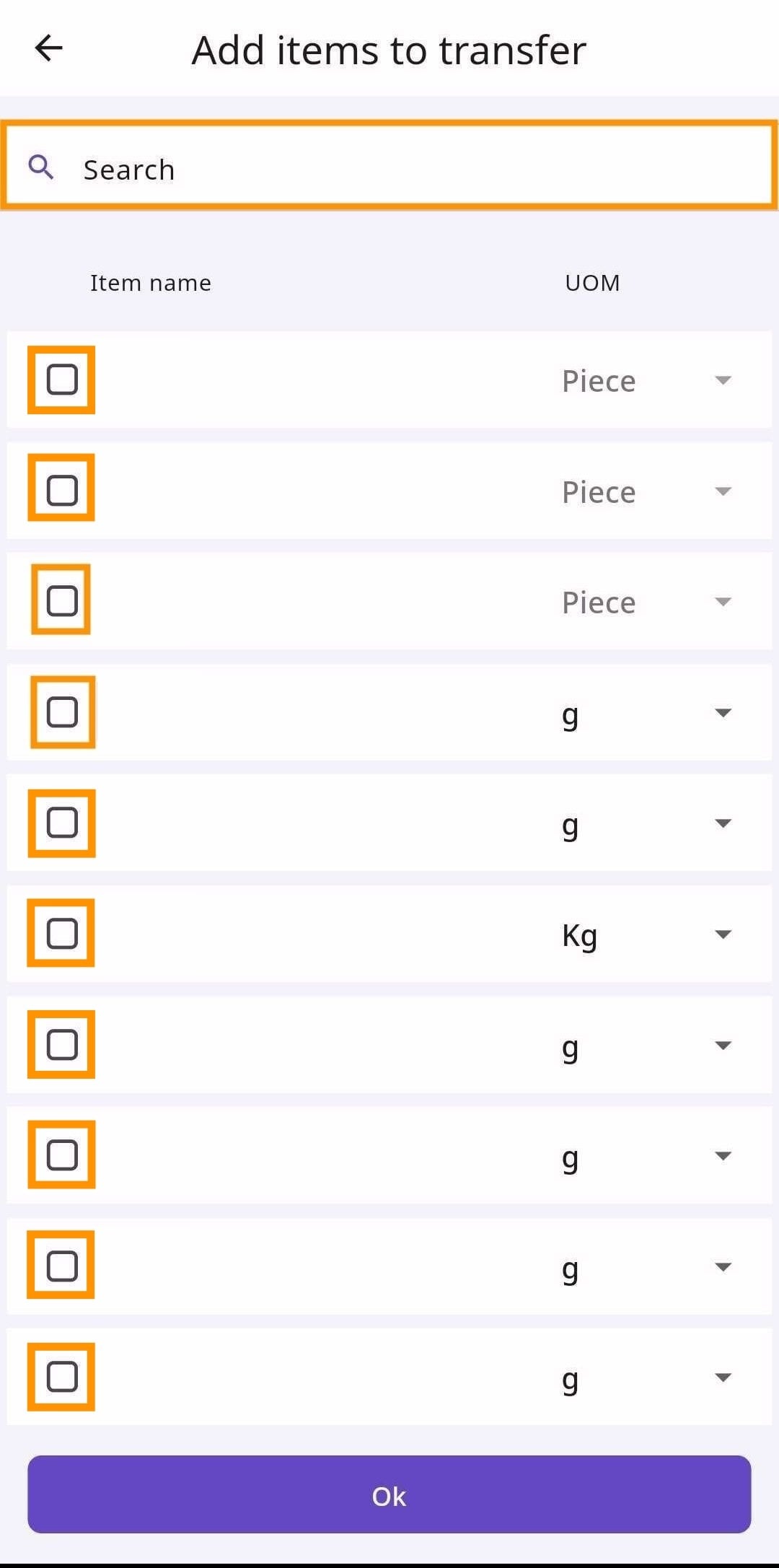
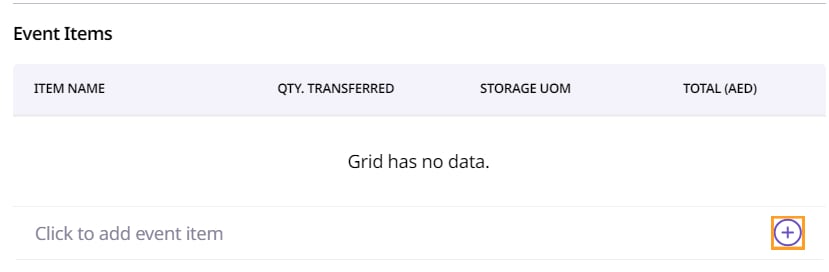
Next, click the plus icon to add the items that you transferred. Use the search bar to find your item and add as many items as necessary.
Mobile App
Supy Portal
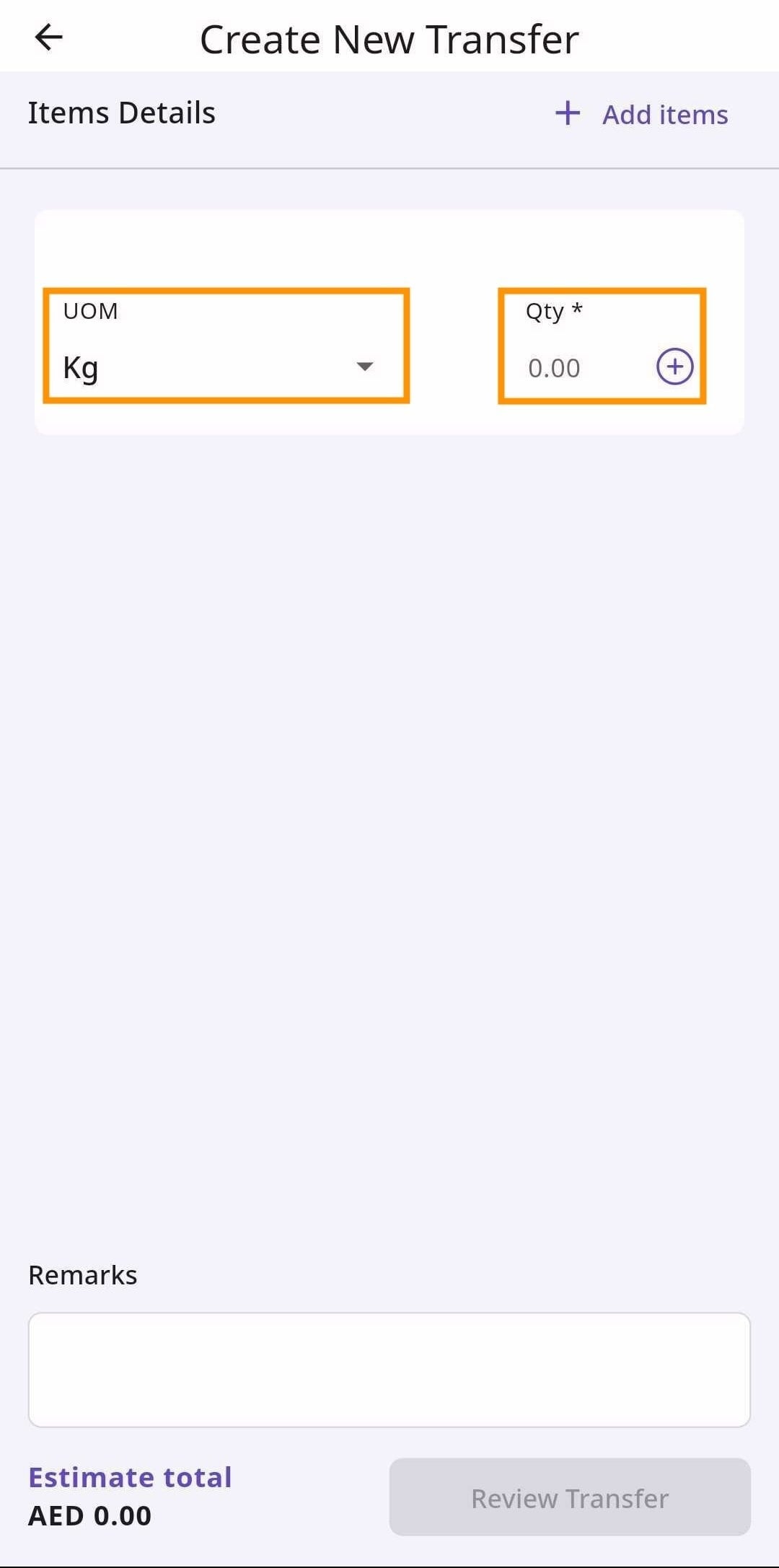
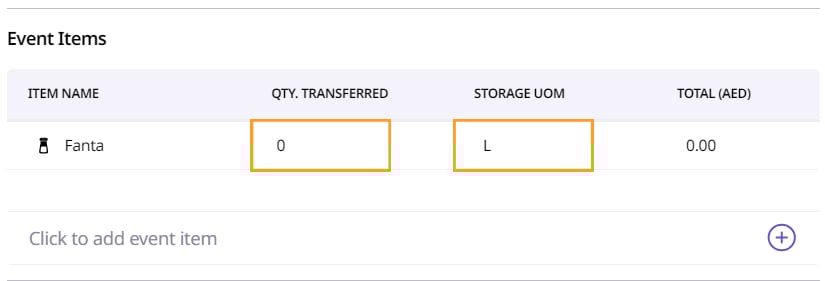
For each item, select the Storage Unit of Measure (UOM) and the quantity of the item transferred. The total value (in AED) is automatically calculated based on these values.
Mobile App
Supy Portal
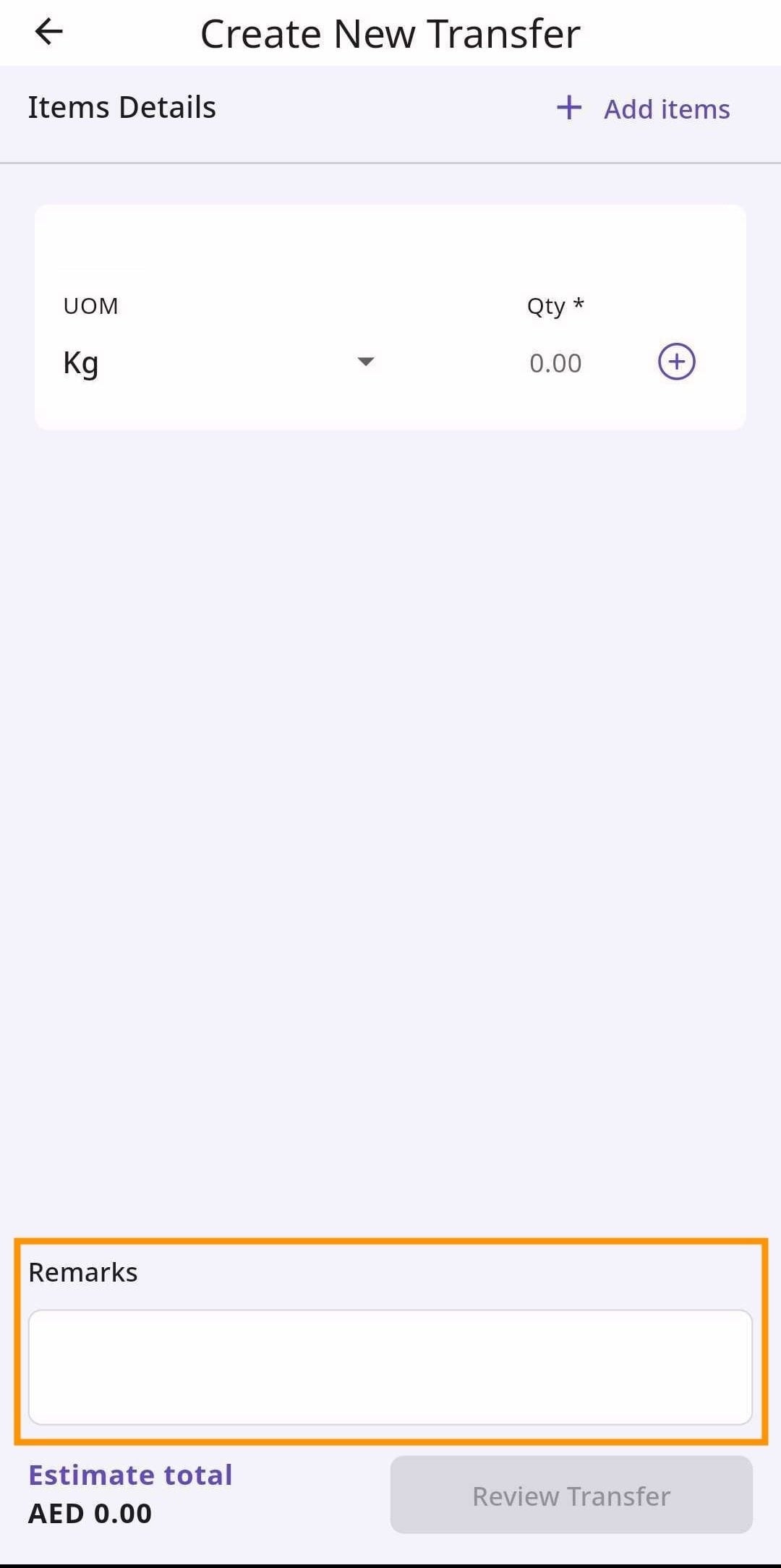
In Notes/Remarks, add any relevant comments you have for the transfer in the text-field.
Mobile App
Supy Portal

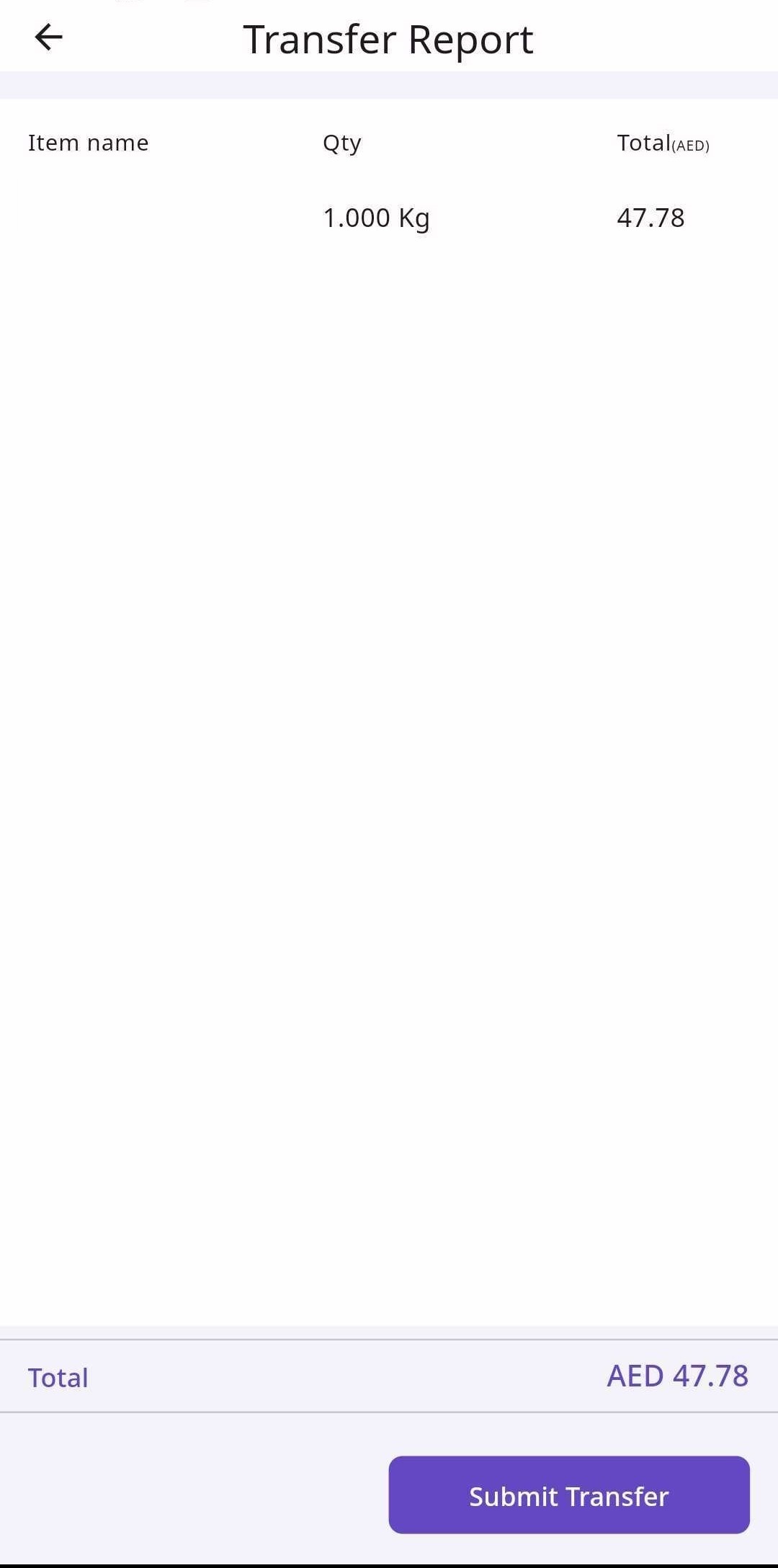
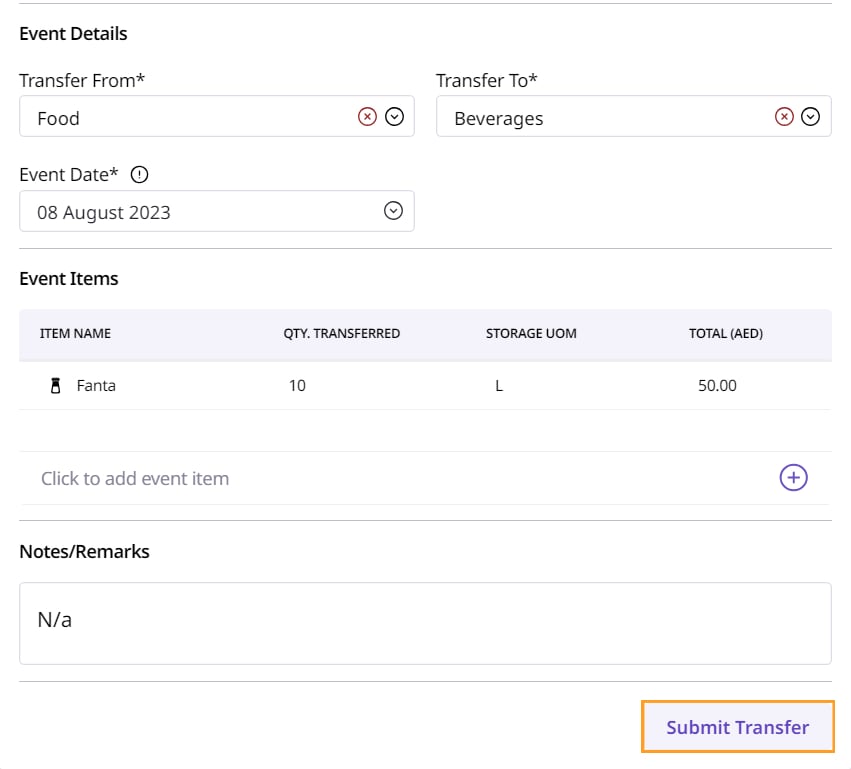
Once you finish inputting all information, click ‘Submit Transfer’.
Mobile App
Supy Portal
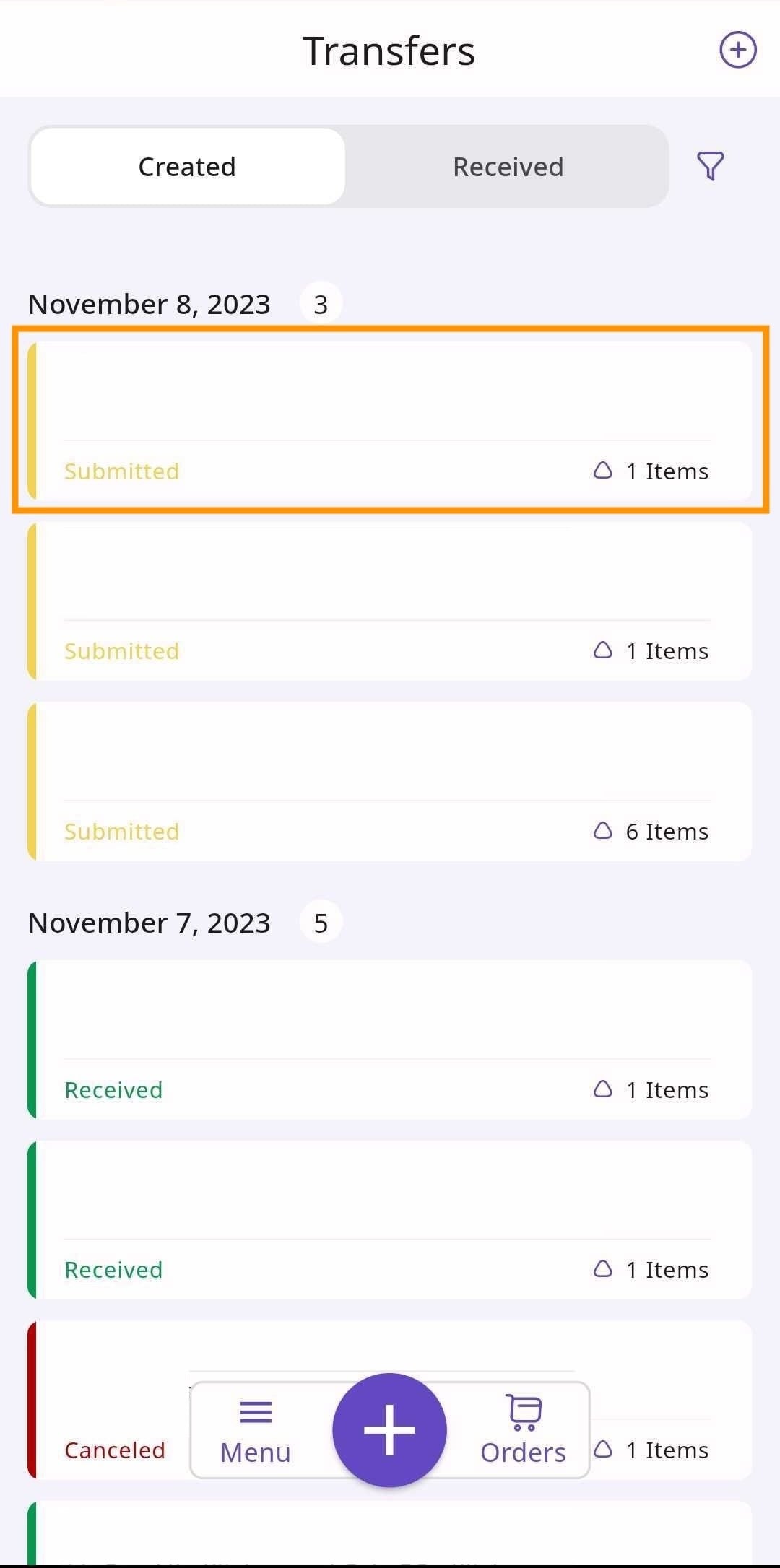
After submission, your transfer will be visible in the list of recorded transfers.
Mobile App
Supy Portal