Supy AI Invoice Receiving is an AI-forward automation feature designed to capture, validate, and prepare supplier invoices for accurate Goods Received Note (GRN) creation. It reduces manual data entry, enforces supplier controls, and ensures invoice data flows cleanly into inventory valuation and accounting workflows.
Invoices may be received as PDF documents via email from Suppliers, uploaded directly to the Retailer Portal, or scanned via the Mobile App, skipping the process of a user manually initiating the GRN.
On receiving a Supplier Document, Supy AI will process the document, and an Incoming GRN will be created for the specified location and supplier.

Manual invoice handling typically results in:
Incorrect supplier attribution
Missing or duplicated invoices
Pricing inconsistencies affecting COGS
High operational overhead for finance teams
Supy AI Invoice Receiving standardizes invoice intake and validation, ensuring only clean, verified invoices reach the GRN stage.
On request, Supy will enable this feature for your account.
Supy will then provide a fixed email address for your account (usually your-retailer-name@invoices.supy.link) that may be given to Suppliers.
Supplier emails/domains that are expected to be sending the invoices will need to be configured in the system via Whitelisting
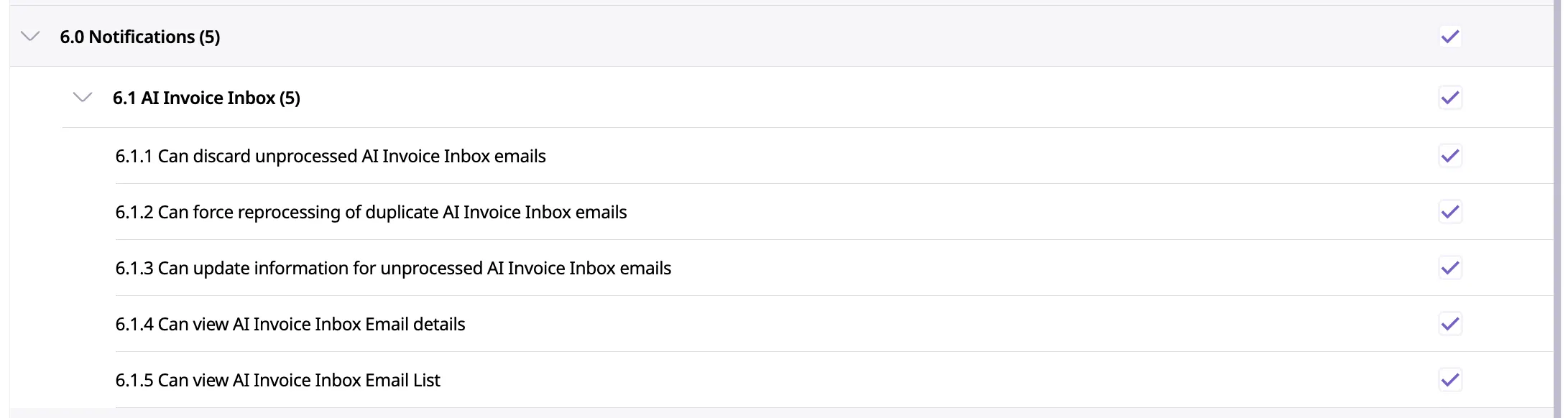
For users that need to work with Incoming Invoices, ensure they have the following permissions provided to their roles:
Invoices enter Supy through approved channels, pass through AI validation stages, and are routed to the correct accounting queue.
Supplier Email - AI Invoice Inbox
Supy Mobile App – AI Invoice Scanning
Supy Retailer Portal - AI Invoice Upload
All channels use the same AI logic and staging rules.
Supy AI Invoice Receiving supports the following document types:
Supplier Invoices
Delivery Notes
All documents are automatically classified by Supy AI before processing.

Whitelisting defines which supplier email addresses or domains are trusted to submit invoices into Supy.
Whitelisting can be done from the Repository → Suppliers → Supplier Details → AI Incoming Invoice Settings section.
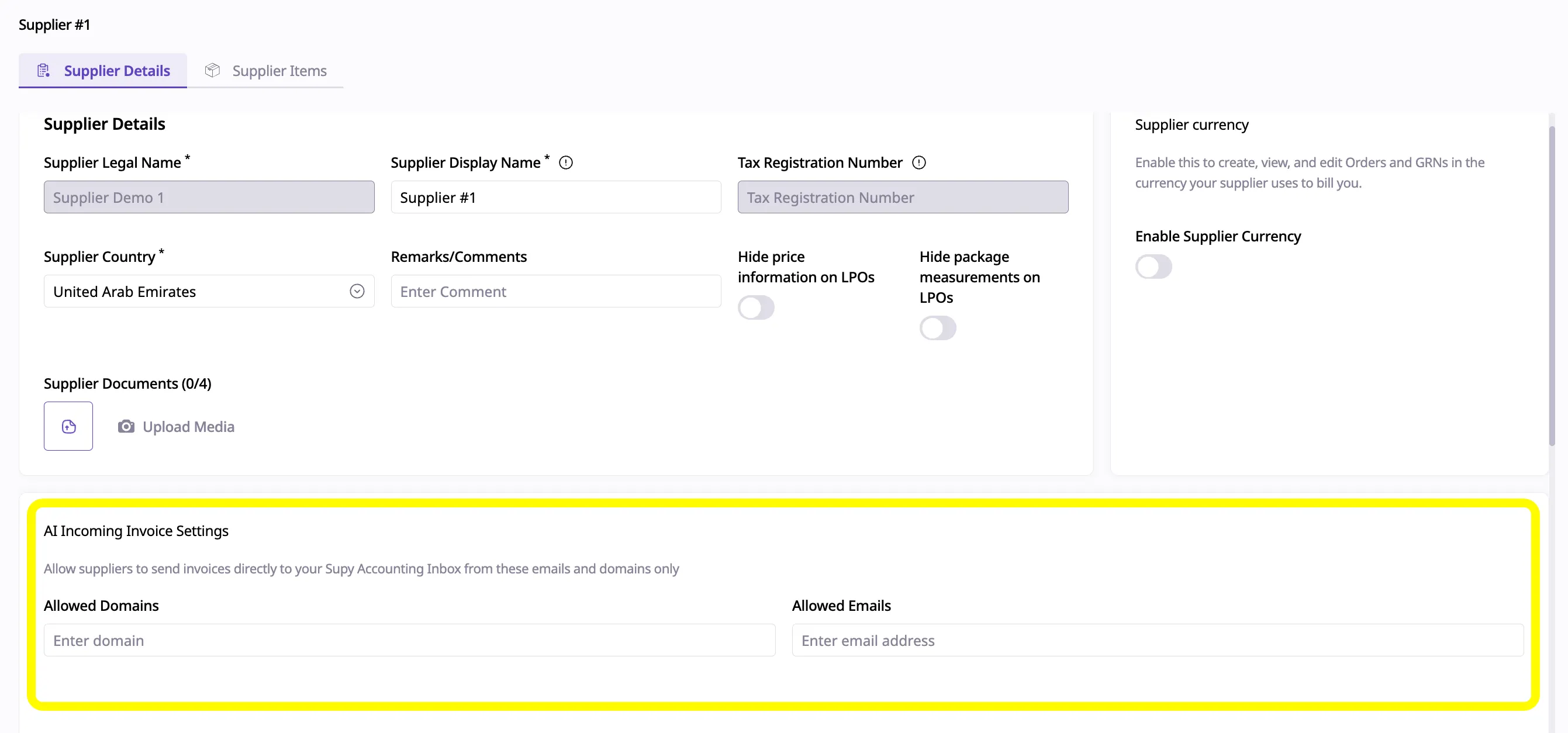
Allowed Domains (example: supplier.com)
Allowed Emails (example: ap@supplier.com) - To be used for special cases where common / public domains are used, like supplier@gmail.com
Whitelisting is a supplier-level responsibility and should be configured:
During supplier onboarding
Whenever a supplier changes their invoicing email or system
It is recommended to whitelist:
Domains for ERP-based suppliers
Specific emails for public email providers (e.g. Gmail, Outlook)
Only whitelisted senders are eligible for AI processing
Each supplier can have multiple approved sender emails/domains
Improves AI supplier matching and reduces misclassification

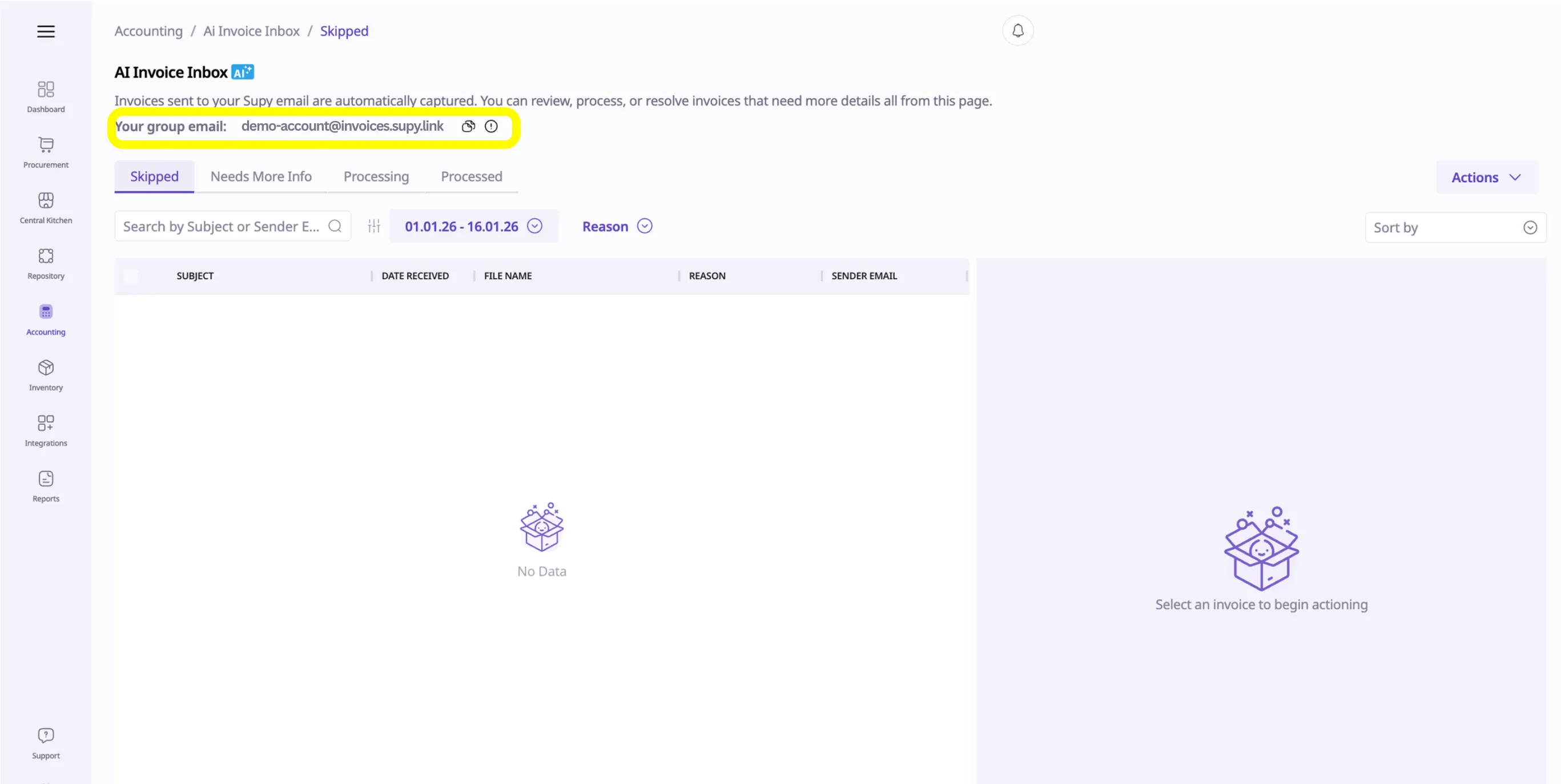
The Accounting → AI Invoice Inbox section lets you view and manage all incoming supplier emails and displays your retailer's configured Inbox Email Address.
Each Supy retailer is assigned a unique Invoice Inbox email address (usually your-retailer-name@invoices.supy.link), to be used across all cost centers.
Users can view this email address directly inside Supy:
Navigate to Accounting → AI Invoice Inbox
The Invoice Inbox email address is displayed at the top of the page
Intended Usage
Share this email address with all suppliers as their official invoice submission address for all future invoices and delivery notes.
Suppliers should send all invoices and delivery notes to this email address to ensure AI processing.
Sending invoices to personal or branch emails will bypass AI controls and may result in skipped invoices.
NOTE: Only up to 10 attachments per email will be accepted by the system. Emails with more than 10 attachments will only have the first 10 attachments scanned.
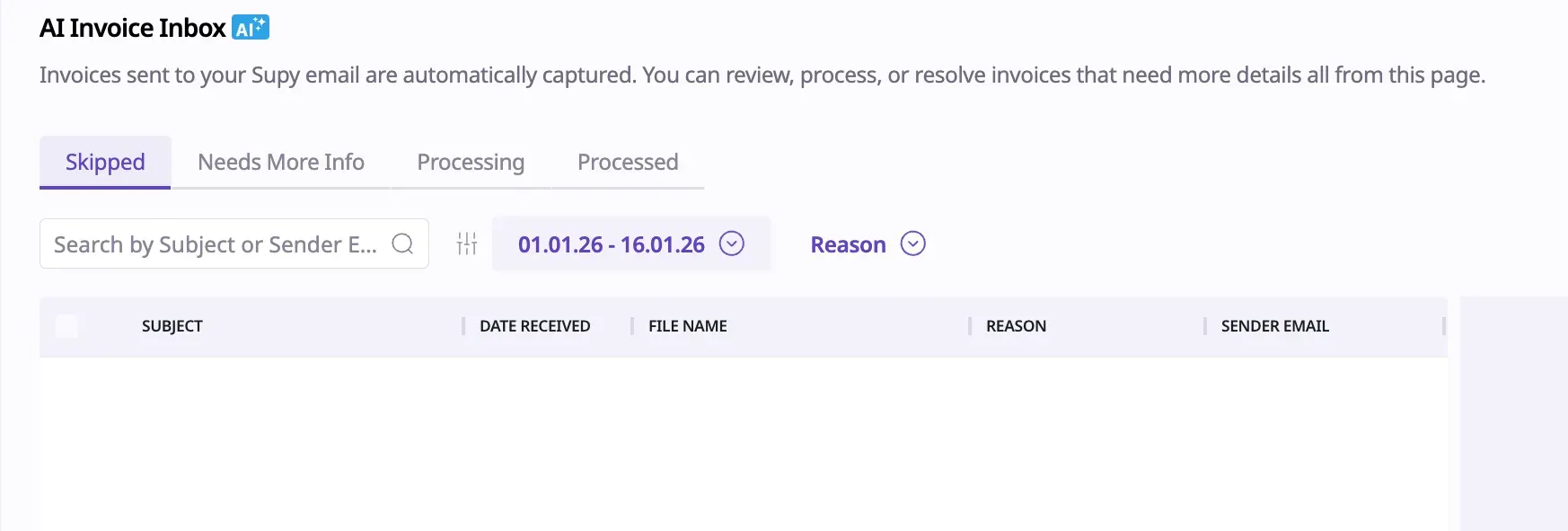
Supy processes invoices using a four-stage staging environment to ensure accuracy and transparency.
Invoice Routing Logic Overview
Whitelisted + recognised → Processed
Whitelisted + not recognised → Needs More Info
Not whitelisted → Skipped
Not an invoice → Skipped
Duplicate Document → Skipped
Definition
Invoices that cannot be processed due to sender or document issues.
Common Triggers
Sender email/domain not whitelisted
Email does not contain an invoice
Document type is not supported (e.g. SOA, statement, credit note)
Duplicate invoice detected (same invoice number and supplier)
Available Actions
Whitelist sender
Discard email
Reprocess Duplicate (used only if the invoice was incorrectly flagged as a duplicate, or if duplicates explicitly need re-triggering)
Operational Guidance
Invoices in Skipped status require user review to determine next steps:
If the sender is valid:
Add the sender’s email or domain to the supplier’s whitelist
If the document is not an invoice:
Discard the email to keep the Inbox clean
If the invoice is a duplicate:
No action is required, such emails can be discarded
Reprocessing can be explicitly triggered, if required
Skipped invoices will never auto-progress without explicit user action.
Definition
Valid invoices where Supy AI cannot confidently assign the supplier or cost center.

System Conditions
Sender is whitelisted
Document is a valid invoice
Supplier or cost center is missing or ambiguous
Why Manual Input is Required
Supy only auto-processes invoices when confidence thresholds are met.
If supplier or cost center information is ambiguous or incomplete, Supy intentionally pauses processing to prevent:
Cross-cost-center misposting
Incorrect supplier attribution
Accounting discrepancies
Manual confirmation ensures correctness and improves future AI matching.
User Input Required
Select correct Supplier
Select correct Cost Center
Once completed, the invoice automatically moves to Processed.
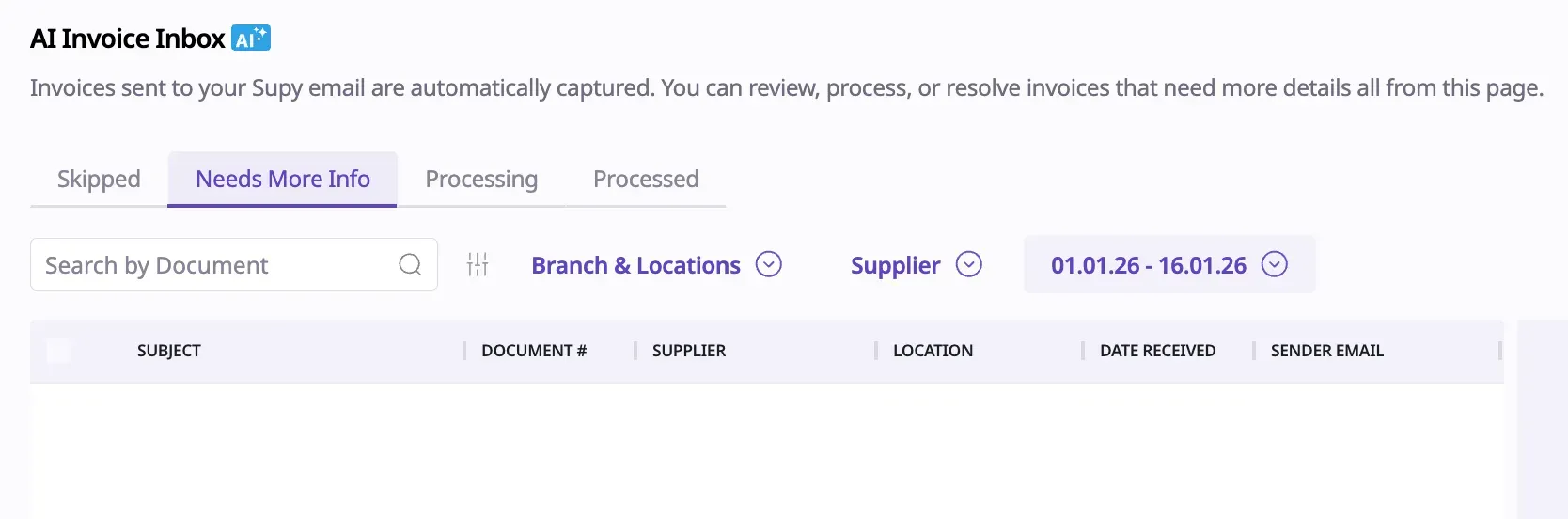
Definition
Invoices actively being handled by Supy AI.
AI Actions Performed
Link to related PO, if mentioned
Line-item extraction
Quantity and price validation
Tax and total verification
Supplier and outlet matching
No user interaction is required during this stage. These emails will automatically switch to one of the other tabs once Supy AI has attempted and/or completed processing.
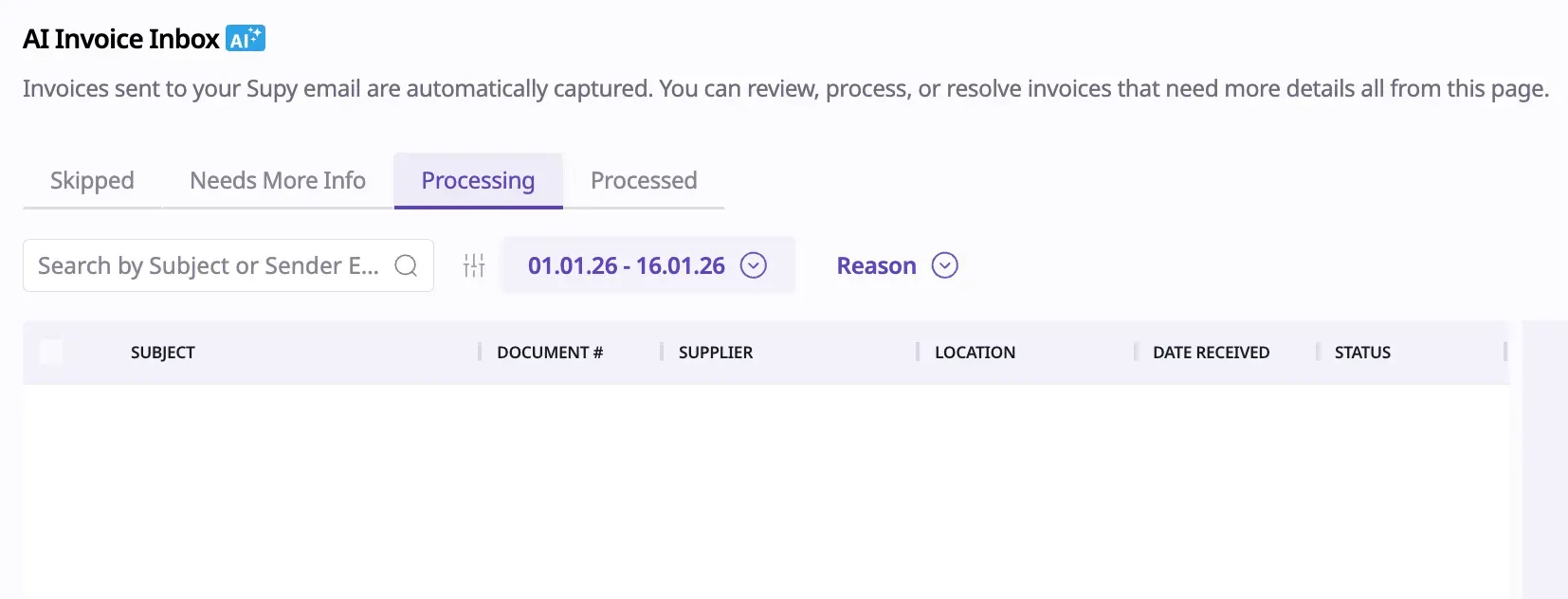
Definition
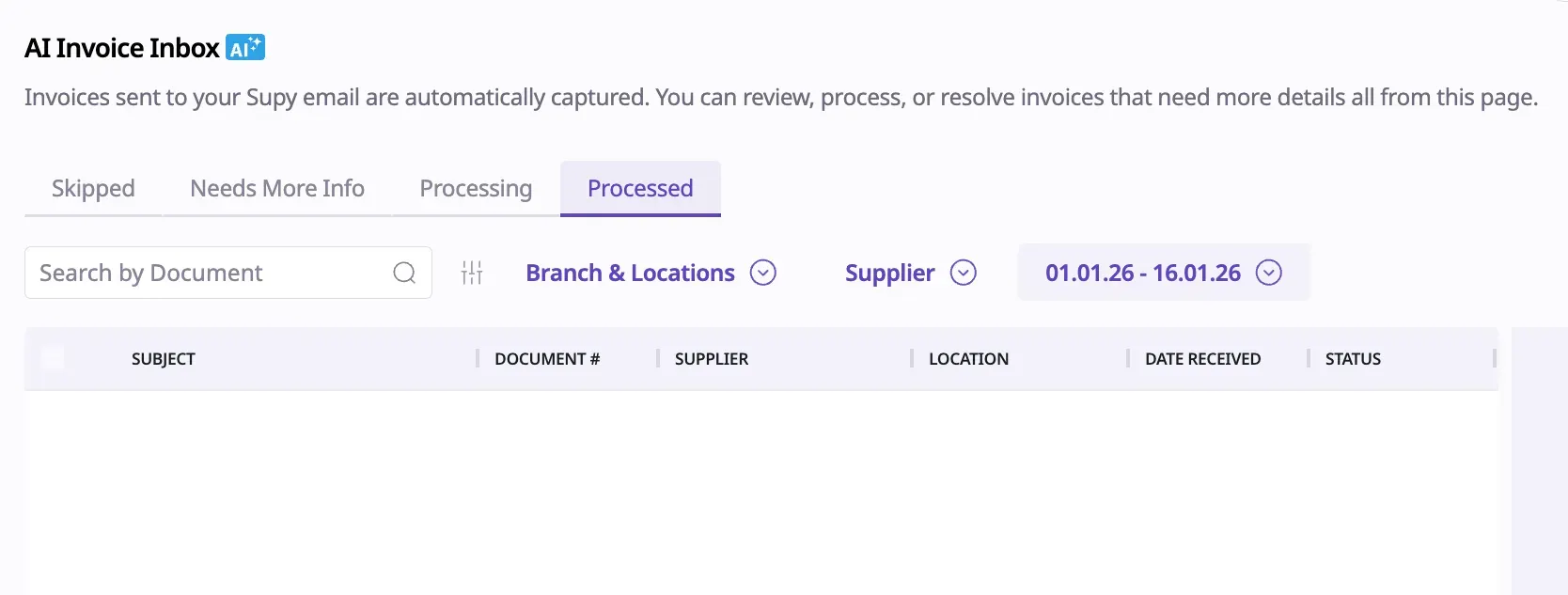
Invoices that have successfully completed AI validation.
System Outcome
Invoice is automatically sent to Accounting → GRNs → Incoming
Ready for GRN review and posting
Users can also scan or upload invoices using the Supy mobile app.
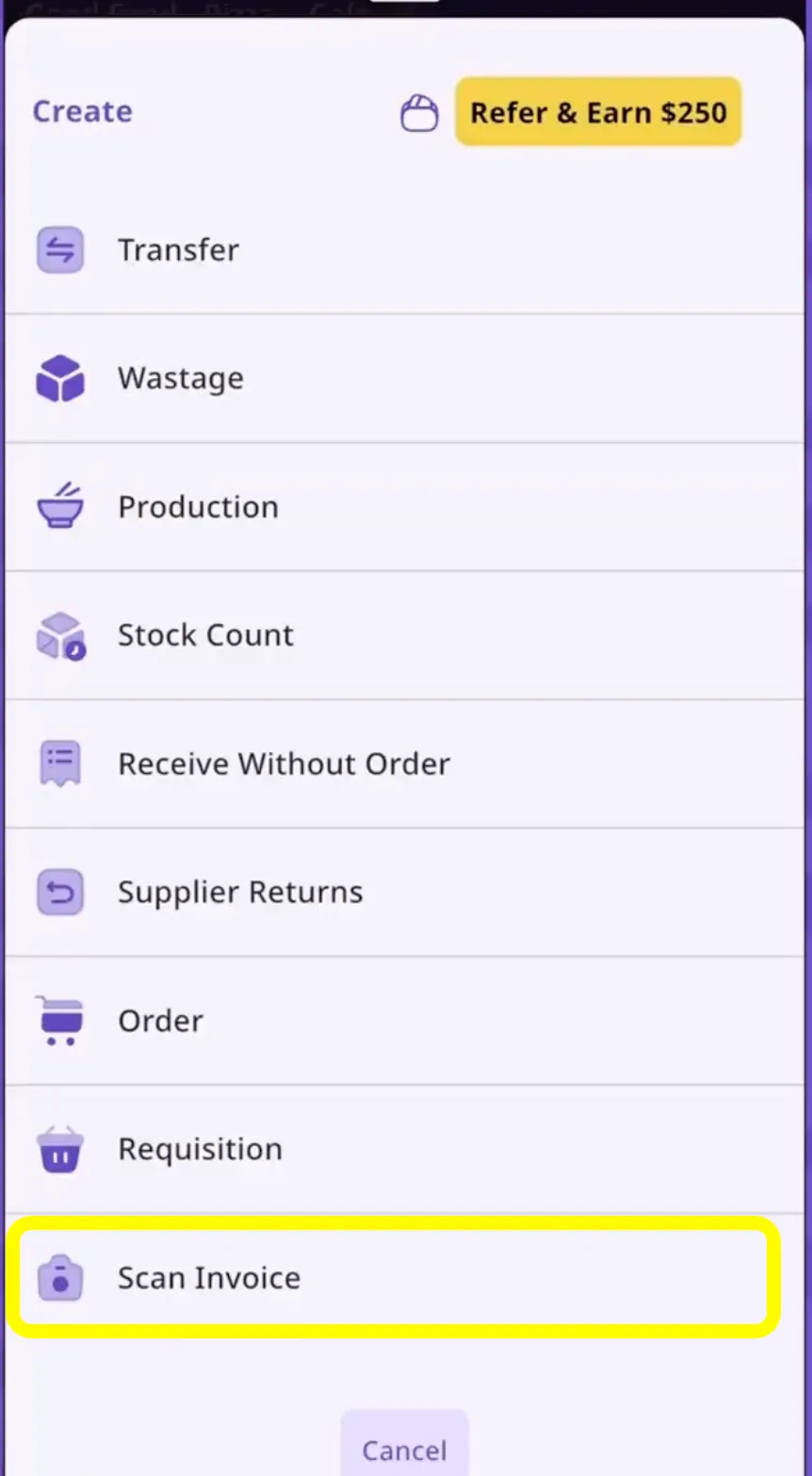
Uses the same AI logic as email-based invoices
Routes through the same staging environment
Supports on-the-go receiving without bypassing controls
Can also be done while receiving Orders
Users may also upload invoice PDF documents directly from the Retailer Portal, bypassing email submission entirely.
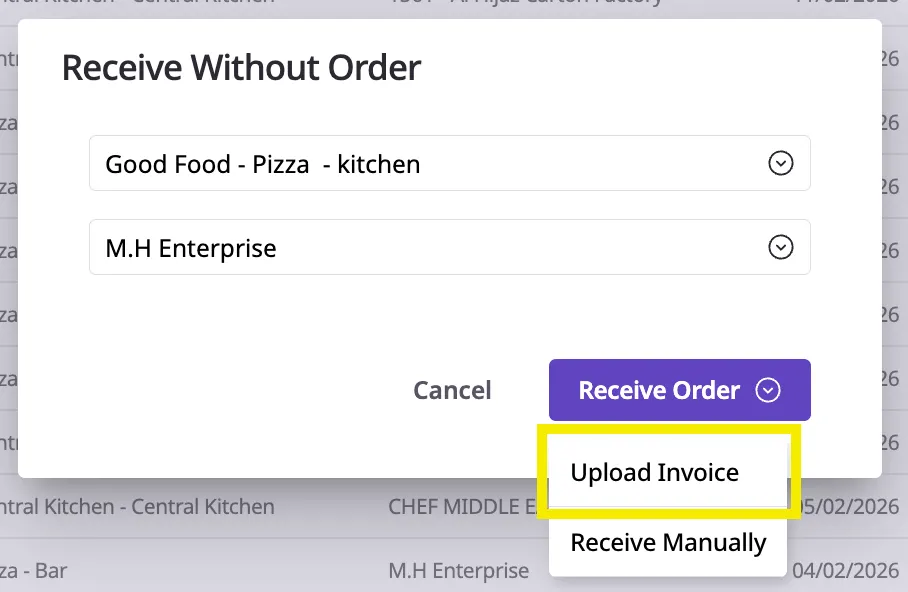
Navigate to Accounting → GRNs
Click the Upload Invoice button
Select and upload the invoice PDF
The uploaded invoice will be processed through the same AI validation and staging workflow as email-based invoices.
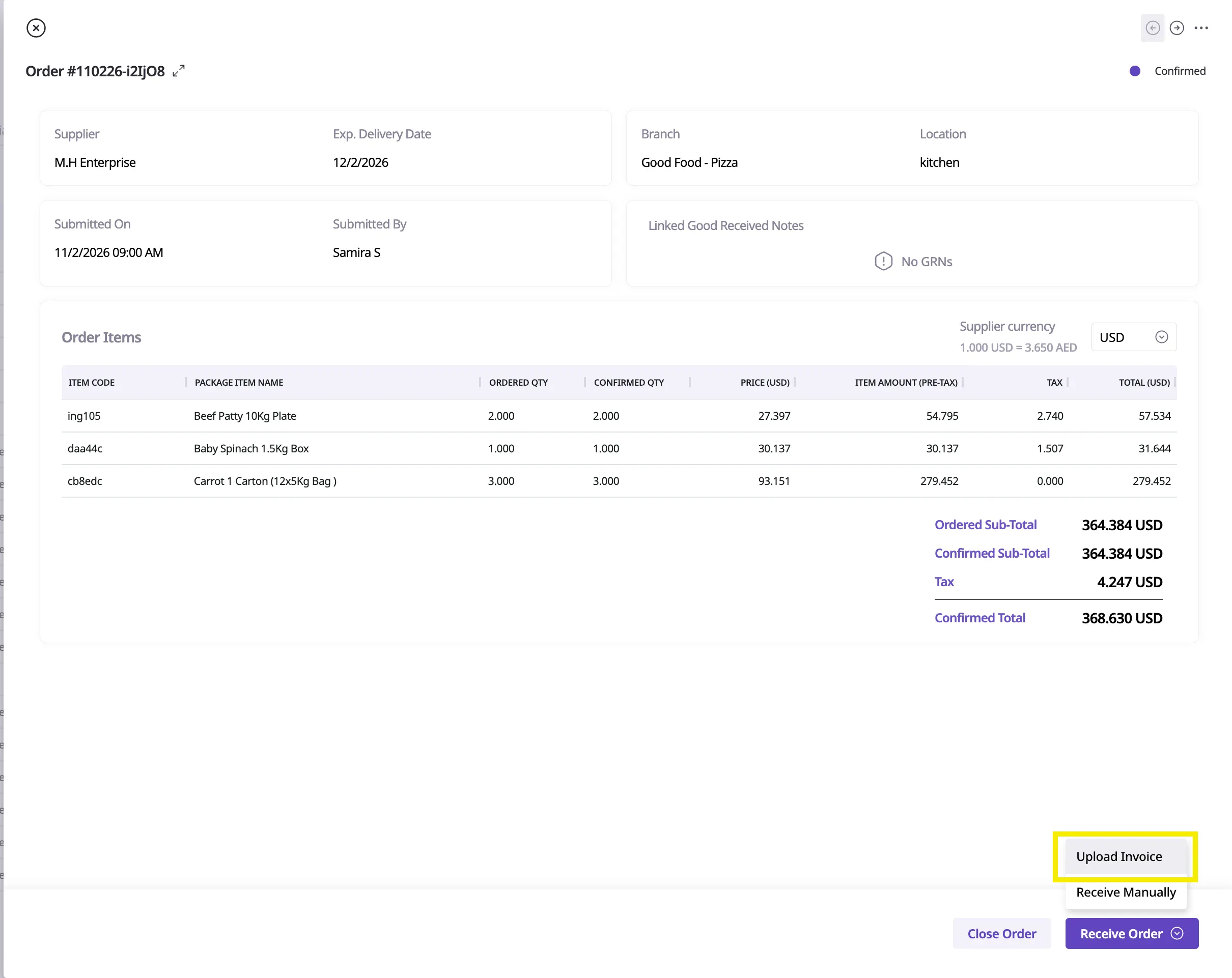
When receiving an existing Purchase Order:
Open the order in the Portal
Click Receive Order → Upload Invoice
Upload the invoice PDF directly during the receiving flow
The invoice will be linked to the order automatically
This allows users to complete receiving and invoice processing in a single workflow.
For invoices without a corresponding Purchase Order:
Navigate to Accounting → GRNs
Select Receive Without Order
After selecting the Cost Center and Supplier, use the Receive Order → Upload Invoice option to upload the invoice PDF
Review and submit the GRN once validation is complete
This method is ideal for ad-hoc purchases or supplier deliveries without formal orders.
After uploading the invoice PDF, the new GRN will be created under the Incoming section within a few minutes once AI processing is complete.
Supy AI uses a two-step approach to match the supplier and cost center for each incoming invoice.
If a Purchase Order (PO) number is mentioned on the invoice document:
Supy AI searches for the matching order in the system
If found, the invoice is automatically linked to that PO
The Supplier and Cost Center details are retrieved directly from the linked order
The invoice proceeds to Processed stage
This method provides the highest accuracy, as it uses confirmed order data.
If no PO number is mentioned or no matching PO is found:
Supy AI extracts the Supplier name from the invoice document
Supy AI extracts the Customer / Ship To details from the invoice document
These are matched against available Suppliers and Cost Centers in the system based on name similarity
If a reasonable match is found for both supplier and cost center, the invoice proceeds to Processed.
If Supy AI cannot confidently match either the Supplier or Cost Center:
The invoice is moved to the Needs More Info stage
Users must manually select the correct Supplier and/or Cost Center
Once the missing fields are provided, the invoice automatically moves to Processed
This ensures that invoices are never auto-posted to the wrong supplier or cost center.
Supy AI attempts to match extracted invoice lines against the supplier’s Supplier Item List using Supplier Item Codes.
In cases where Supplier Item Codes are missing from either the invoice document or the system, or when no matching item code is found, Supy AI will attempt to make the most reasonable match based on item names, packaging descriptions, and product details, within reasonable confidence limits.
If Supy AI still cannot confidently identify a match, the line is skipped and flagged as unmatched.
The invoice can still proceed to GRN review, but unmatched lines will be flagged as skipped/unmatched during the GRN finalization step.
These lines require user action before the GRN is finalized and posted.
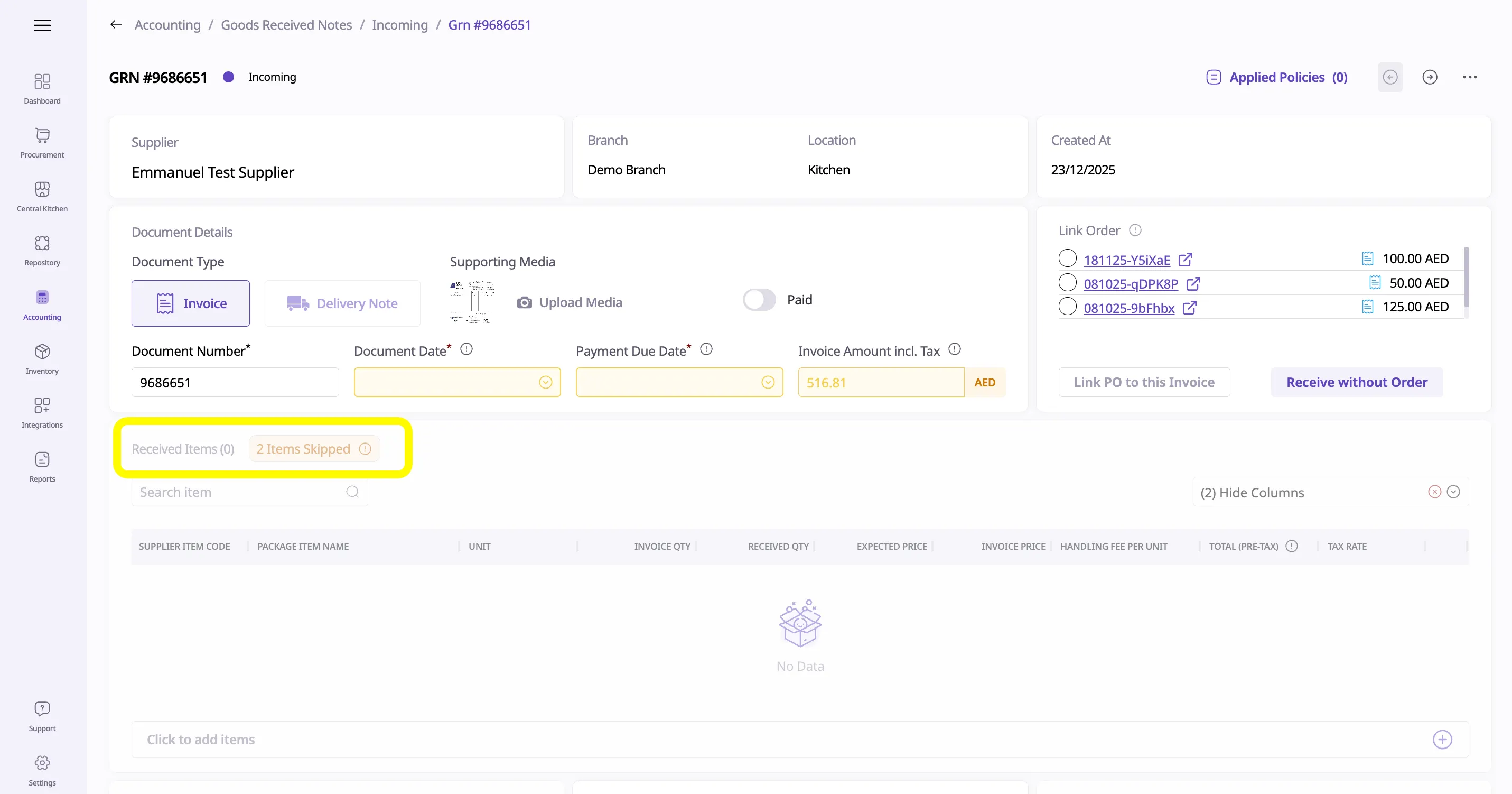
Go to Repository → Suppliers → Supplier Item List for the supplier.
Locate the relevant supplier item.
Add or correct the Supplier Item Code to match what appears on the supplier invoice.
Manually add the item to the current invoice. Future invoices will pick up the item accurately.
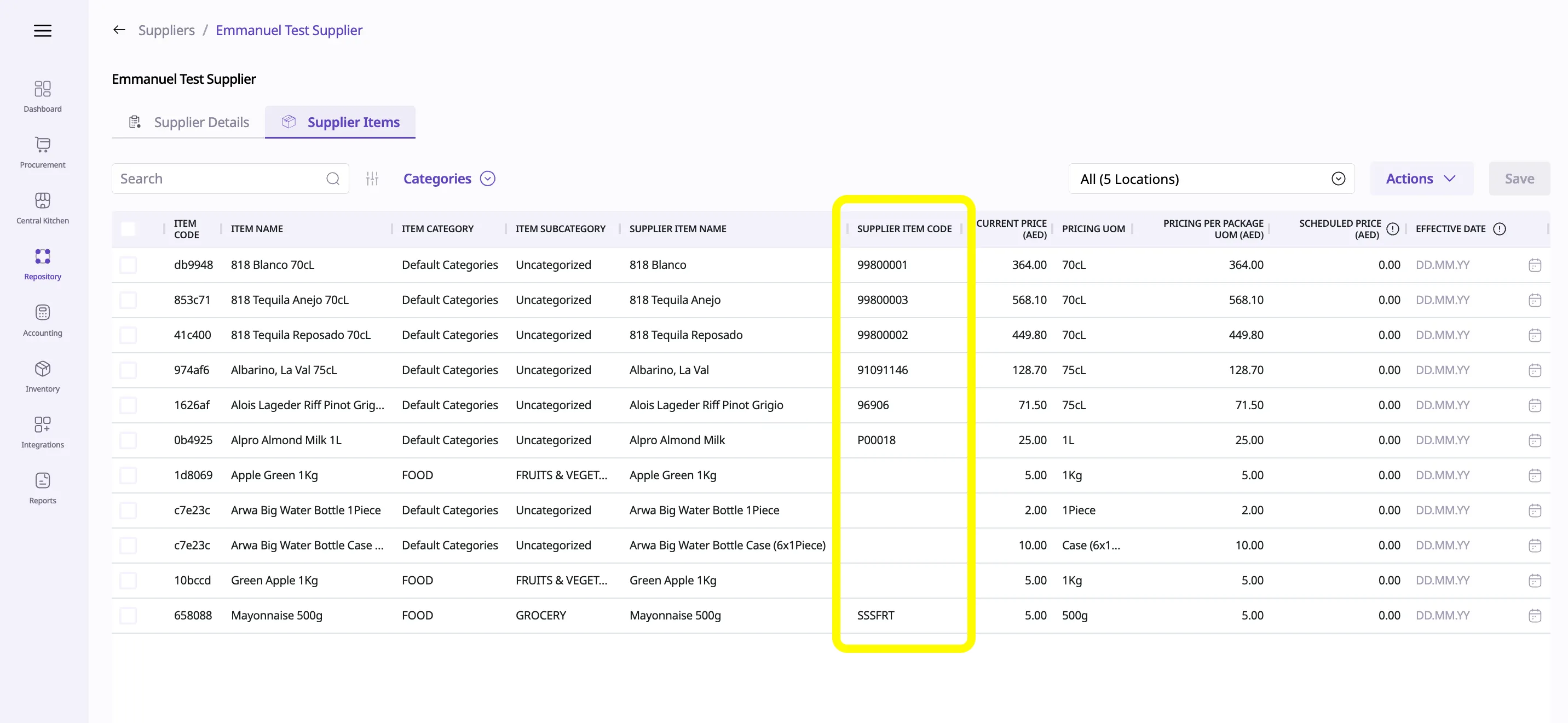
This improves future AI matching and reduces repeated unmatched lines for the same supplier.
Supy supports Delivery Notes as a special receiving document type, commonly used when goods are received before the supplier invoice is issued.
Delivery Notes follow the same AI intake, validation, and staging rules as invoices, with additional handling logic described below.
When a Delivery Note is received:
Supy checks for existing GRNs with the same:
Supplier
Document number
If no existing GRN is found:
A Delivery Note GRN is created
The GRN appears under Accounting → GRNs → Incoming
The GRN remains pending user review and submission
Delivery Note GRNs do not include invoice pricing until an invoice is received.
When an Invoice is received, Supy performs an additional check before GRN creation.
Supy searches for an existing Delivery Note GRN using:
Supplier
Document number
Scenario A: Existing Delivery Note Is Still Incoming
If a matching Delivery Note GRN is found and its status is Incoming (Pending):
The Delivery Note GRN is updated in place
The GRN type is converted from Delivery Note GRN → Invoice GRN
The following rules apply:
Received Quantity is retained from the Delivery Note
Invoice Quantity and Invoice Price are sourced from the new Invoice
The GRN remains in Incoming status for review and submission
This ensures continuity while incorporating newly received invoice data.
Scenario B: Existing Delivery Note Is Already Submitted
If a matching Delivery Note GRN is found and its status is Submitted (inventory already updated):
A new Incoming Invoice GRN is created
The new Invoice GRN:
Uses the same document number
Copies Received Quantity from the existing Delivery Note
Sources Invoice Quantity and Pricing from the Invoice
Upon submission of this Invoice GRN:
The Invoice GRN replaces the previously submitted Delivery Note GRN
Inventory quantities are preserved
Invoice pricing is correctly applied
This approach ensures that:
Inventory changes are not implicitly modified
Users explicitly review and confirm pricing updates
This replacement occurs only after the new incoming invoice has been reviewed and submitted.
Goods received with Delivery Note first → Invoice arrives later
→ Delivery Note is upgraded or replaced
Invoice received without prior Delivery Note
→ Invoice GRN is created as normal
Duplicate Delivery Note received
→ Skipped to prevent double receiving
Supy automatically detects potential duplicate invoices using a combination of:
Supplier
Invoice number
GRN Status
When a duplicate is detected:
The invoice is placed in Skipped status
No GRN is created
Users may review the record for reference
This prevents double-posting and overstatement of costs.
Invoices visible in Accounting → GRNs → Incoming tab have fully completed AI processing.
What This Means
Invoice data is validated
Supplier and Cost Center are confirmed
Ready for GRN creation and posting
Any invoice in this tab is safe to proceed with operational and accounting workflows.
On sending an email with an attached PDF document to a given email, an Incoming GRN will be created for the specified location and supplier, with the following details potentially pre-filled, if recognised on the PDF:
Invoice Number
Invoice Date
Invoice Total
Linked PO # (if mentioned)
Items (matched against the available Supplier Item List for the selected Cost Center)
PO Quantity
Invoice Quantity
Invoice Price
Applied Taxes
Applied Discounts and/or Fees
To process incoming Invoices, go to Accounting → GRNs/Invoices → Incoming (Link). All Incoming invoices that are yet to be processed will show up here.
On opening an Incoming GRN, the page will be disabled except for the Linked Orders section. If no linked PO has been automatically recognised, a list of submitted POs will be displayed, where one can be selected to link to the current invoice.
Linking of a PO can also be skipped, and the Invoice can be received with a linked order.
If a Supy PO Number has been automatically recognised from the Invoice PDF, this step will be skipped.
The source Invoice PDF/Document will also show in a PDF Viewer section to the right of the screen, which can be expanded or collapsed as required. This should be used as reference to update any details needed.
Next, the following fields will be highlighted in case of any recognised discrepancies:
Document Date
Invoice Number
Invoice Total (in case of mismatch with the calculated item total)
Items:
PO Quantity vs Invoice Quantity
Invoice Quantity vs Received Quantity (if Received Quantity is changed by the User)
Expected Price vs Invoice Price (if the Invoice Price is different to the current Supplier price on Supy)
Edits can be made on the GRN as needed, including changing quantities, prices, or adding / removing any items.
Based on whether any discrepancies exist, and any edits the user wishes to make, the following actions can be taken:
The Invoice can be Drafted based on whether the current User has the permission to do so.
The Invoice can flagged as Disputed using the related checkbox option. This is done in case there is any discrepancy that needs further approval or supervision. Alternatively, the Invoice can directly be Saved based on whether the current User has the permission to do so. If the Invoice is linked to a PO, the following options will be shown additionally:
Save - Partial Receive : This will save/dispute the GRN and mark the PO as Partially Received , allowing further GRNs to be created against the same Order, if required
Save - Close Order : This will save/dispute the GRN and mark the PO as Closed , closing the Order off entirely, forbidding any further related invoices.
If an Incoming invoice has been disputed, it will be listed under the Disputed tab. Here, users with the required permission 3.2.8 Can resolve disputed GRNs can update the Invoice and fix discrepancies if and as needed, and then continue to draft or save the GRN.
Once a GRN is drafted or saved, operations continue as normal.
Supplier-level trust via whitelisting
Mandatory staging before inventory impact
Clear exception handling via Skipped and Needs More Info stages
Line-level supplier item code matching to reduce unmapped invoice lines
No invoice directly impacts stock without validation
Supy enforces the following guarantees:
No invoice can impact inventory or COGS without:
Supplier validation
Branch / Cost Center confirmation
GRN review
No invoice is silently dropped:
All received documents appear in the AI Invoice Inbox
Each document is assigned a clear status
All manual interventions are logged for audit purposes
Delivery Notes and Invoices referencing the same document number are intentionally reconciled to prevent duplicate receiving and pricing inconsistencies
This ensures full traceability from invoice receipt → AI processing → GRN creation.
Cleaner GRNs
Accurate moving average costs
Reduced variance from pricing errors
Centralized invoice intake
Clear traceability from invoice to GRN
Reduced manual correction effort
Supports shared suppliers across branches
Prevents cross-branch invoice misposting
Supy AI Invoice Receiving is a pre-accounting intake and validation layer. It does not:
Automatically post invoices to accounting
Automatically impact stock or COGS, until manual user review
Replace GRN review and confirmation
Process non-invoice documents such as:
Statements of Account (SOA)
Proforma invoices
Credit Notes
All invoices must still pass through GRN review and submission before affecting inventory or financial records.
Sending invoices to personal or branch emails instead of the Accounting Inbox
Uploading delivery notes or SOAs expecting GRNs
Skipping supplier whitelisting during onboarding
Assuming invoices auto-post without GRN review
Supy AI Invoice Receiving is a pre-accounting automation layer that standardizes invoice intake, validates supplier and cost center attribution, and ensures only clean, verified invoices reach the GRN workflow.
It acts as a control gate between suppliers and inventory valuation, significantly improving accuracy, auditability, and operational efficiency.
