This feature is designed for users responsible for supplier pricing and cost management:
Cost Controller – Tracks cost changes and ensures pricing accuracy.
Procurement Manager – Manages supplier contracts and negotiates pricing.
Go to Supplier Module> Select Supplier > Supplier Items.
Locate the required item using search, filters, or category selection.
Enter the upcoming price in the Scheduled Price column.
The Effective Date field becomes active once a scheduled price is entered.
Select the effective date (the date from which the new price should be applied).
Click Save to store the scheduled update.
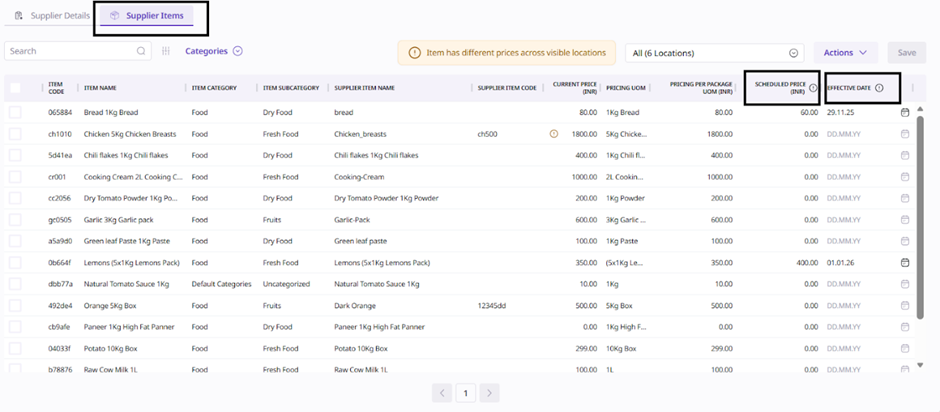
After saving:
The scheduled price appears in the Scheduled Price column.
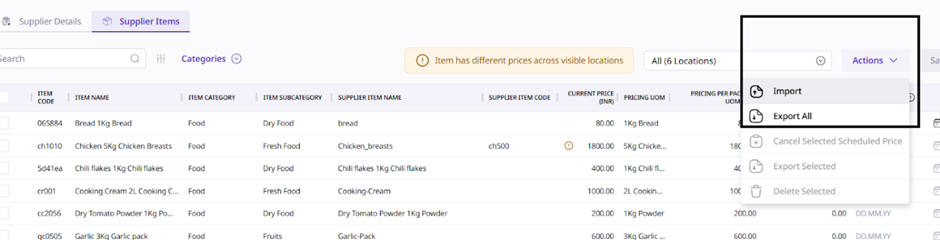
Navigate to Actions > Export All or Export Selected.
In the exported file, update:
Scheduled Price
Effective Date
Import the updated file using Actions > Import.
Click Save to apply all scheduled updates.
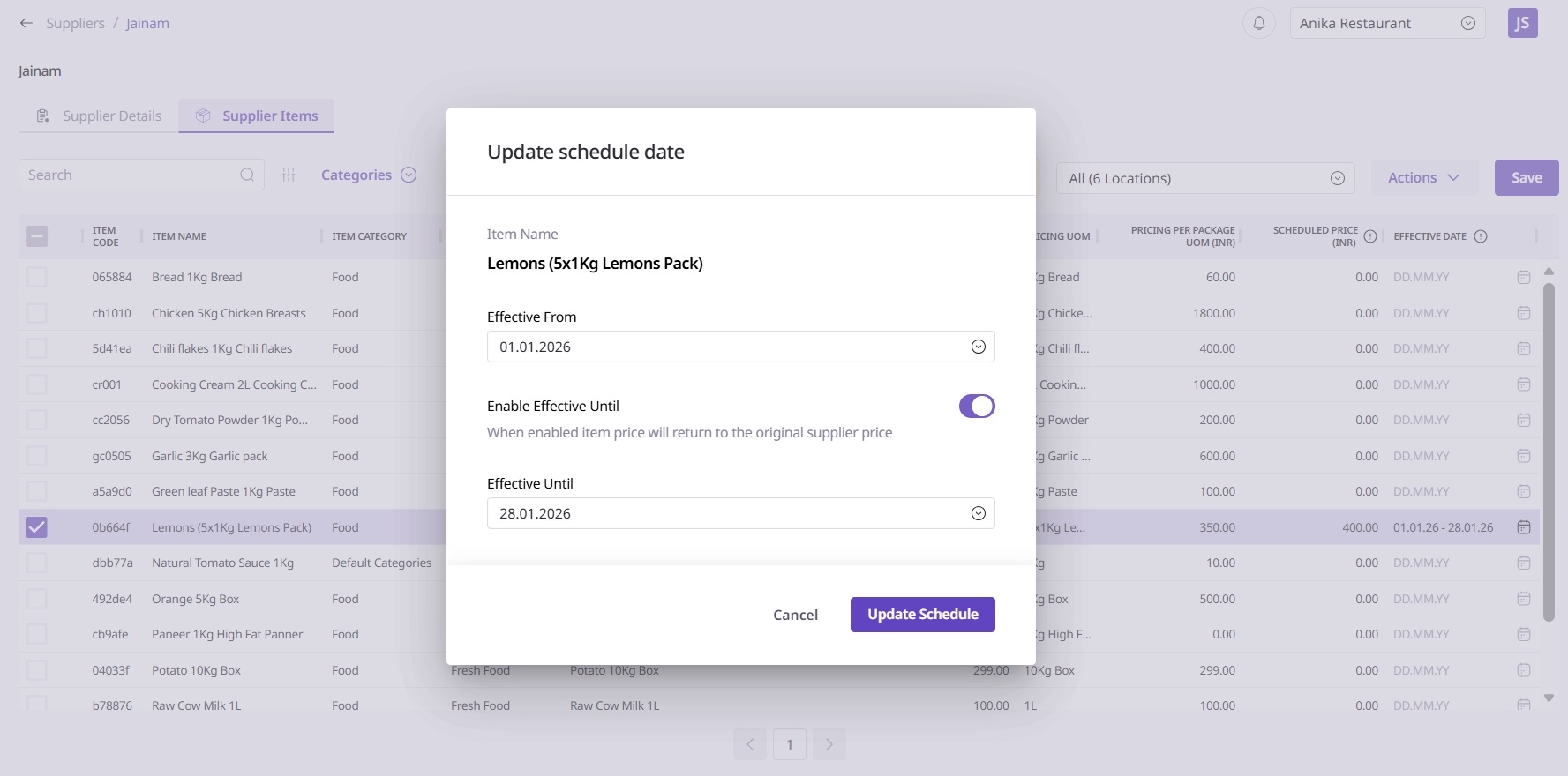
Use the date pop-up beside the Effective Date field.
The End Date defines how long the scheduled pricing is valid.
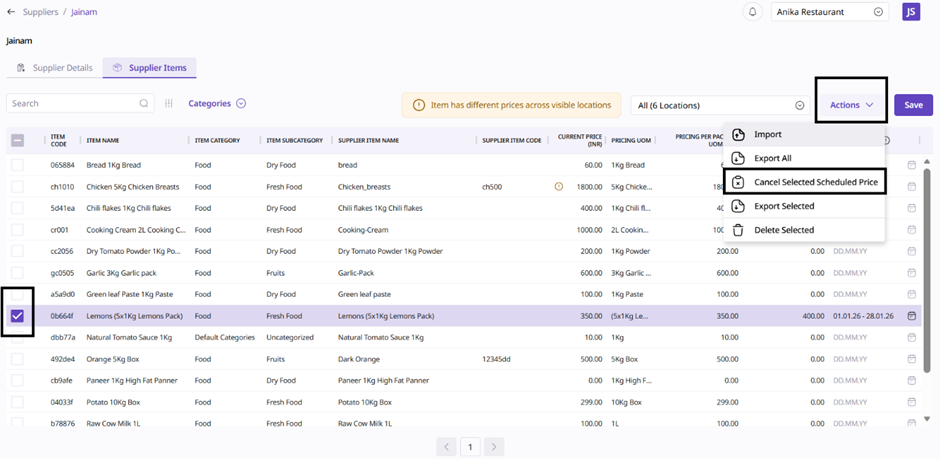
Check the box next to the scheduled item.
Open Actions > Cancel Scheduled Price.
The scheduled price is removed from the item.
Ensures future price changes are entered before they take effect.
Prevents missed or delayed price updates.
Provides visibility of upcoming supplier pricing changes.
Supports multi-location planning and cost forecasting.
Saves time, especially when scheduling changes for multiple items.
View Supplier Items
Edit Supplier Items
Import/Export Supplier Items
Branch Manager
Group Admin
Group Data Manager
Group Operations Manager
Users must have permission to edit supplier item pricing.
Location visibility settings determine which scheduled prices the user can see.
