Creating multiple inventory items for the same physical ingredient is one of the most common setup mistakes in SUPY.
This typically happens when items are created separately for different suppliers or invoice formats instead of using a single Base Item.
When duplicate items exist for the same ingredient:
Purchases are recorded under one item
Recipes consume another item
Stock exists in the system but is not depleted correctly
Variance increases unexpectedly
COGS becomes unreliable
SUPY treats each item as a completely separate stock, even if they represent the same product in real life.

You may notice one or more of the following:
Positive stock balance for one item, while recipes are consuming a different item
High variance on items that are frequently purchased and sold
“Negative stock” warnings even though the item was received
Confusion during stock counts (teams count one item, system expects another)
Multiple similar items appearing in reports and stock counts
In SUPY:
Each Inventory Item is unique
Stock, consumption, COGS, and variance are tracked per base item
SUPY does not automatically merge or assume items are the same, even if names are similar
When duplicate items are created:
GRNs increase stock for Item A
Depletion events decrease Item B
SUPY correctly calculates variance — but the setup is incorrect
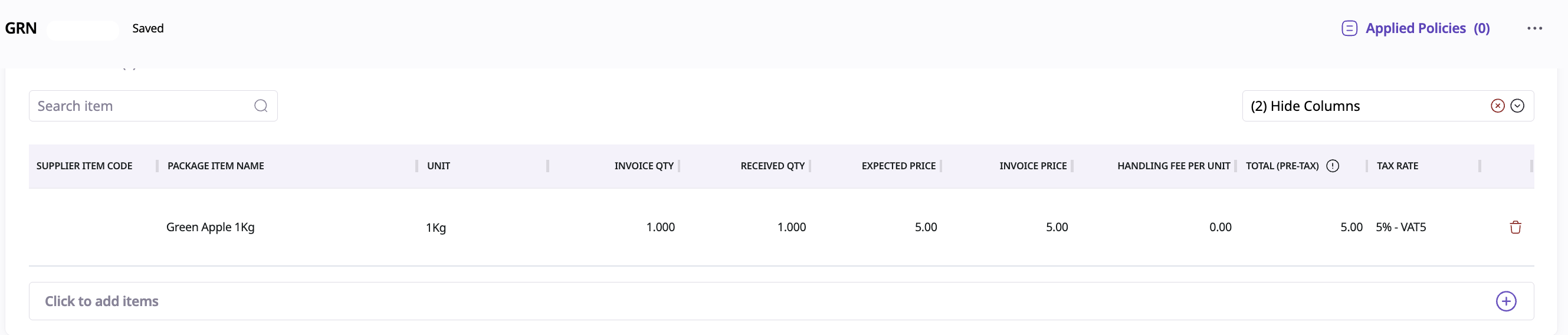
(Item A - Being received in a GRN)
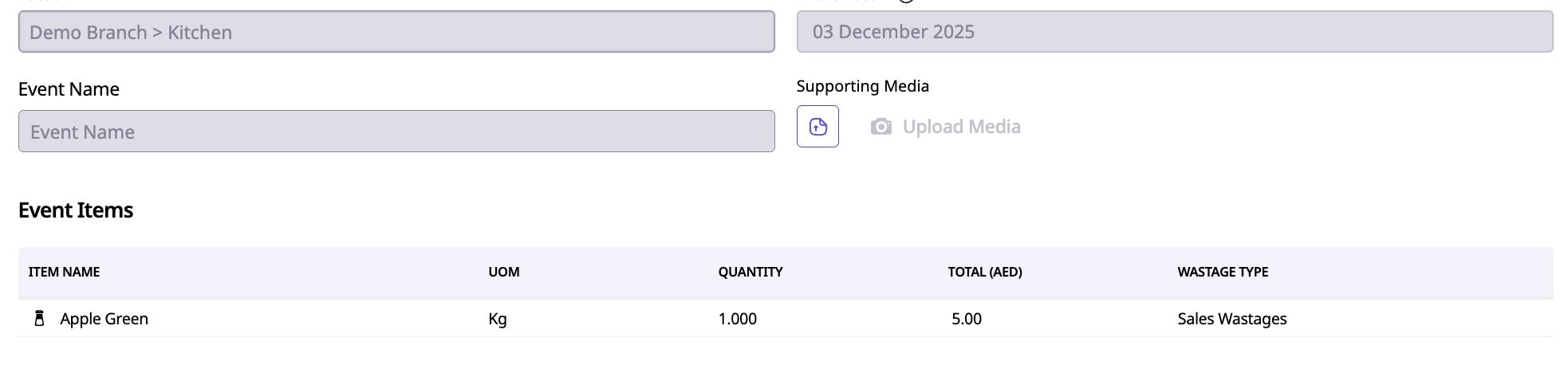
(Item B - Being depleted in a wastage event)
Follow this standard SUPY setup rule:
Do not create multiple items for the same ingredient under different names
Maintain one approved item name and use it consistently across:
GRNs (Purchasing/Receiving)
Recipes and depletion
Wastage
Transfers
Stock counts
Example:
Keep only one item: Green Apple
Ensure all teams use Green Apple in GRNs and in depletion events
Avoid variations like: Apple Green, Green Apples, Apple (Green)
This ensures:
Purchases and depletion hit the same stock
Inventory levels remain accurate
Variance and COGS reports stay reliable
If duplicates already exist, follow these steps:
Go to Repository → Items
Identify items that represent the same ingredient
Decide which item will remain as the master Base Item
Use Bulk Actions → Merge Items to merge duplicates into the master item
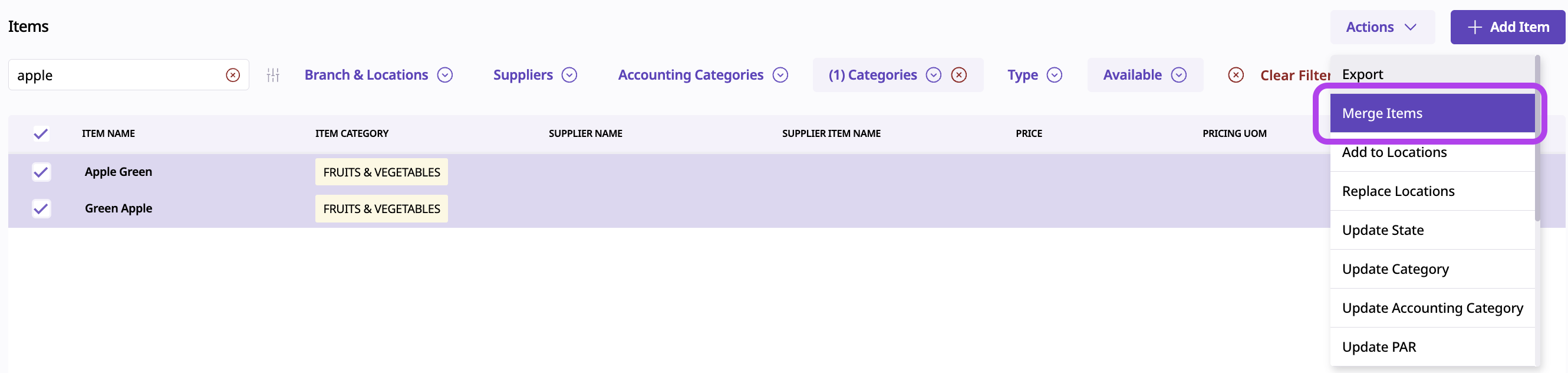

This consolidates the items stock, transactions, and history
Review:
Recipes using the old item
Supplier packages
Location activations

Before creating a new item:
Always search the Repository Items List
Check for similar names, spellings, or formats
If the ingredient already exists, add a new supplier package instead of a new item
Correct item structure is the foundation of:
Accurate stock levels
Reliable COGS
Meaningful variance analysis
Clean purchasing and recipe consumption
A clean item repository saves hours of troubleshooting later.
How to Create Items
The explains how to structure and manage inventory items in Supy using base, package, and supplier items.
How to add categories to items and recipes?
This article explains how to edit, and remove item categories and subcategories in Supy to keep your inventory organized and easy to manage.
How to edit Items
This explains how to search edit, and manage item details, packaging, suppliers, inventory levels, and recipes in Supy’s Inventory module.
Account Structure and Settings
Supy’s interface makes multi-location inventory and user management easy with clear navigation, filters, and bulk actions.
