The Received Items feature under the accounting module allows you to easily identify, review, and take action on irregular pricing or significant variances for items being received across branches and locations.
It ensures accurate invoice verification, consistent pricing, and smooth coordination between purchasing, accounting, and finance teams.
This feature is designed for users responsible for cost control, purchasing accuracy, and supplier reconciliation.
The following roles typically use the Received Items page:
Cost Controller – to monitor and validate supplier pricing variances.
Procurement Manager / Purchasing Officer – to verify that suppliers are billing items as per agreed purchase order prices.
Finance / Accounts Payable Team – to reconcile invoices with received goods and identify discrepancies before payment.
Branch or Outlet Manager – to ensure branch-level GRNs are accurate and consistent with central procurement prices.
Each role benefits from real-time insights into supplier pricing and variance tracking, ensuring better cost governance and accountability.
Go to Accounting → Received Items.
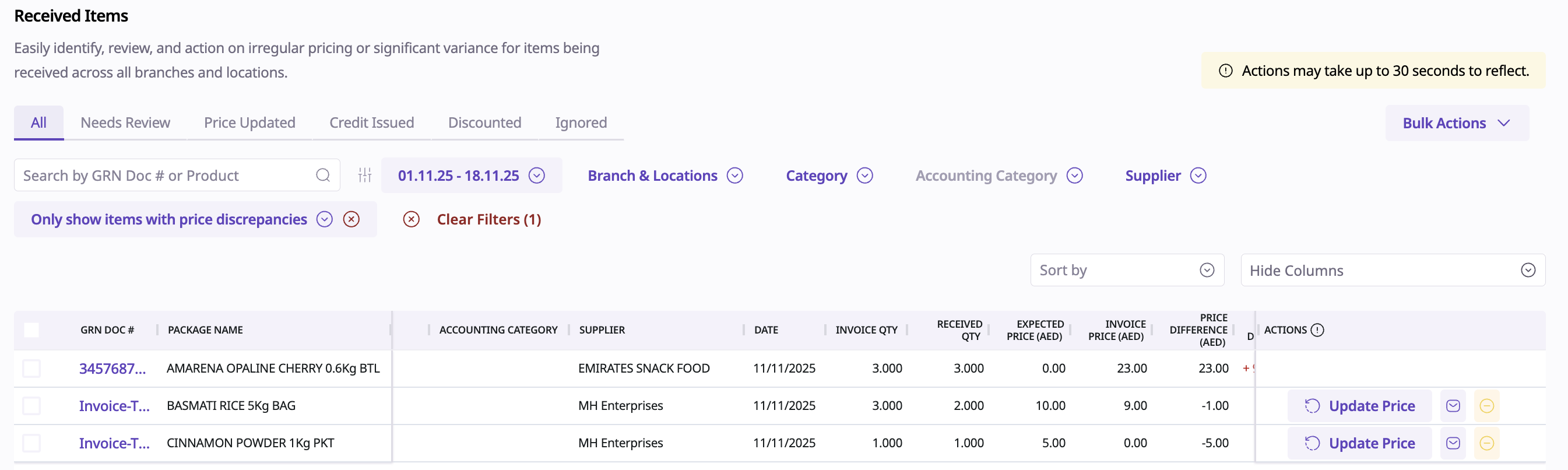
You’ll find a detailed table showing all goods received across your branches, including:
GRN Document Number
Package Name
Supplier Item code
Branch & Location
Category & Accounting Category
Supplier
Date - the date of the registered GRN
Invoice Quantity - the documented quantity as per the supplier Invoice
Received Quantity - the actual physically-received quantity on the ground
Expected Price (in base currency) - the price of the package as per the requested PO, or the current configured supplier price
Invoice Price (in base currency) - the actual price registered on the supplier Invoice.
Price Difference - the difference between the Expected and Invoice Price
Price Discrepancy (%) - Price Discrepancy % indicate the change in the Invoice price over the expected price. ((Expected Price – Invoice Price) ÷ Expected Price) × 100
Status (e.g., None, Price Updated) - the action taken to handle the discrepancy, if any
Actions (e.g., Update Price, Ignore Discrepancy) - some quick actions that can be taken to address discrepancies
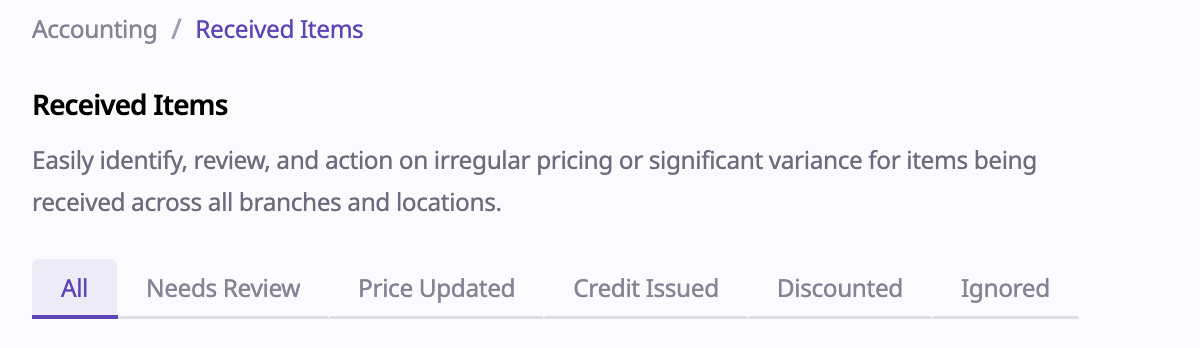
The top of the page includes categorised tabs to help you manage and review items efficiently:
TAB | DESCRIPTION |
All | Displays every received item across all branches — regardless of status. It’s the default view for an overall summary of all GRNs. |
Needs Review | Shows items that have unresolved price discrepancies or irregular variances and still require user review or confirmation. Use this tab to focus on items that may need action. |
Price Updated | Lists items for which a price update has been applied — either directly through the GRN by clicking on the checkbox mentioned on the GRN page, via quick actions on the Received Items grid, or via Bulk Updates. |
Credit Issued | Displays items where a credit note has been issued to resolve a price variance. This typically applies when suppliers provide a credit adjustment instead of updating prices. |
Discounted | Includes items where the discrepancy was marked as a discount provided by the supplier. These items are considered closed from an accounting perspective. |
Ignored | Shows items that have been manually ignored, meaning the discrepancy was acknowledged but intentionally excluded from further review or adjustment. |
These tabs make it easier to track the review progress of each discrepancy and maintain transparent records of supplier pricing updates.
Use filters to quickly locate items that match your review criteria.
Available Filters:
Date Range – Select a specific range for GRN invoices dates.
Branch & Locations – View items received in a particular branch or outlet.
Category & Accounting Category – Refine items based on their classification.
Supplier – Filter items received from a specific supplier.
Variance –
Toggle “Only show items with price discrepancies” to isolate items with mismatched prices.
Set a variance percentage range (From–To) to view discrepancies within specific limits, including negative variances. Either one or both sides of the limit can be entered. For example, if only entering From 10%, the grid will be filtered for items with 10% variance and above.
Search bar – The user can also use the search bar or searching the GRN by GRN Document number or Product.
You can also sort the list by any column — such as discrepancy %, supplier name, or invoice date — to organise your view efficiently.

You can review and resolve price discrepancies using three main workflows:
A. Direct Actions (in-row)
These are some of the quick actions that can be taken to resolve or address discrepancies
The action buttons can be used for:
Updating the price for the future orders/invoices
Ignoring the price discrepancy
Preview an email template that can be used to reach out to the supplier to find out more on why item prices have increased, ff the price discrepancy is unacceptable and credit is to be issued

B. Alternative Actions (external navigation)
Actions like registering credit or fixing incorrect prices can be done via the original GRN Details page, by clicking on the GRN Doc # on any item row.
The changes made in the GRN will automatically reflect back on the Received Items page within a few minutes.

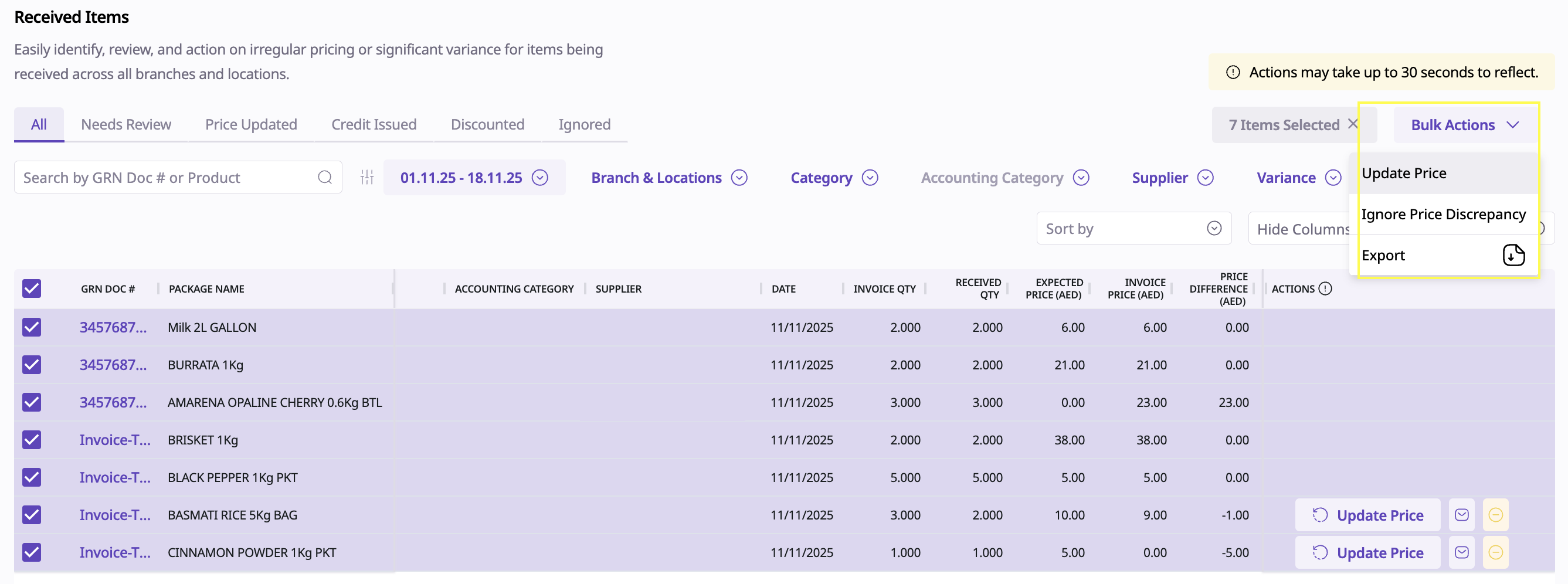
C. Bulk Actions (multi-row)
To save time, you can apply actions to multiple items at once.
Select one or more records from the Received Items list, and choose from the following Bulk Actions:
Update Price – This will update the new procurement prices for items according to the invoice prices.
Ignore Price Discrepancy – Exclude selected discrepancies from further action.
Export – Download selected records for offline analysis or reporting. This option can be used without selection of rows to export all filtered records.
Each line item includes a Status column that shows the current review stage:
 None – No discrepancy or pending action.
 Needs Review - Items with price discrepancies that have not been handled or resolved yet.
 Price Updated – The variance has been reviewed and resolved by accepting the new price.
 Credit Issued / Discounted – The discrepancy was addressed financially.
 Ignored – The discrepancy was dismissed.
You will also see the user’s name who performed the last update or action, ensuring clear accountability and traceability.

Quickly detect and resolve pricing discrepancies.
Maintain accurate supplier cost tracking and accounting data.
Improve coordination between purchasing, finance, and outlet teams.
Save time with smart filters and bulk updates.
Ensure consistency and transparency across all received items.
To access and perform actions in Received Items, users must have the following Accounting > Goods Received Notes permissions enabled for their role:
2.3.17 Can view existing GRN details – To see all received item records.
2.3.6 Can mark item price discrepancies as Ignored - To permanently ignore price discrepancies
2.3.16 Can update overall item prices from a GRN - To Update Price for future procurement
