Recipe Scheduling introduces a new way to plan and publish recipe updates in advance. With this feature, you can now set a future date for a recipe to go live, helping your team stay organized and aligned across production, costing, and menu planning.
Previously, all recipe updates in Supy went live immediately after publishing. With Recipe Scheduling, you can now:
Schedule a draft recipe to publish automatically on a chosen future date.
Schedule a new version of an already published recipe so the update takes effect later.
Optionally set an end date so the system automatically reverts to the previous version after a limited time (ideal for seasonal menus).
This feature is available in both the Repository and Inventory modules and respects your existing publish permissions.
Preparing menu updates or cost changes in advance.
Coordinating with seasonal promotions or limited-time items.
Avoiding late-night manual updates before launch days.
User Type | What They Can Do |
Users with Publish Permissions | - Publish immediately or schedule a future publish date. |
Users without Publish Permissions | - Create or edit scheduled versions (without assigning dates). |
Finished recipes used for revenue tracking cannot be scheduled.
The scheduling feature is now part of the Actions dropdown in the Recipe module.
For Draft Recipes
Go to Recipes → [Select Draft Recipe].
Open the Actions dropdown.
You’ll now see two options:
Publish — publish immediately.
Publish on a Specific Date — open a calendar to choose a future publish date.

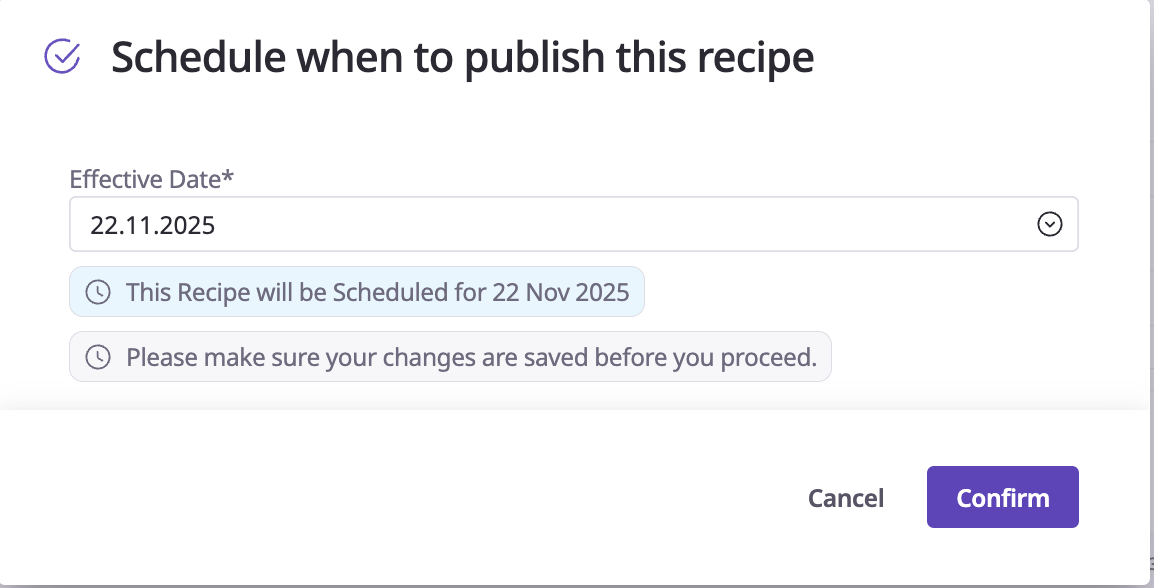
Once scheduled, the recipe’s status shows as “Scheduled”, and the selected date appears under Scheduled For in your recipe list.

For Published Recipes
Open an existing published recipe.
Go to Actions > Schedule Recipe > Create Schedule.

Save and select Publish on Specific Date from the Actions menu.
Choose a future effective date (and optional end date).
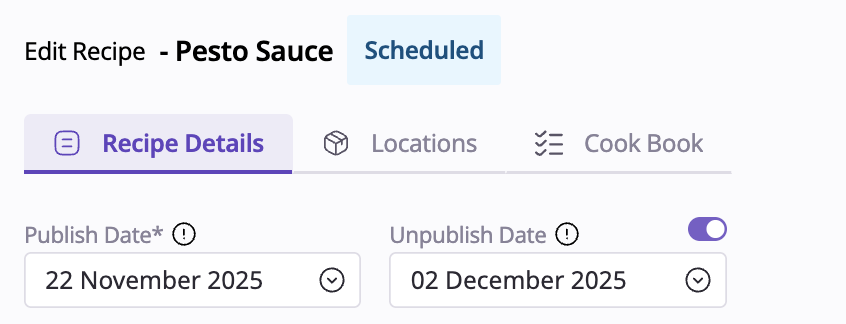
Supy will automatically activate the new version on that date.
Details
Each recipe can have only one scheduled version at a time.
Once a future version exists, you’ll see the message:
“A new version of this recipe is scheduled to go live on [Date].”
You can view or edit scheduled versions from the same page.
The system prevents selecting past dates or backdating.
When the scheduled date arrives, Supy automatically activates the new version and updates POS mappings.
If an end date is set, the system reverts to the previous version automatically when it expires.
If a date is set for today, the recipe will be published immediately.
For semi-finished recipes, the scheduled inventory tab will not be visible because future inventory levels cannot be determined.
If there is no end date, the original recipe version will not be rescheduled—it will be deleted.
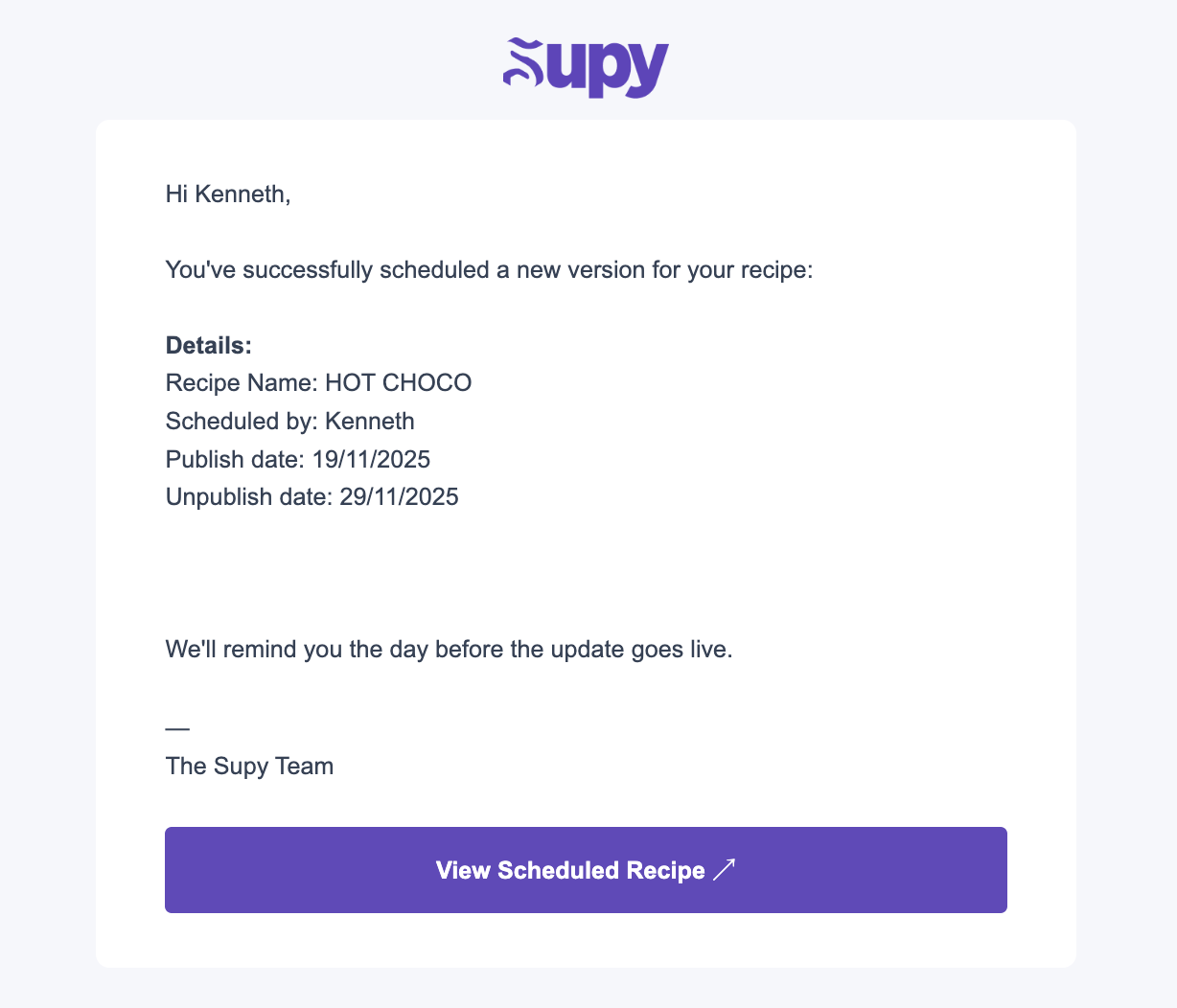
You’ll receive automatic email alerts to stay informed:
Notification | Recipient | Timing |
Creation Confirmation | Scheduling user + original recipe creator | Immediately after scheduling |
Reminder Email | Scheduling user + original recipe creator + modifier | 1 day before the scheduled publish date |
Emails include the recipe name, publish date, and the user who scheduled the change.
If the recipe is scheduled within 24 hours, only a Reminder Email will be sent.
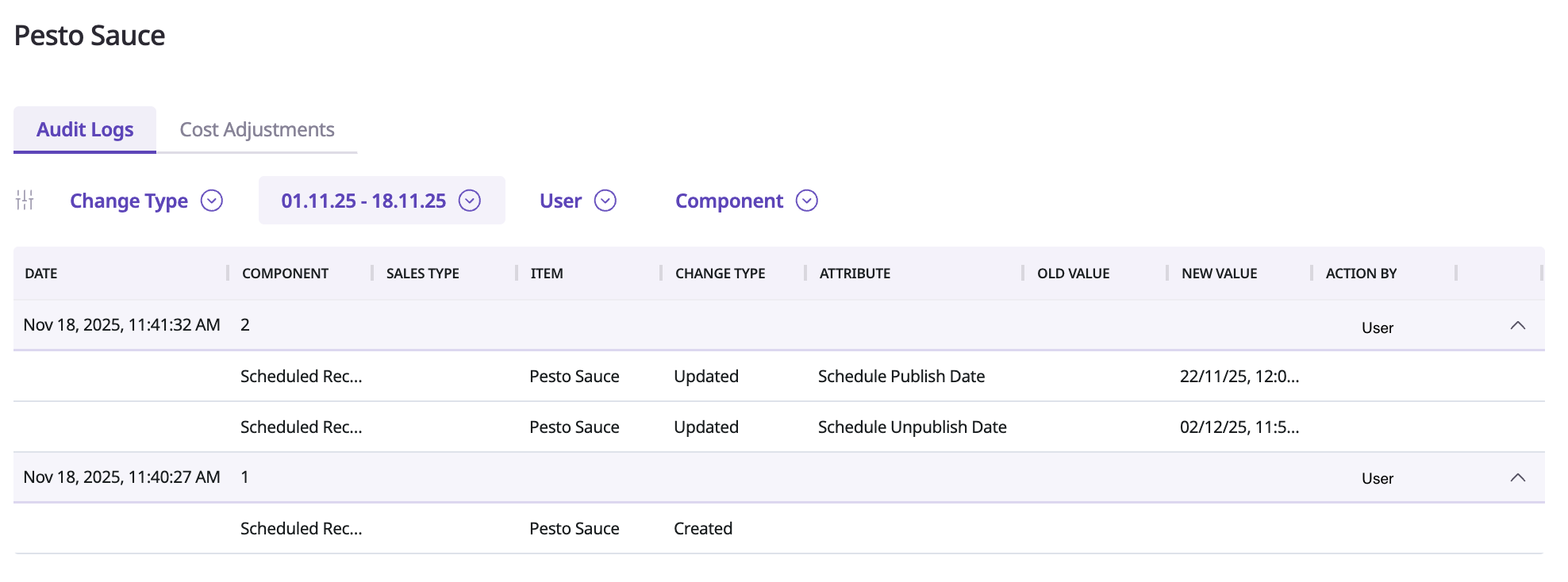
Every scheduling activity is recorded in Audit Logs for full traceability:
Created, modified, or cancelled schedules.
Date and time of change.
Username and action details.
When viewing a scheduled version, the Actions dropdown is simplified to:
Download Recipe Card
All other actions (e.g., Clone, Discard, Publish) are disabled for scheduled versions.
Scheduled logs will be available within the published recipe’s audit log.
You can’t select a past or current date when scheduling.
If there is an end date, it must be later than the current date.
Only one scheduled version can exist per recipe.
Finished recipes used for revenue tracking are excluded.
Scheduled versions are automatically mapped to POS items upon activation.
If you try to leave the page without saving a scheduled version, a confirmation popup will appear to prevent accidental data loss.
Let’s say your restaurant launches a new seasonal drink next week:
You create a draft recipe today.
Use Publish on a Specific Date and select next Monday.
Supy will automatically make the recipe live on Monday morning—no manual action needed!
The Replace Item feature helps you plan ingredient transitions more efficiently.
You can now schedule an item replacement across all recipes (excluding scheduled and draft versions) for a future date, with the option to automatically revert to the original item later — no manual updates required.
Earlier, the Replace Item button replaced the item immediately.
Now, the button includes three options: Backdate, Replace Item Immediately, or Schedule Replace Item.
This update helps culinary and procurement teams manage seasonal items, supplier changes, or substitutions in advance while ensuring recipe accuracy and consistency.
Previously, the Replace Item change was applied instantly across all recipes.
Now, with Scheduled Replacement, you can:
Choose a future start date (tomorrow onwards) for the change to take effect automatically.
Optionally set an end date to automatically revert recipes to the original item.
Review and edit how the new item is used in each recipe — including net quantity, UOM, and wastage %.
Planning future menu or supplier transitions.
Managing seasonal ingredient changes (e.g., “Strawberries → Blueberries” during off-season).
Testing new items temporarily with an automatic revert date.
Ensuring all recipes stay consistent across outlets on a specific launch day.
User Type | What They Can Do |
Users with Recipe Edit or Publish Rights | - Schedule item replacements across recipes. |
Users without Edit Rights | - View scheduled replacements only (read-only). |
Only users with edit permissions for recipes can create or update scheduled replacements.
You can access the Scheduled Replacement option from two locations:
Repository → Item List View
Select the checkbox next to the item you want to replace.
Open the Actions dropdown.
Choose Replace Items.

Item Detail Page → Recipes Tab
Open the item you want to replace.
Go to the Recipes tab.
Click Replace Item from the action bar.

Details
Select Original and Replacement Items
Choose the item to be replaced and the new replacement item.
The replacement item must already exist in the Item List and be active.
You cannot select the same item for both fields.

Set Effective Dates
Choose a Start Date (tomorrow onwards).
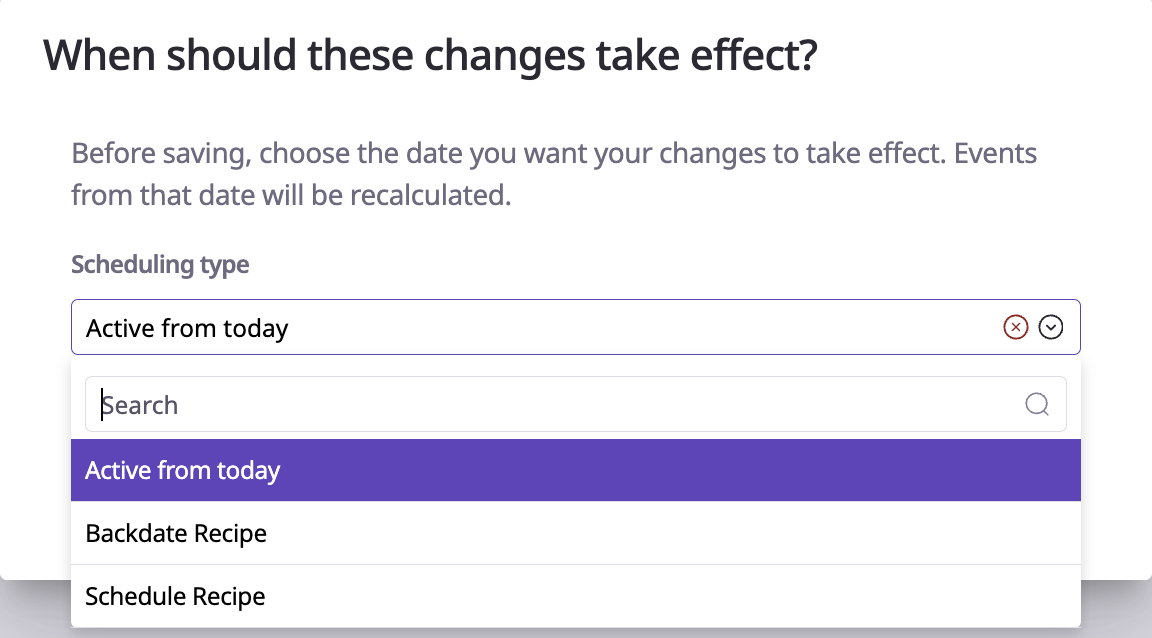
Optionally, set an End Date to automatically revert to the original item.
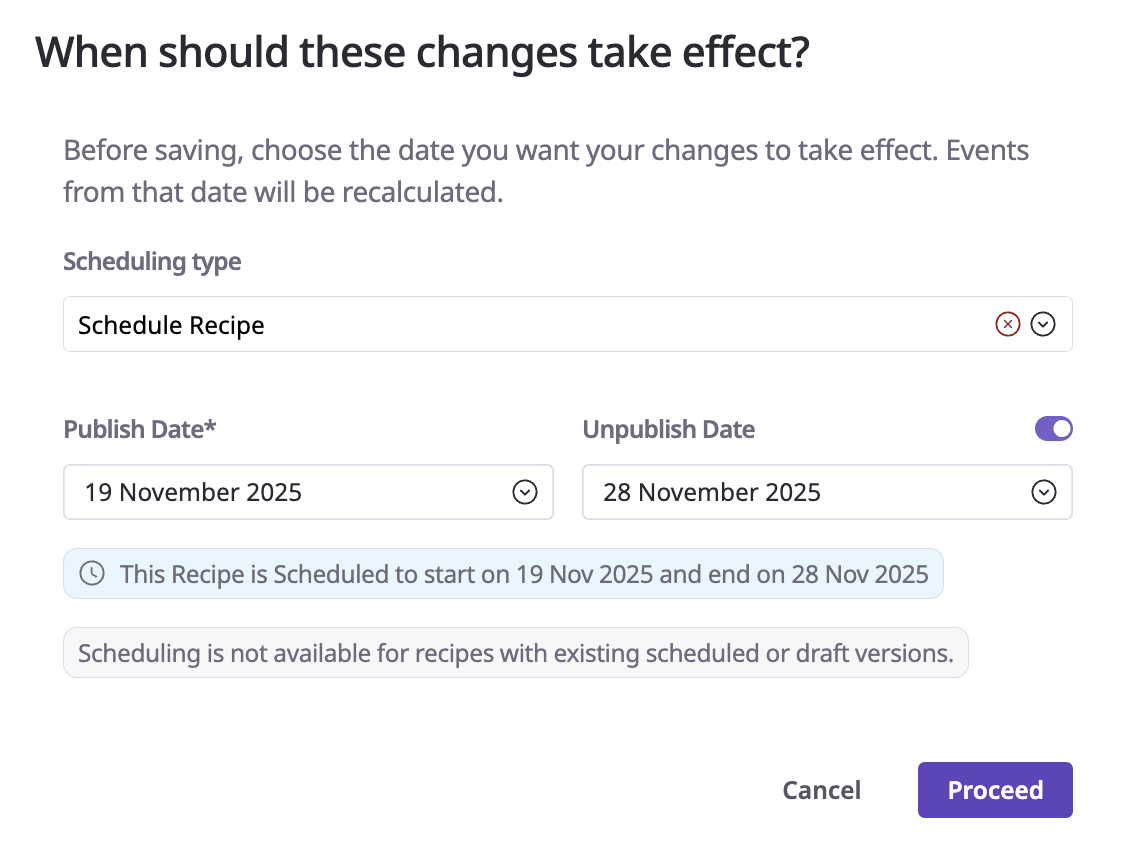
Confirm & Schedule
A confirmation prompt appears before saving.
Once confirmed, Supy stores the schedule and displays the status as “Scheduled Replacement.”
You’ll see the start and end dates in both the Item and affected Recipe views.

Every action is fully traceable in Audit Logs, including:
Creation, editing, deletion, execution, and reversion of scheduled replacements.
Affected recipe names, original and replacement items, and updated values.
Who made the change and when.
Any skipped recipes (e.g., due to a deleted original item).
You can view these logs directly under each affected Recipe → Audit Logs section.
Supy performs several validations to ensure clean scheduling:
Check | Description |
Valid Items | Replacements must exist, be active, and differ from the original. |
Valid Dates | Start date must be tomorrow onwards; End date must be after the Start date. |
Conflict Check | Warns if another replacement overlaps the same date range. |
Allergen Warning | Displays a warning if allergen lists differ (user may choose to proceed). |
Permission Validation | Only authorized users can schedule or modify replacements. |
Let’s say you’re temporarily replacing “Fresh Strawberries” with “Frozen Strawberries” due to seasonal supply issues.
Select “Fresh Strawberries” and choose “Frozen Strawberries” as the replacement.
Click Next, then select one of the options: Active from Today, Backdated Recipe, or Schedule Recipe.
Set the Publish and Unpublish dates. (Scheduling is not available for recipes with existing scheduled or draft versions.)
Adjust Net Quantity (to account for water loss) and Wastage %.
Confirm the schedule.
Supy automatically updates all recipes on Monday and reverts to “Fresh Strawberries” after the set period — all without manual edits.
