Open the Supy mobile app and tap the “+” icon at the bottom of the screen.
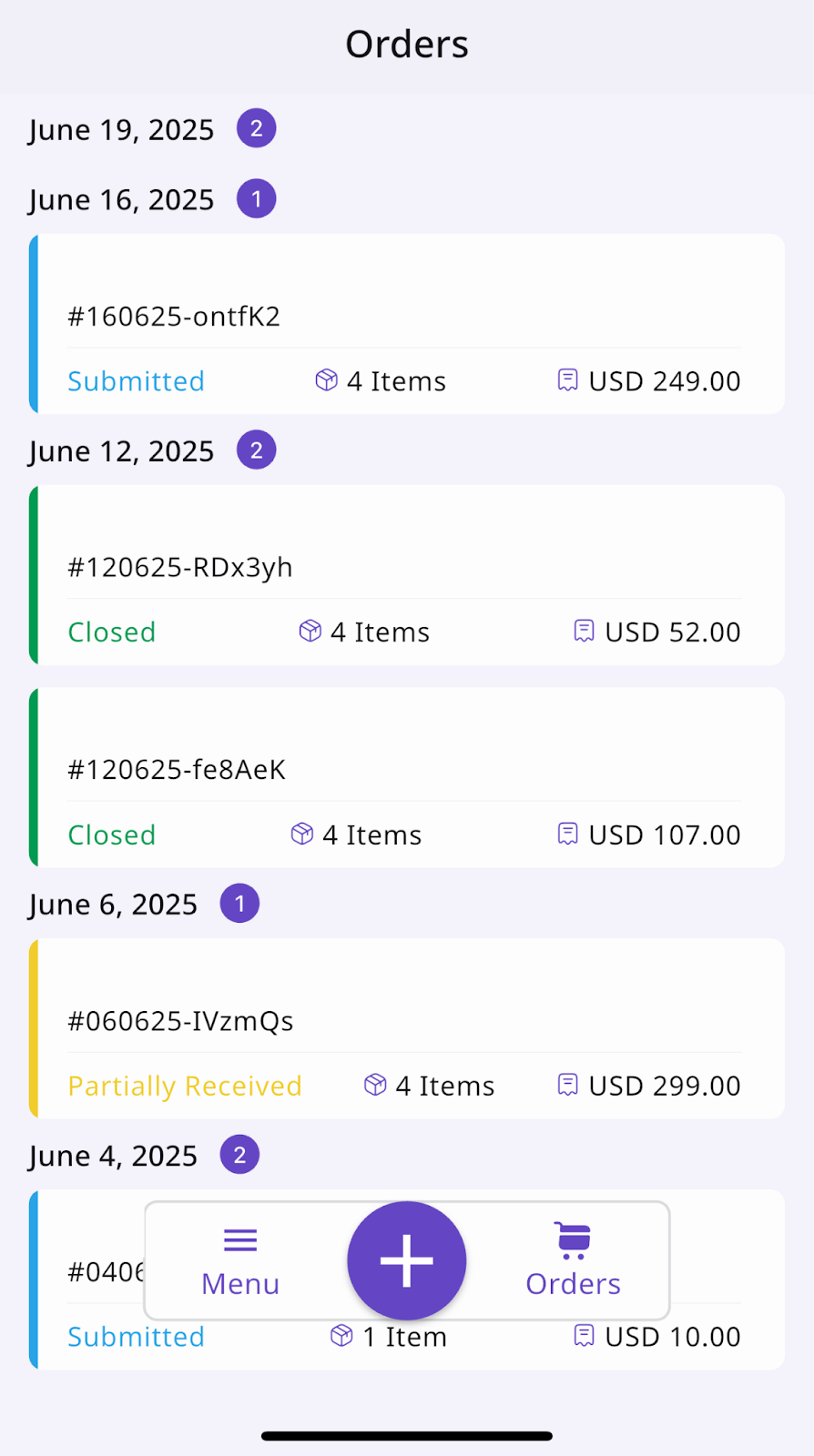
From the menu that appears, select “Requisition” to create a new request. A list of your item categories will be displayed. Select one to continue.
Browse the selected category and choose the items you need
Enter the quantity for each item and tap “Add to Basket”
To add more items, switch to other categories and repeat the process
You can add as many items as needed before submitting.
Once all items are added:
Tap the basket icon
Review the items in your list
Set the delivery date
Add any notes or remarks for the supplier
Then tap “Place Requisition”
You can return and add more items from any category to the same requisition until it is approved.
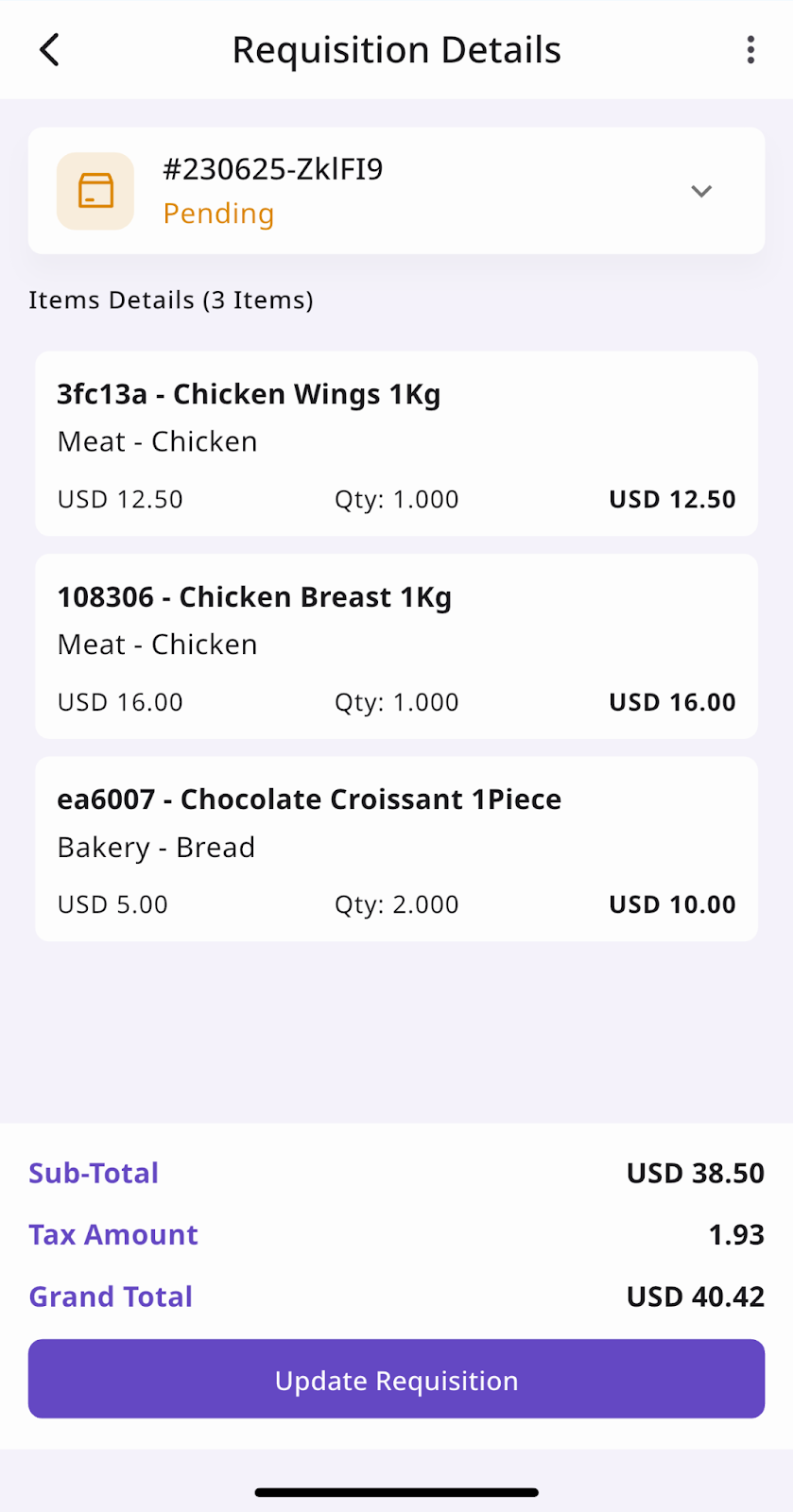
Approvers can go to:
Menu > Review Requisitions
The latest requests will be listed with “Pending”
Tap on a Pending requisition to:
View all requested items
Adjust quantities or suppliers as needed
Tap “Next” to proceed
You’ll see a summary with:
Total items
Total suppliers
Delivery date
You can then choose to:
Approve – confirms the request and moves it to approved requisition orders
Approve & Process – sends the request directly as draft or final supplier orders
Once Submit Supplier Orders is selected:
The system sends separate orders to each supplier
Orders are now ready to be received on the scheduled delivery date
