Modifiers in Supy help track the cost and inventory impact of add-ons or customizations (like different milk types or sugar levels) that your team sells alongside core items such as coffee.
Before configuring anything in Supy, a clear understanding of how the POS system is set up is important:
Main Item: A button like “Coffee Mocha” is a standalone item in the POS.
Modifiers: These are typically child buttons, like:
Milk Low Fat
Beans 2
Sugar Level Low
Each modifier can have a unique PLU (Product Lookup Code) and is logged as a separate line item in the POS when a sale is made.
In Supy:
Main Item (e.g., “Coffee Mocha”) is created as a Recipe. This recipe should only contain the fixed items of the recipe (not the modifier), if there are no fixed items in the recipe, create it as a revenue tracking recipe.
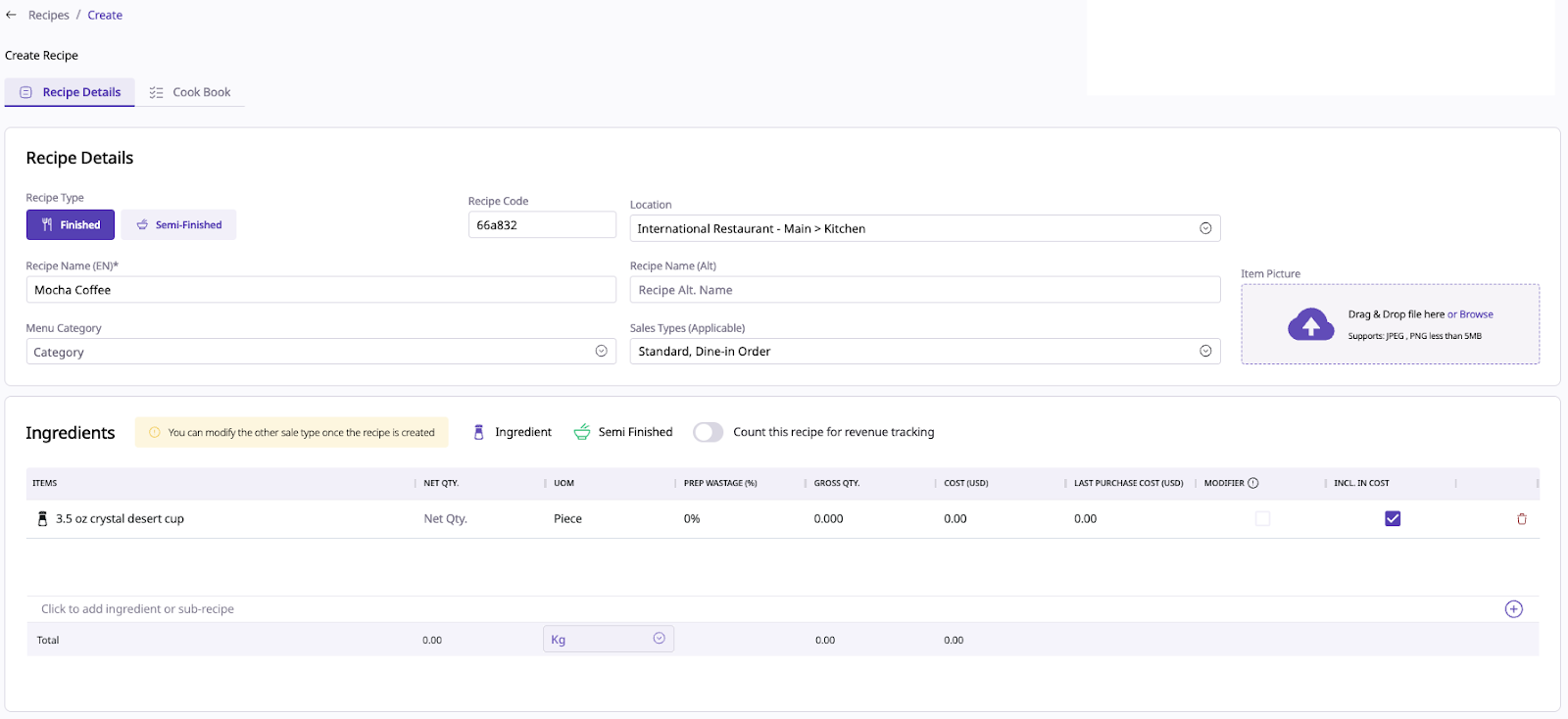
Modifiers (e.g., “Milk Full Fat 50ml”,”Almond Milk 50ml”, “Beans 2”) are also created as separate Recipes, each with its ingredients and quantities.

Modifiers are marked with 0 revenue, while the main item carries the full price.
Supy will deplete the ingredients used in each Recipe, unless marked as Modifier = TRUE, which prevents depletion for simulation purposes.
Navigate to the Retailer Portal.
Log in with your user credentials.
From the left-hand menu tab, go to:
Repository → Recipes
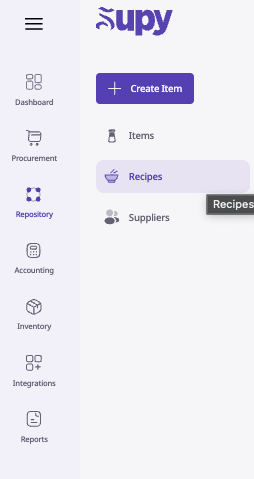
Or, if you're planning to focus on cost control and tracking, use Inventory → Recipe, then you can click on “Create Recipe” immediately after opening Inventory.
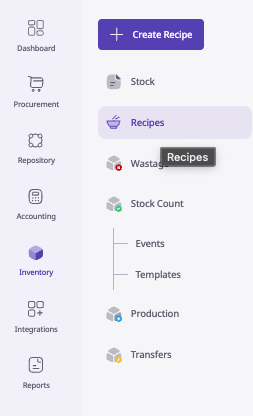
In the top-right corner, click the blue + Create Recipe button.

Once you land on the Recipe Creation page. Fill out:
Field | Description |
Recipe Name | e.g., “Milk Low Fat 50ml” |
Category | Select the appropriate category (e.g., Beverages or Ingredients) |
Selling Price | 0 for modifiers |
UoM (Unit of Measurement) | Based on how the ingredient is measured (e.g., ml, g) |
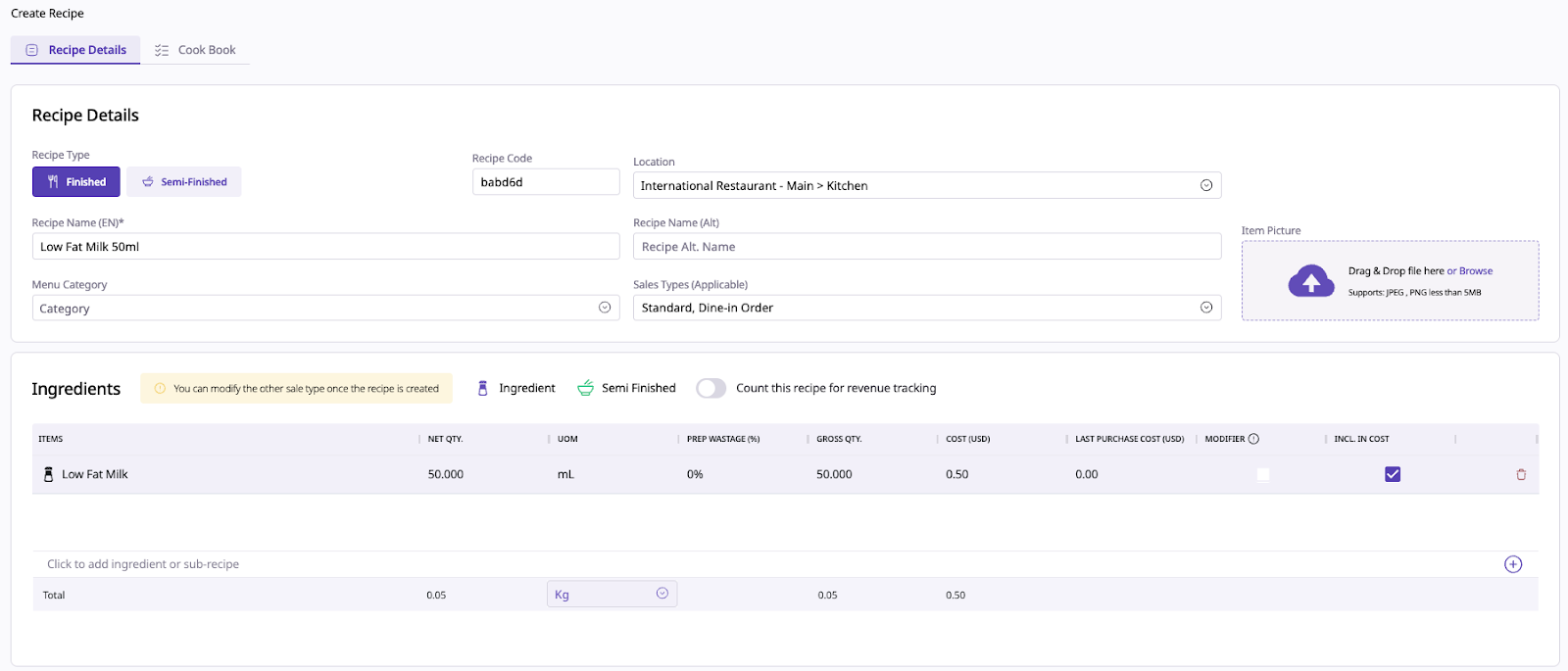
Modifier
Tick this column box if it's a modifier (important to prevent depletion)

Scroll down to the Ingredients Table:
Click to add more ingredients by clicking on the “+” icon.
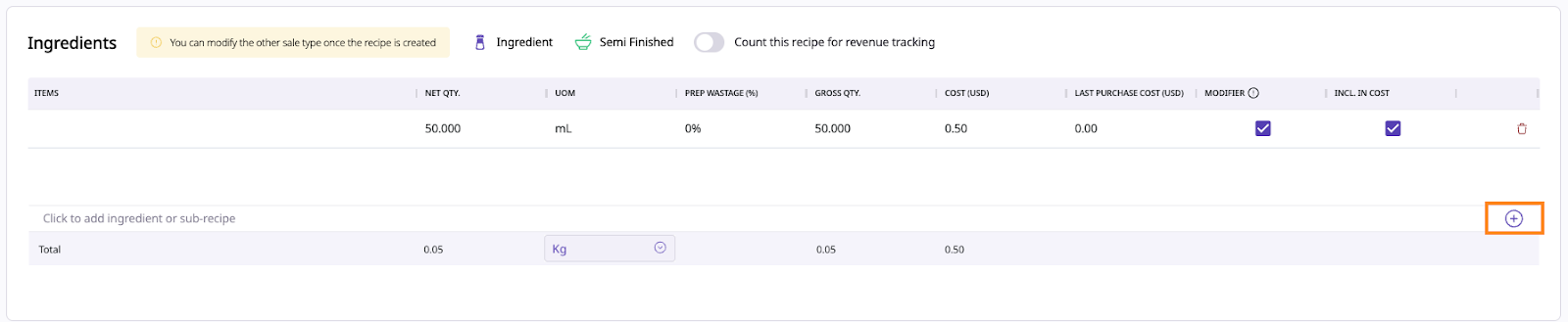
In the pop-up:
Search and select the ingredient (e.g., "Milk Low Fat")
Enter Quantity (e.g., 50)
Select UoM (e.g., ml)
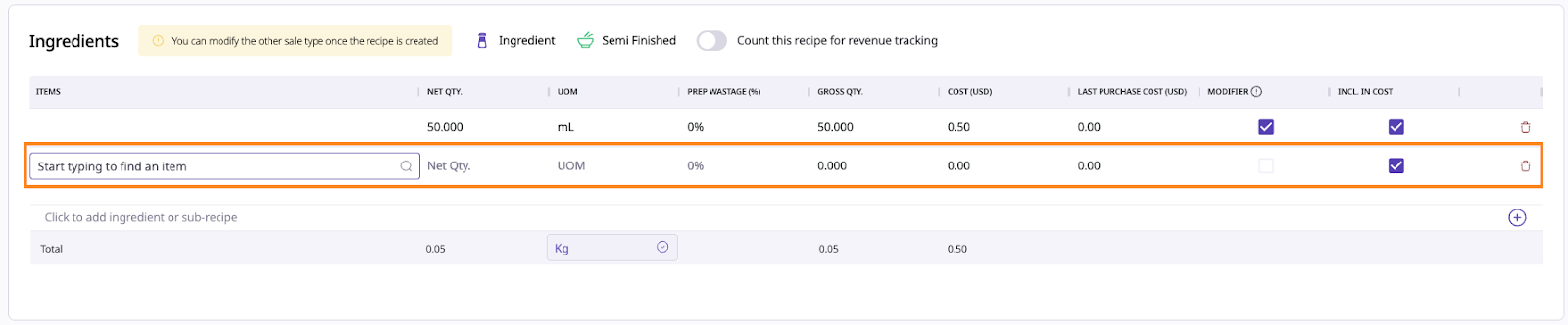
Repeat if the modifier has more than one ingredient.
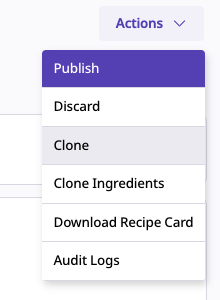
Once all ingredients are added, click Save and go to Cook Book

Then click Publish to activate the recipe
For “Milk Full Fat 75ml”, do the following:
Recipe Name: Milk Full Fat 75ml
Selling Price: 0
Modifier: Checked
Ingredient name: Milk Full Fat
Qty: 75
UoM: ml

Repeat these steps for each new modifier recipe, changing the quantity and ingredients.
Ensure that each modifier in your POS has a unique PLU.
In Supy’s Sales menu:
Go to: Integrations → Sales → Items Mapping

Match each PLU code from the POS to its corresponding Supy recipe

POS PLU Code | POS Item Name | Supy Recipe |
ML-010 | Milk Low Fat 50ml | Milk Low Fat 50ml |
MF-012 | Milk Full Fat 100ml | Milk Full Fat 100ml |
BE-002 | Beans 2 | Beans 2 Decaf |
Tip: If two POS items share the same PLU but differ in quantity, Supy will deplete inventory incorrectly. Make sure each variant has a unique PLU.
If other main items like “Coffee Latte” use the same modifiers (e.g., Milk Full Fat 50ml), you do not need to recreate those recipes. Simply map the modifier again in the POS mapping.
Only create new modifier recipes if:
The ingredient quantity changes (e.g., 75ml instead of 50ml)
The modifier uses a different ingredient.
If you want to estimate food cost for menu engineering:
Go to Inventory → Recipes
Create a recipe for the main item
Add the most expensive modifiers as ingredients (with Modifier = TRUE)
Review the Pricing Simulator to get an estimate of gross food cost
⚠️ These will not deplete inventory or affect real-time usage — it's just for analysis.
If a POS item (like a Kids Meal) is only for revenue tracking, and doesn’t require inventory depletion:
Create the recipe as normal
Leave the ingredients section empty
Tick: ✅ Count this Recipe for Revenue Tracking
Go to Repository → Cost Centers
Split revenue across cost centers accordingly (e.g., 70% to Kitchen, 30% to Bar):
Save & Publish
