Stock counts are the backbone of effective inventory management in your restaurant. This enhanced guide will walk you through the process of performing stock counts using Supy, complete with suggestions for image placement to make the instructions crystal clear.
Before diving into the process, let's understand why stock counts are crucial:
Inventory Accuracy: Provides a precise snapshot of your current stock levels
Variance Detection: Helps identify discrepancies between expected and actual quantities
COGS Precision: Enables accurate calculation of Cost of Goods Sold between inventory periods
Loss Prevention: Assists in detecting potential theft or waste
Step-by-Step Stock Count Process
1. Initiating a Stock Count
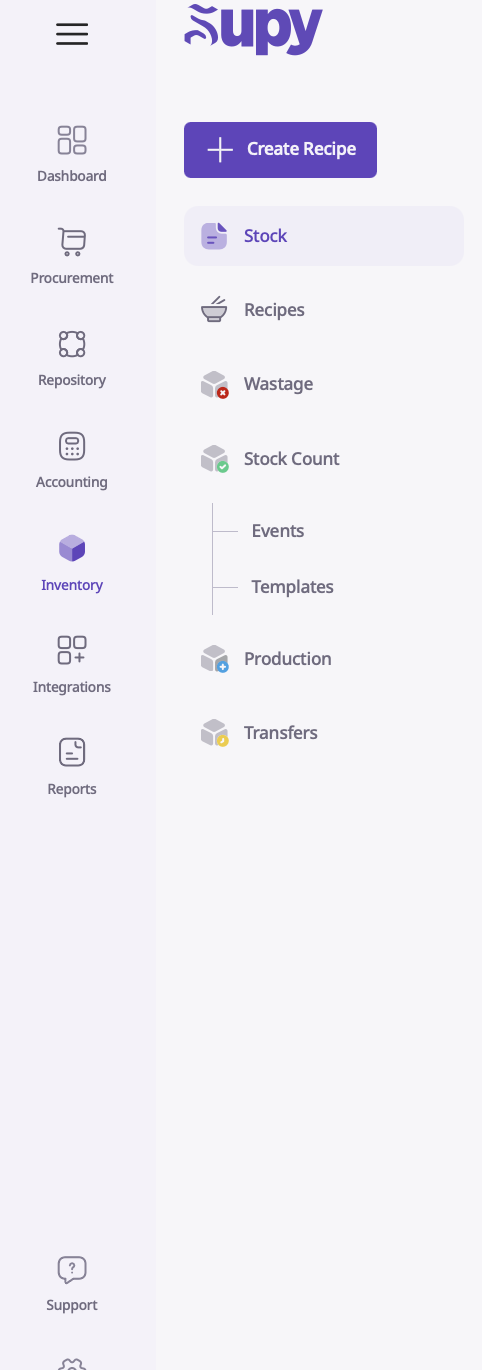
1. Log into your Supy portal
2. Navigate to the Inventory module
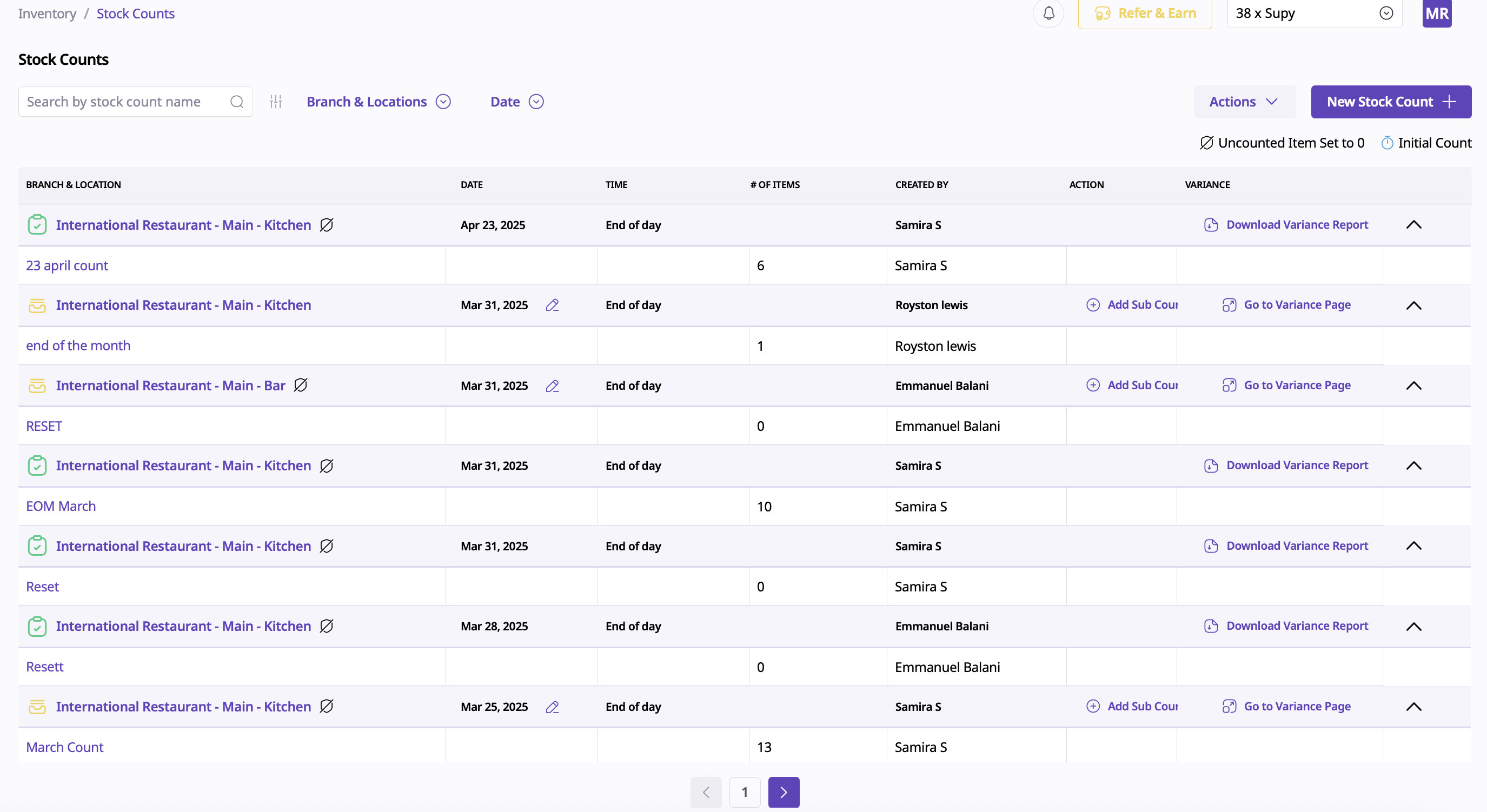
3. Click on Stock Count to view previous counts
4. Select Stock Count button in the top right corner to begin a new count
2. Setting Up the Count Event
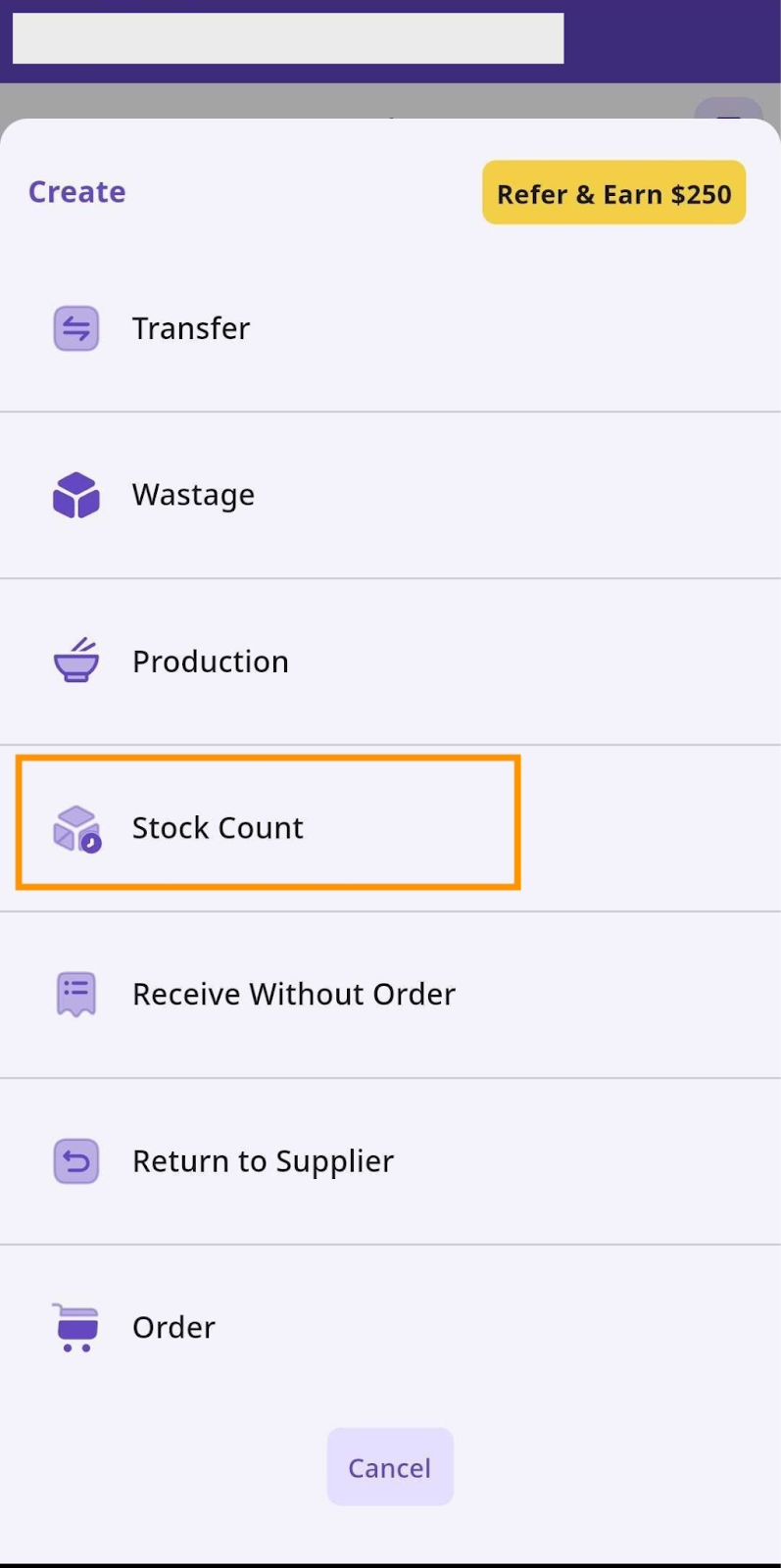
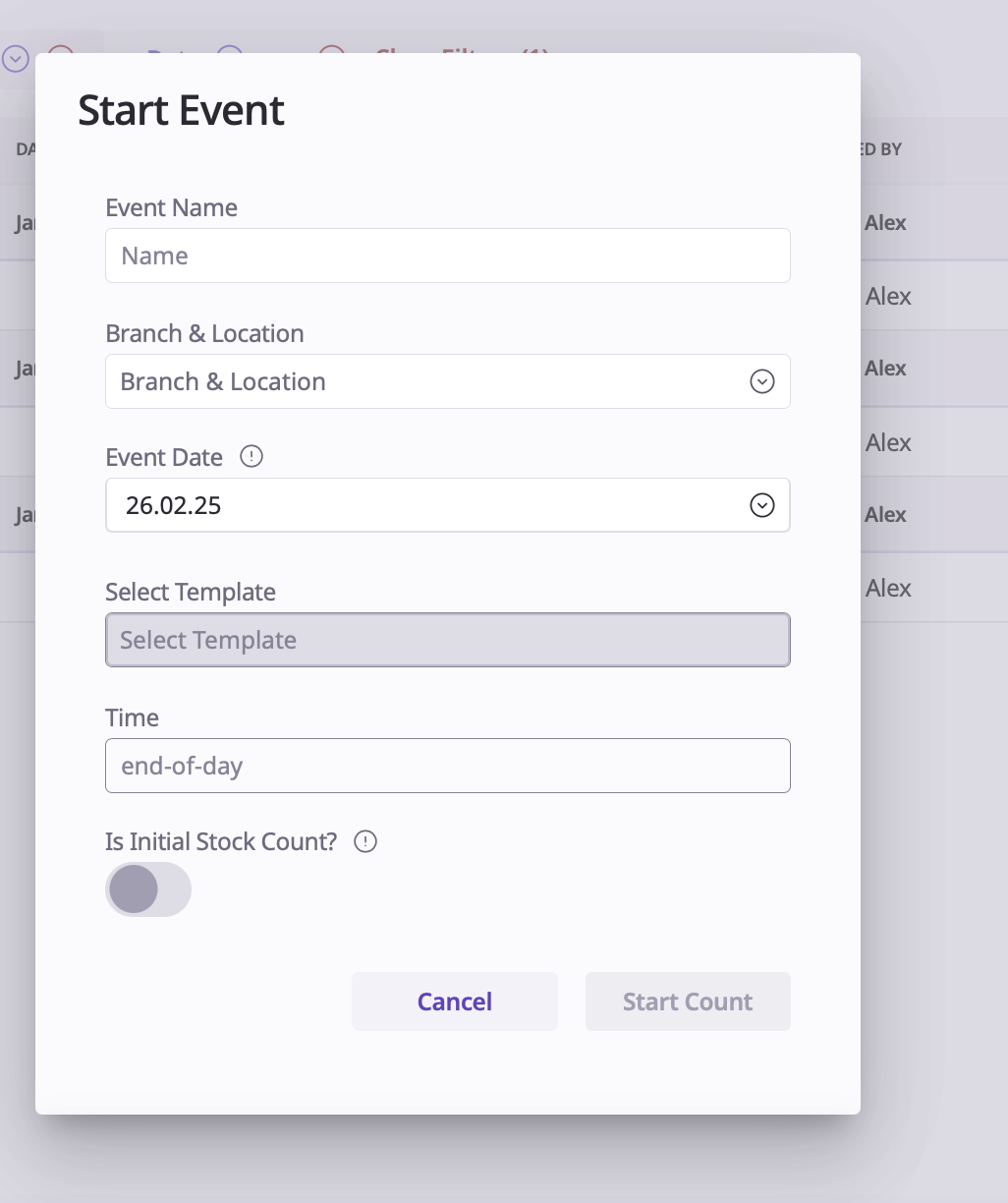
In the Start Event popup, enter:
1. Event Name
2. Branch/Location
3. Event Date
4. Time (Note: 'End of Day' option records count for the following day)
Click Start Count to proceed.
3. Counting Your Items
1. Use the Search Bar to find specific items
2. Utilize Storage/Category dropdowns for easier navigation
3. Enter counts for both Stockable and Non-Stockable items
4. Click Actions > Save Event to preserve progress
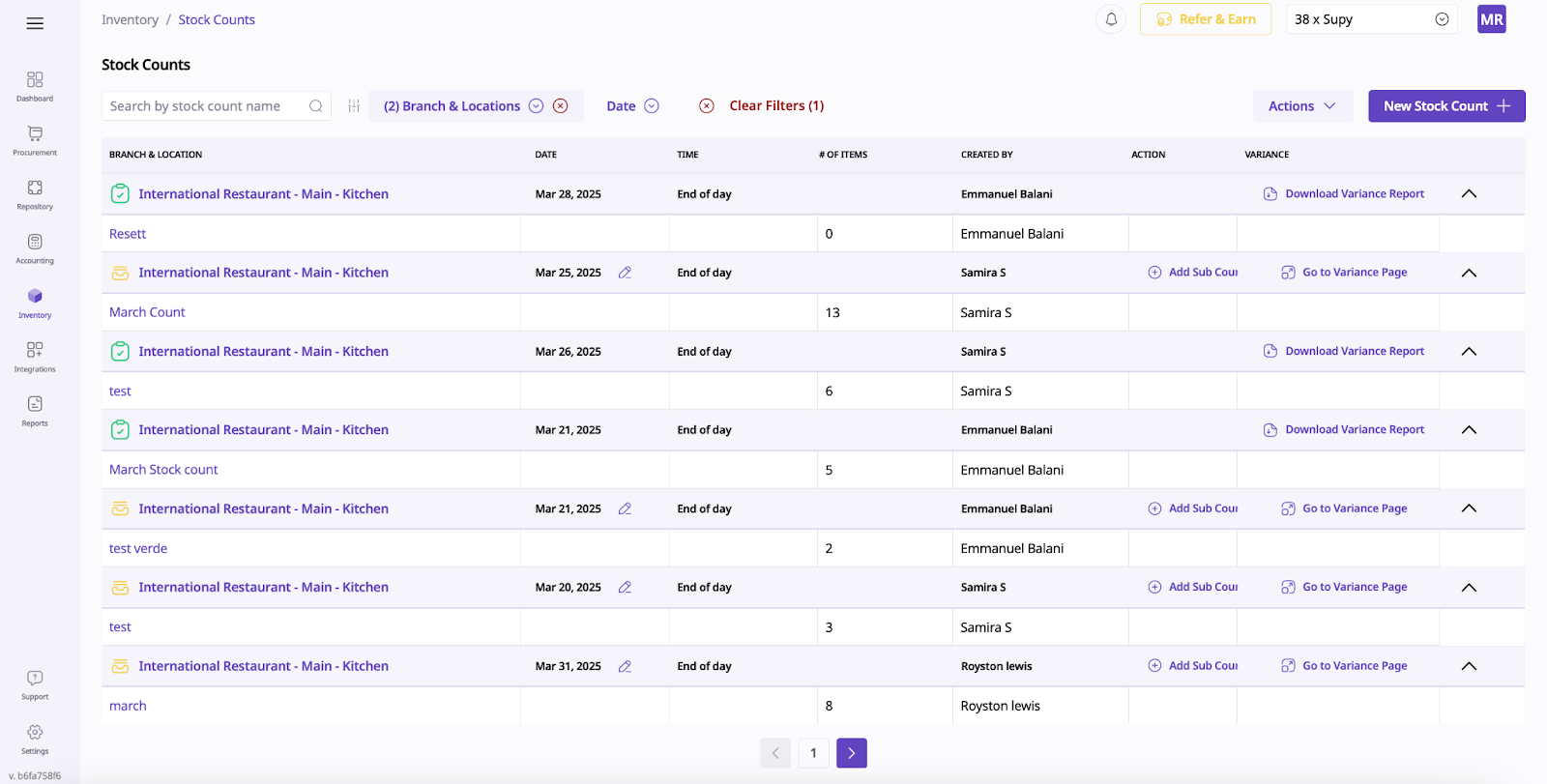
Once you use this, you will see the default count page for packages.
You can see different categories here such as branch and location, date, the number of items and who it is created by.
4. Generating Variance Reports
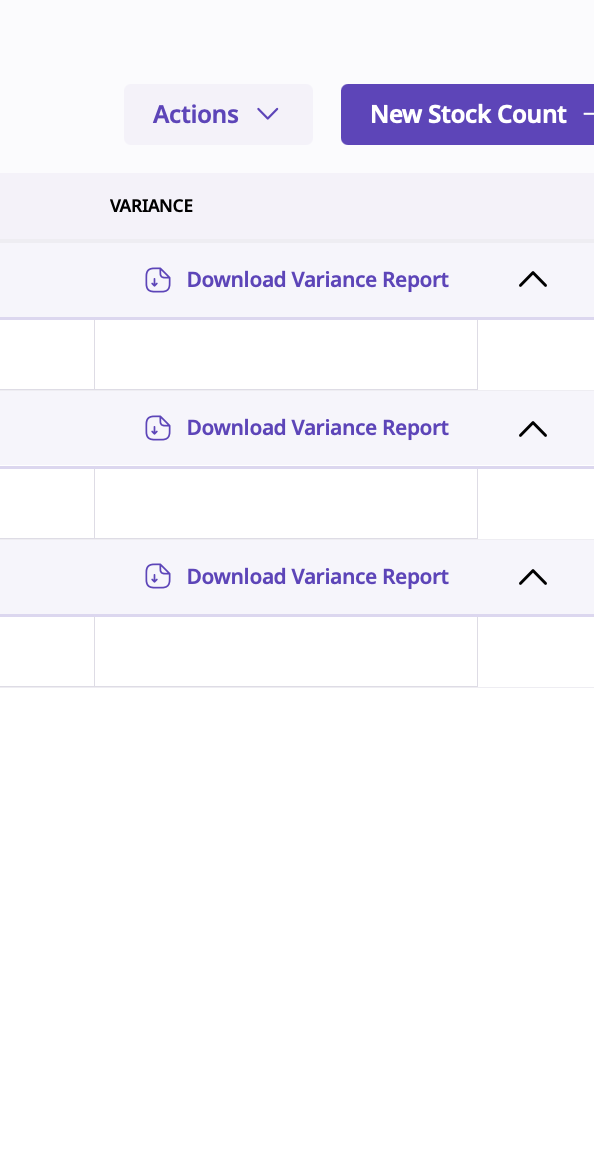
1. After completing the count, click Go to Variance Report
2. Input storage units for each item
3. Decide whether to include uncounted items (set to 0 if included)
4. Export to Excel if needed
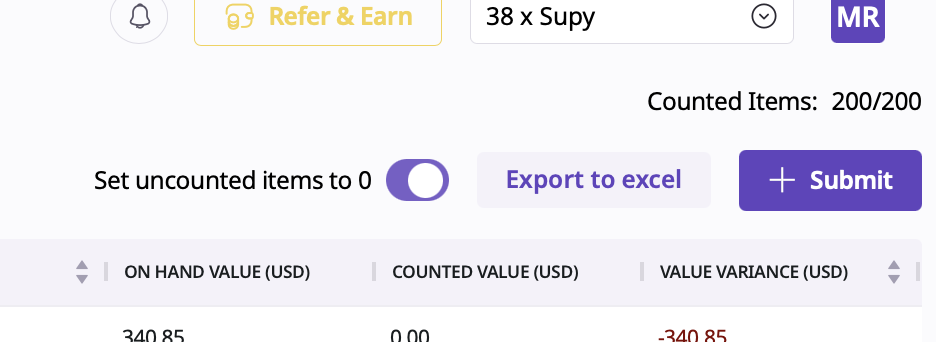
5. Click Submit to finalize the report
