Supy is a powerful tool for managing your existing supplier relationships and streamlining the procurement process. This article will guide you through the process of adding suppliers to your Supy portal, helping you optimize your ordering and receiving workflows.
Supy is not a marketplace for discovering new suppliers. Instead, it's a platform for managing your current supplier relationships. Even if you make purchases from supermarkets or online platforms, you should create a supplier entry in Supy to track these transactions.
To add a new supplier, follow these steps:
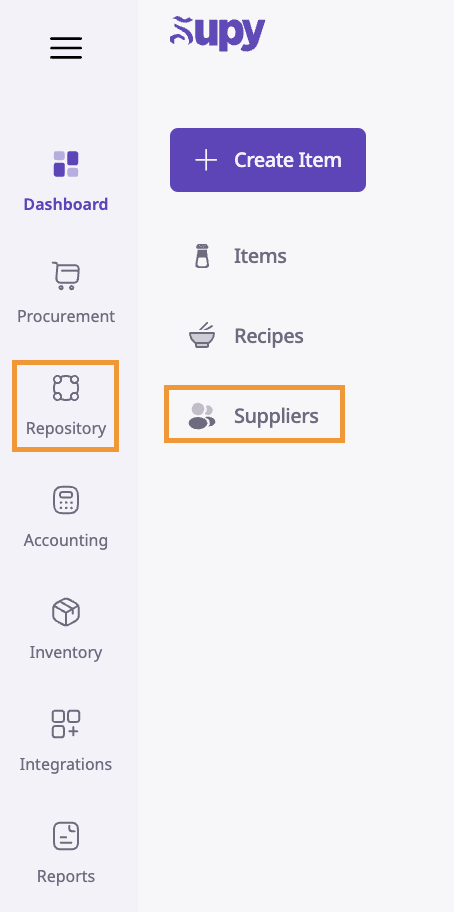
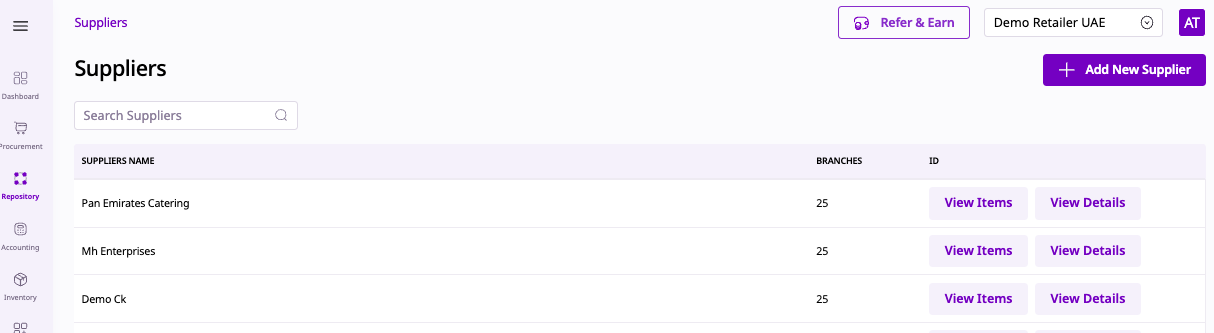
Access your Supy portal and navigate to the "Repository" tab
Select "Suppliers" from the options
3. Click the "Add New Supplier" button in the top right corner.
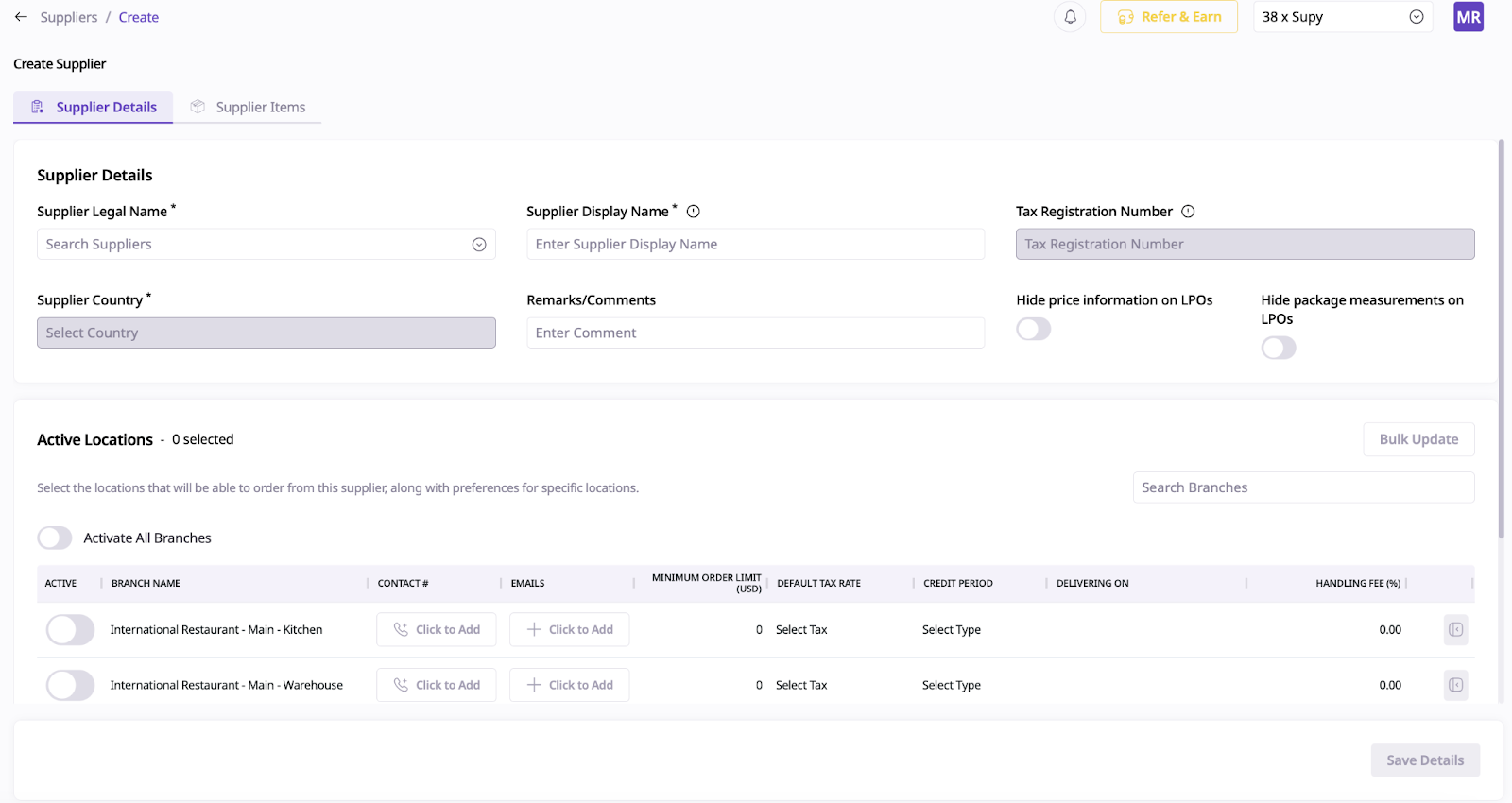
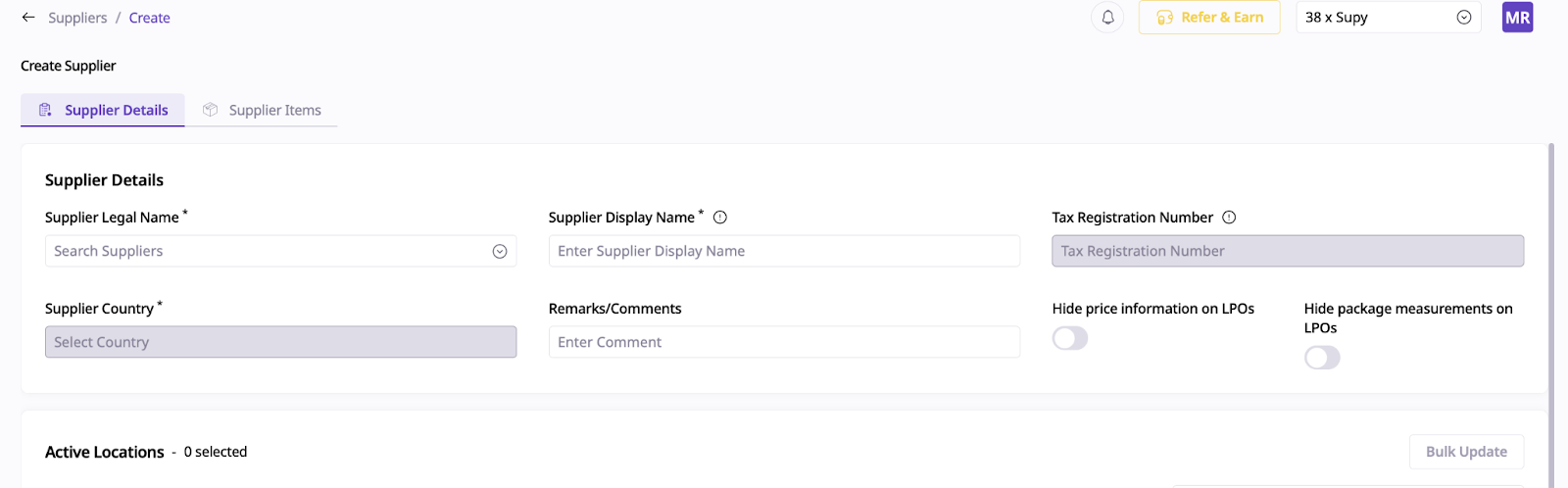
In this section, you'll provide general information about the supplier:
Supplier Legal Name: Search the existing database or enter manually
Supplier Display Name: How the supplier will appear in the portal and app
Supplier Country: Automatically filled if chosen from the database
Tax Registration Number: If applicable
Remarks/Comments: Any additional notes
Enter the supplier's email addresses and WhatsApp numbers to enable automated order messages.
Configure optional settings to streamline the procurement process:
Minimum Order Limit: Set a warning for orders below this value
Default Payment Method: Choose between "Cash" or "Credit"
Cut-off Time: Set a warning for orders placed after this time
Credit Period: Specify the number of days allowed for invoice payment.

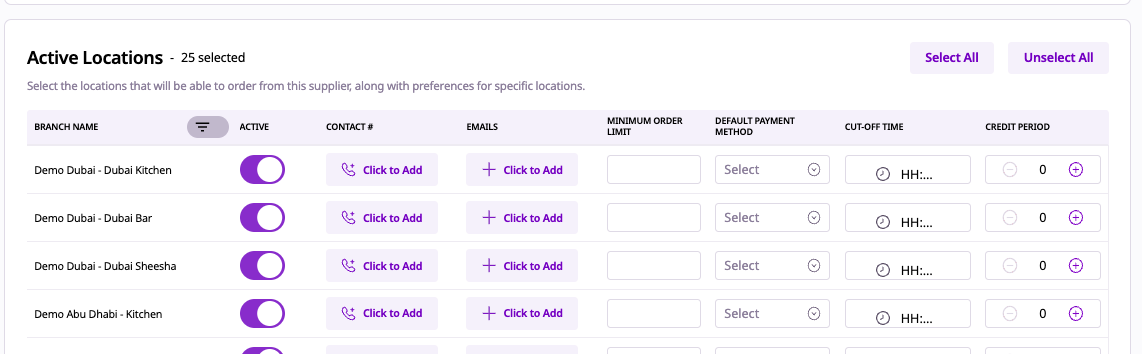
Select which locations can submit orders and create GRNs for this supplier. You can also modify contact and preference details for each location.
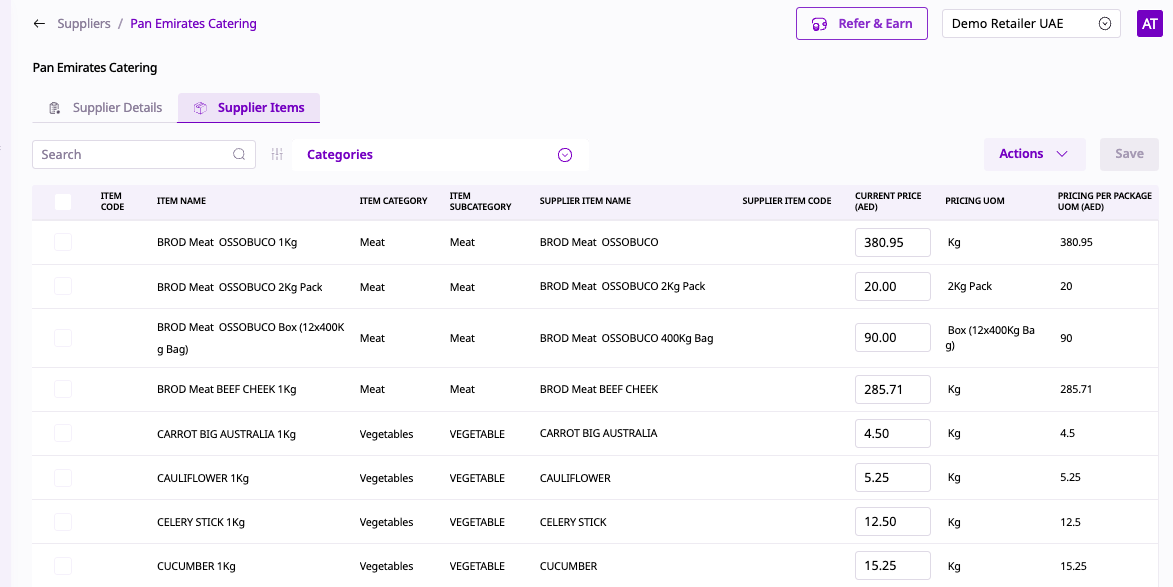
This section displays a table of package items purchased from the supplier, including:
Item Code: the package item code
Item Name: the package item name
Item Category: the level-1 item category (parent category, e.g. Vegetables)
Item Sub-category: the level-2 item category (child category part of the parent category, e.g. Tomatoes)
Supplier Item Name: the name of the item as listed by the supplier (appears on the order sent to the supplier)
Supplier Item Code: the item code by the supplier (appears on the order sent to the supplier)
Current Price ({currency}): the current price provided by the supplier for this item, subject to the pricing unit of measurement (UOM)
Pricing UOM: the unit of measurement (UOM) by which the price of the package is defined. It is common for meat products to be sold in packages of for example "Angus Beef 3Kg" but then the price provided by the supplier is per "Kg".
Pricing per package ({currency}): the final price for the package item, based on the pricing UOM. If for the above example package item "Angus Beef 3Kg" the pricing UOM is "Kg" and the supplier's price is $10, then the pricing per package is ($10 per kg)*(3 Kg in the package) = $30
In this page, the user can do the following actions:
Search & filter for any package item
Update the price of any package item for this supplier (click on "save" once finished)
Export one, multiple or all package items for this supplier
Delete package items for this supplier (this will not delete the actual package item, it will simply un-assign it from this supplier so that it can no longer be ordered & received from this supplier)
