The requisition feature within the procurement module of Supy is a powerful tool designed to streamline the process of requesting, approving, and managing items needed for specific locations. This guide provides a comprehensive walkthrough of how to effectively use this feature, ensuring smooth operations and better procurement management.
To begin, navigate to the Procurement Module located on the left side of your screen. Within this module, select "Requisitions." Here, you will find three main options:
Place Requisition: Submit new item requests.
Review Requisition: Approve, process, or discard requested orders.
Requisition History: View past requisition records for tracking and reference.
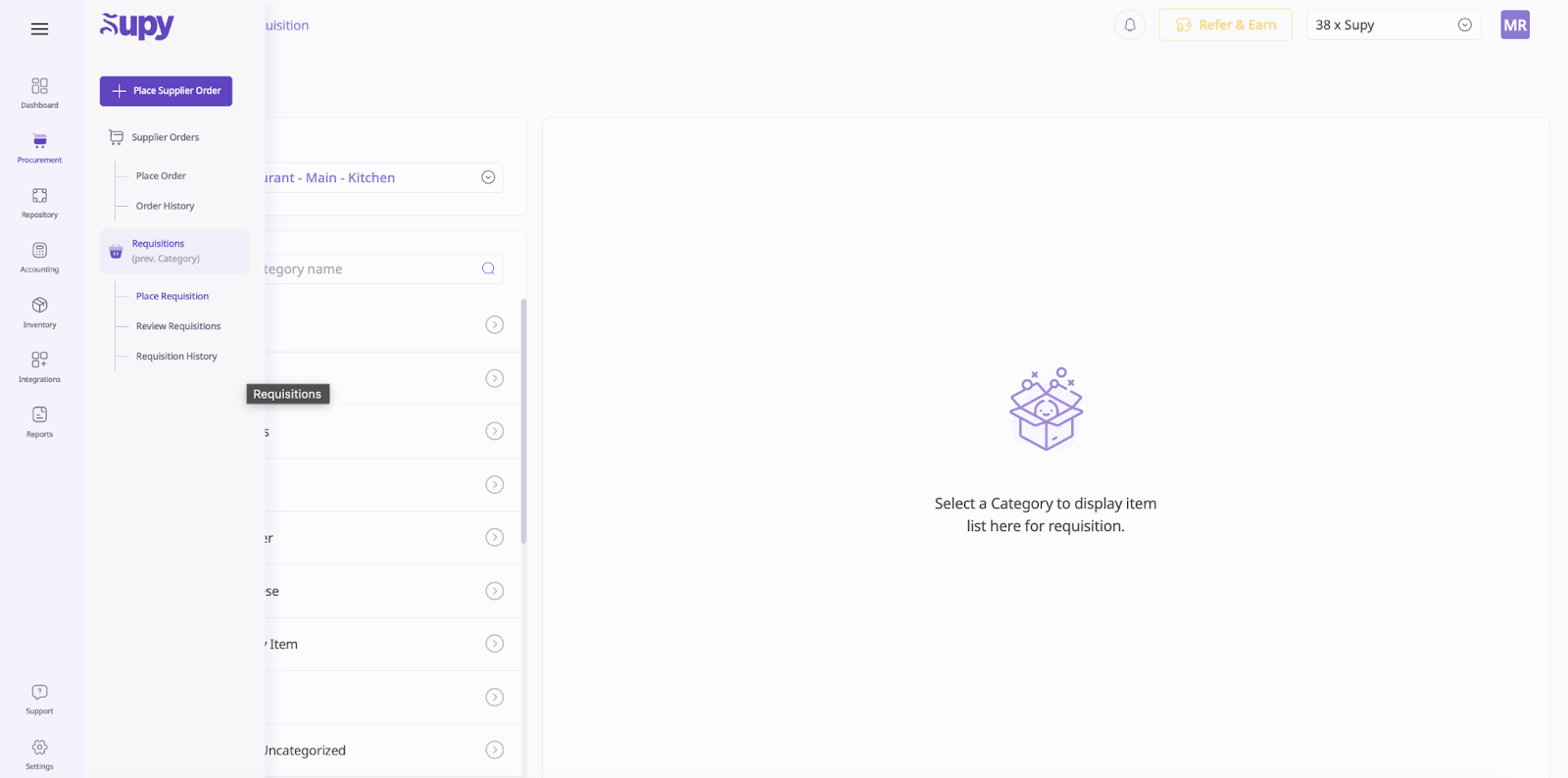
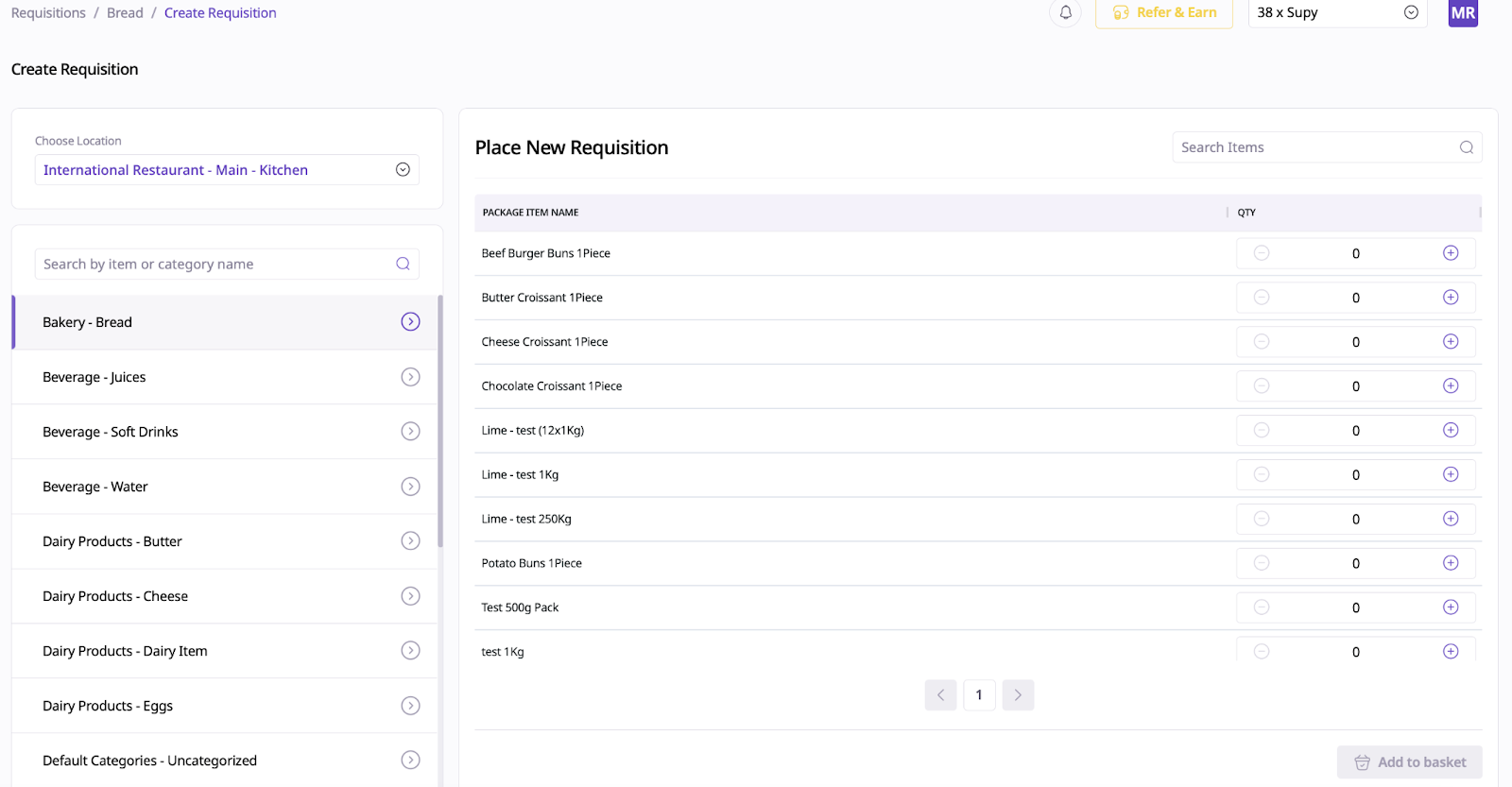
The "Place Requisition" option allows users to request items based on their category. Follow these steps:
Select a category (e.g., dairy, fruits and vegetables, meat).
Use the search bar in the top-right corner to locate specific items.
Enter the desired quantity for each item and add it to your request.
Click "Add to Basket" to save your selection. This enables you to switch categories and request additional items as needed.
Once all items have been added, click "View Basket" to review your selections.
In the basket view, you can:
Adjust quantities.
Remove unnecessary items.
Add notes or comments.
Modify the expected delivery date.
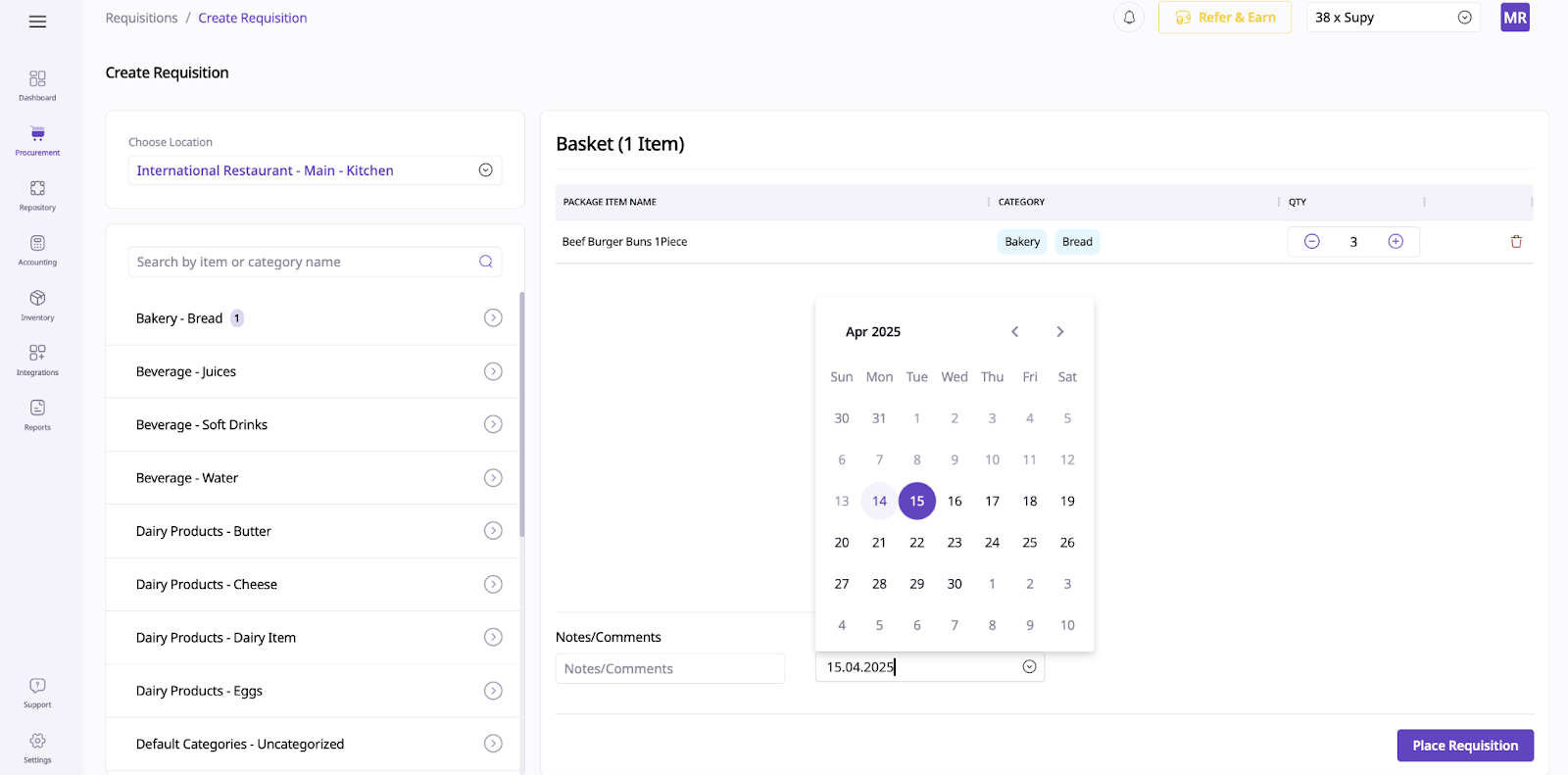
The expected delivery date groups requisitions together for better organization. When ready, click "Place Requisition" to finalize and submit your request.
The "Review Requisition" section helps manage submitted requisitions efficiently. It is divided into four key tabs:
Pending: Contains requisitions awaiting review and approval.
Approved: Lists requisitions that have been reviewed and approved but not yet processed into supplier orders.
Processed: Includes requisitions converted into supplier orders. These may be in draft status (editable) or submitted (sent to suppliers).
Discarded: Displays rejected requisitions that will not be processed further.
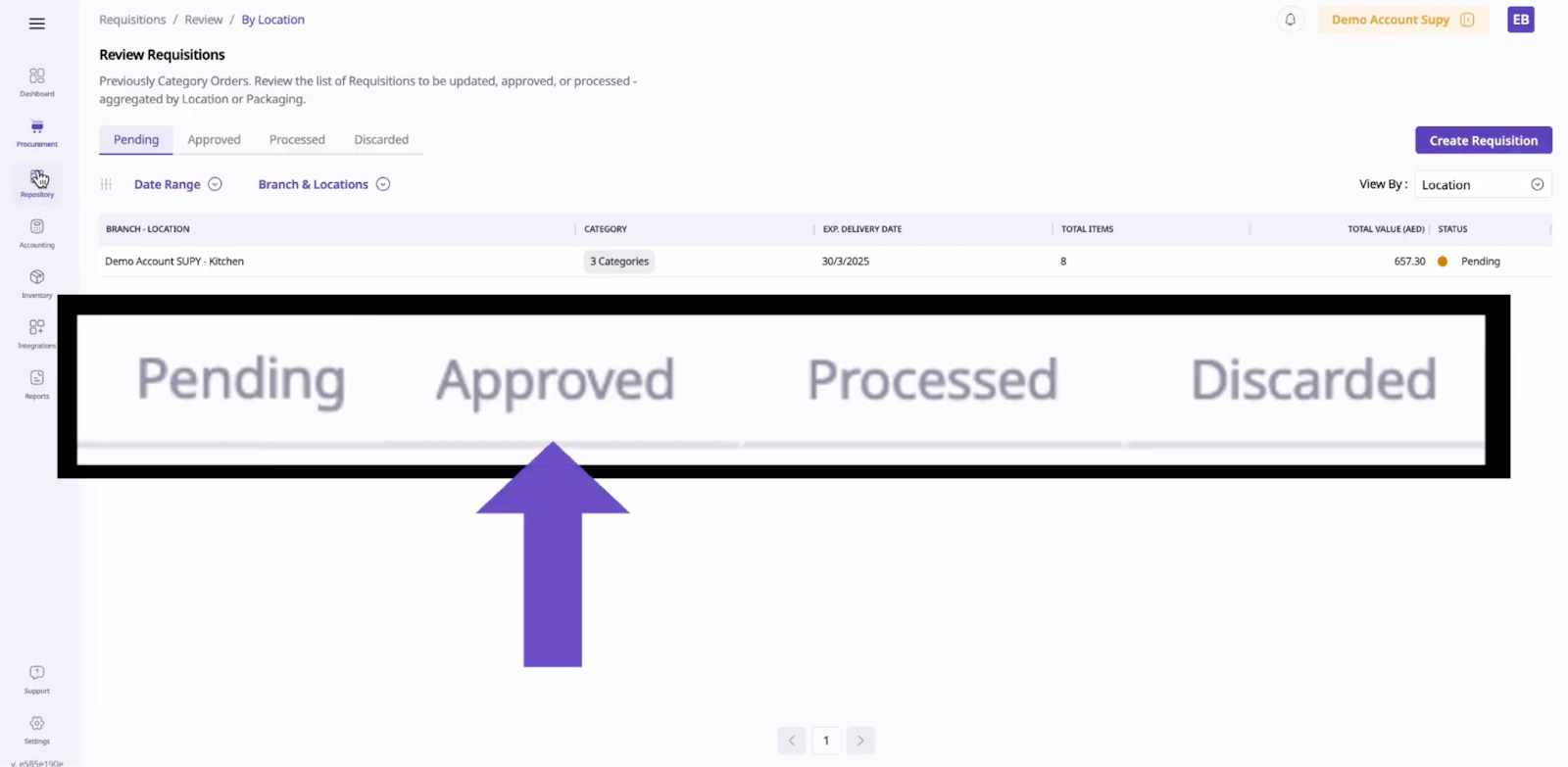
To approve a requisition:
Click on the specific request to view its details.
Modify delivery dates or adjust requested items if necessary.
At the bottom of the page, you will see supplier details and totals alongside two action buttons:
Approve: Moves the requisition to the "Approved" tab for further review.
Approve and Process: Offers two additional options:
Draft as a supplier order (allows modifications before finalizing).
Submit as a supplier order (directly sends it to the supplier for processing).
This flexible approval system ensures better control over requisitions by allowing adjustments before finalizing supplier orders.
Once a requisition is processed, it is converted into a supplier order. These orders can be tracked under the "Supplier Orders" section of the procurement module. Here, users can monitor orders in draft status or those already submitted to suppliers.
The "Requisition History" section provides a detailed record of all past requisitions, ensuring transparency and easy reference. By clicking on any requisition, users can view:
Item quantities.
Delivery dates.
Notes or comments added during submission.
This section is essential for verifying past orders, tracking approvals, and maintaining accurate procurement records. It also aids in monitoring inventory requests for better stock management and procurement planning.
By utilizing Supy's requisition feature effectively, users can streamline procurement processes, ensure accurate tracking of requests, and maintain better control over inventory needs. Whether placing new requests or managing approvals, this tool simplifies operations while promoting transparency and efficiency in procurement workflows.
