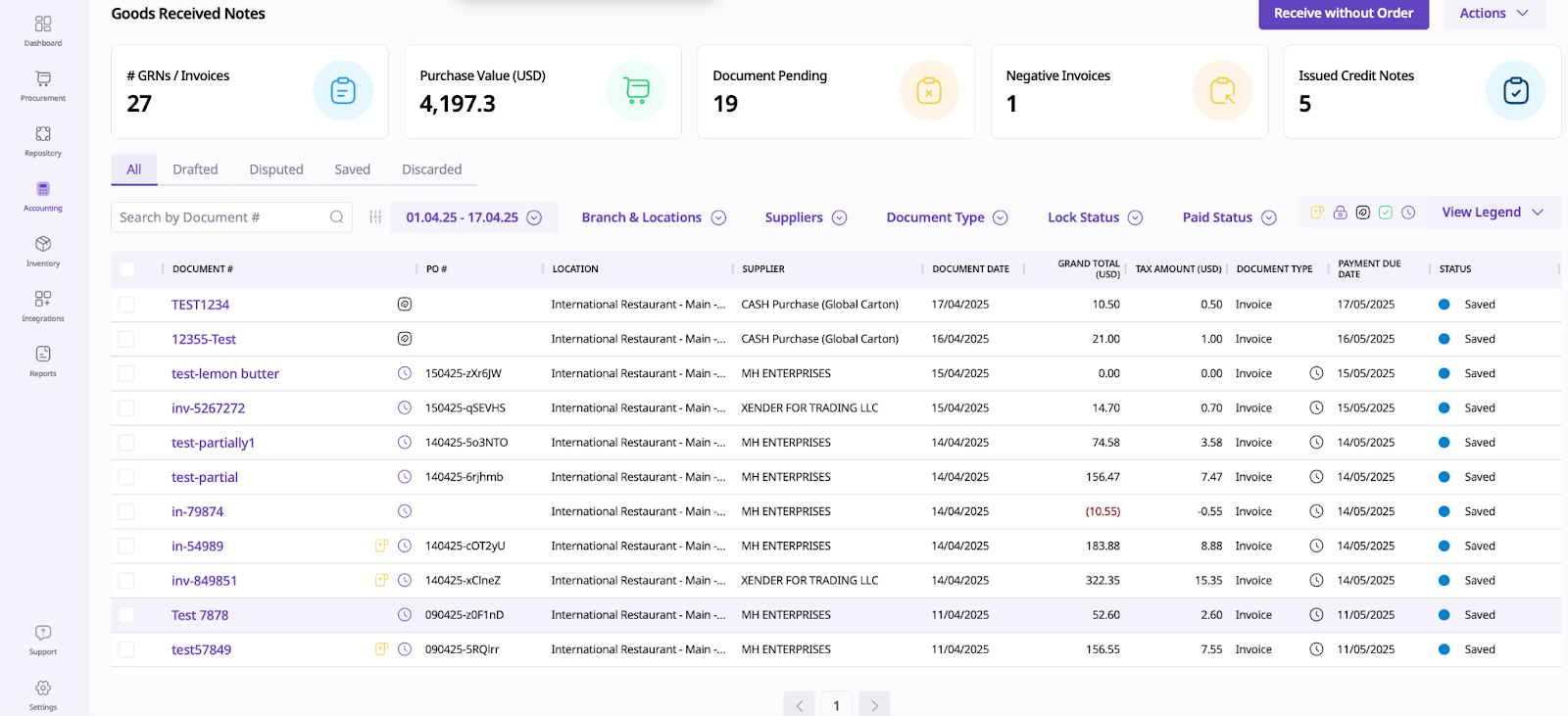
Managing inventory efficiently is crucial for any business, especially when receiving goods that aren’t tied to a specific purchase order. Supy’s “Receive Without Order” feature streamlines this process, ensuring accurate record-keeping and seamless integration with your accounting workflow. Here’s a detailed guide to help you navigate this feature with confidence.
To begin, log in to your Supy dashboard. From the main menu, navigate to the Accounting module. Here, you’ll find several options related to your financial and inventory management. Select “Receive Without Order” to initiate the process.
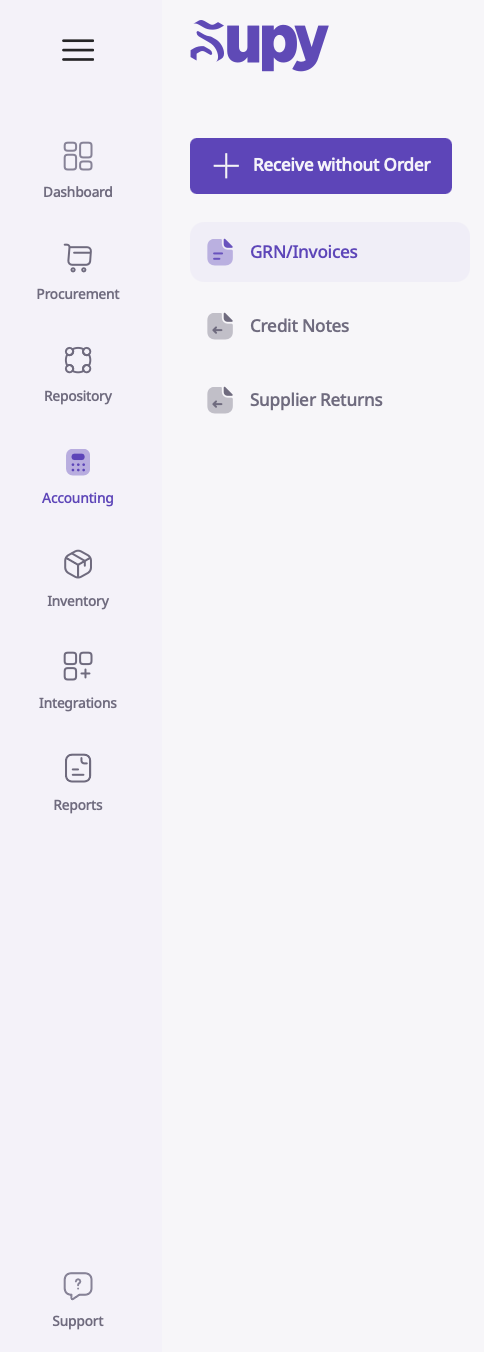
Once you’ve entered the “Receive Without Order” section, you’ll be prompted to select the relevant branch where the goods are being received. This ensures that your inventory records are accurate and location-specific.
Next, choose the supplier from whom you are receiving the goods. Supy allows you to search and select from your pre-registered suppliers, making this step quick and error-free.
Why This Matters: Associating the receipt with the correct branch and supplier helps maintain clear audit trails and simplifies future reconciliations.
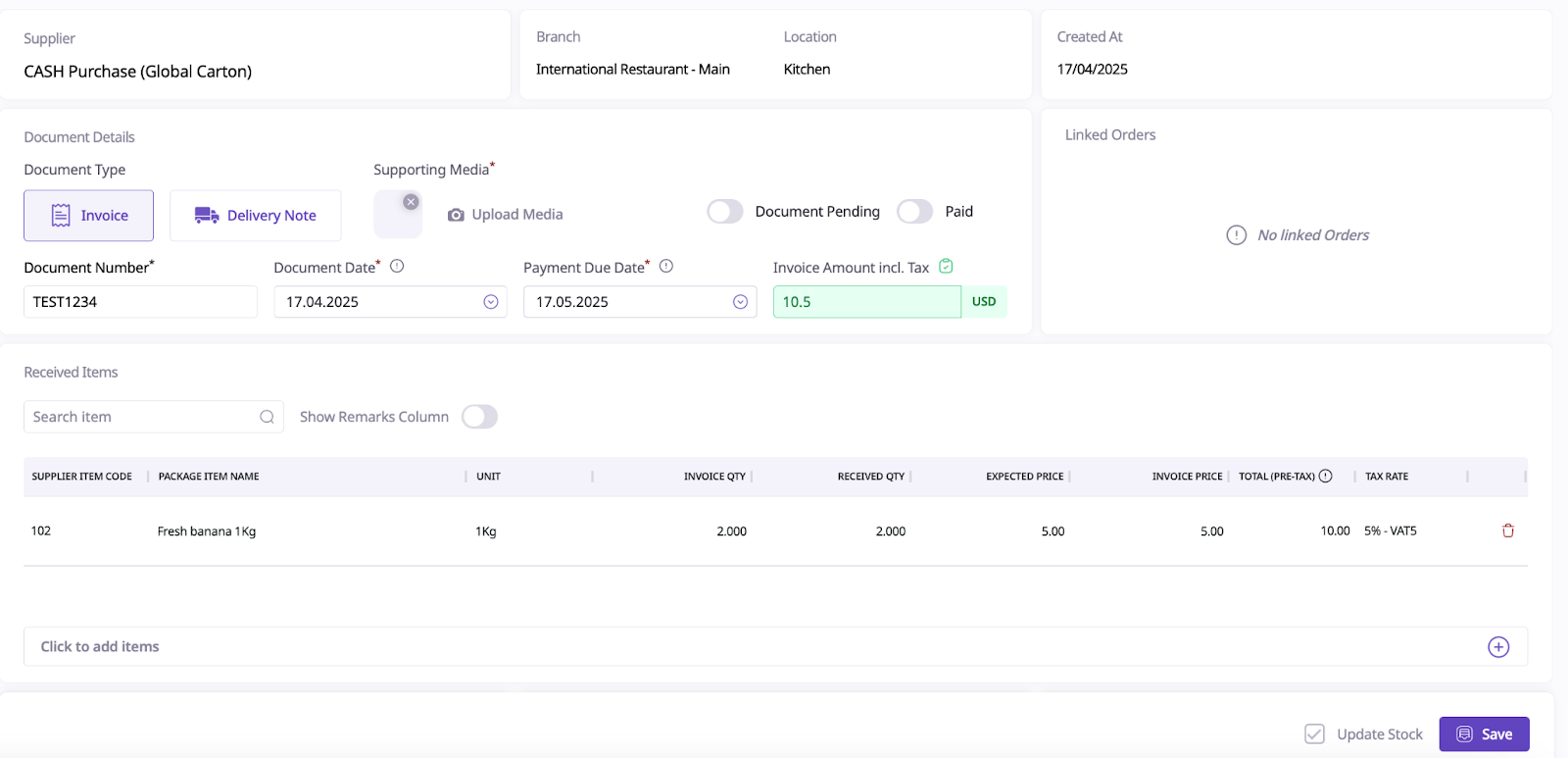
After selecting the branch and supplier, a new page will appear where you need to fill in the essential document details:
Document Number: Enter the reference number from the supplier’s invoice or delivery note.
Document Date: Specify the date on the supplier’s document.
Due Date: Indicate when payment is due, if applicable.
Invoice Amount: Enter the total amount as stated on the supplier’s invoice.
Upload Media: Attach any supporting documents, such as scanned invoices, delivery notes, or photos of the received goods
Click the “Add Item” button to start entering the details of the goods received. Here, you’ll specify:
Item Name/Description: Clearly describe each item received.
Quantity: Enter the number of units received.
Package Name: If applicable, specify the packaging or unit type (e.g., box, carton, bottle).
Repeat this process for each item included in the delivery.

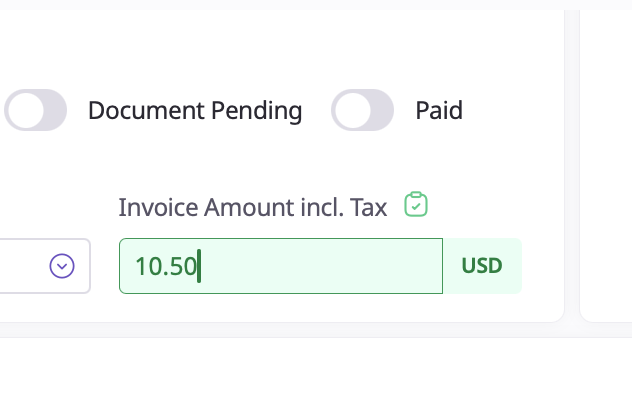
As you add items, Supy will automatically calculate the grand total, including applicable taxes. It’s crucial that the invoice amount you entered earlier matches this grand total. Supy provides a visual indicator—turning the amount green—once the amounts are matched, ensuring accuracy before submission.
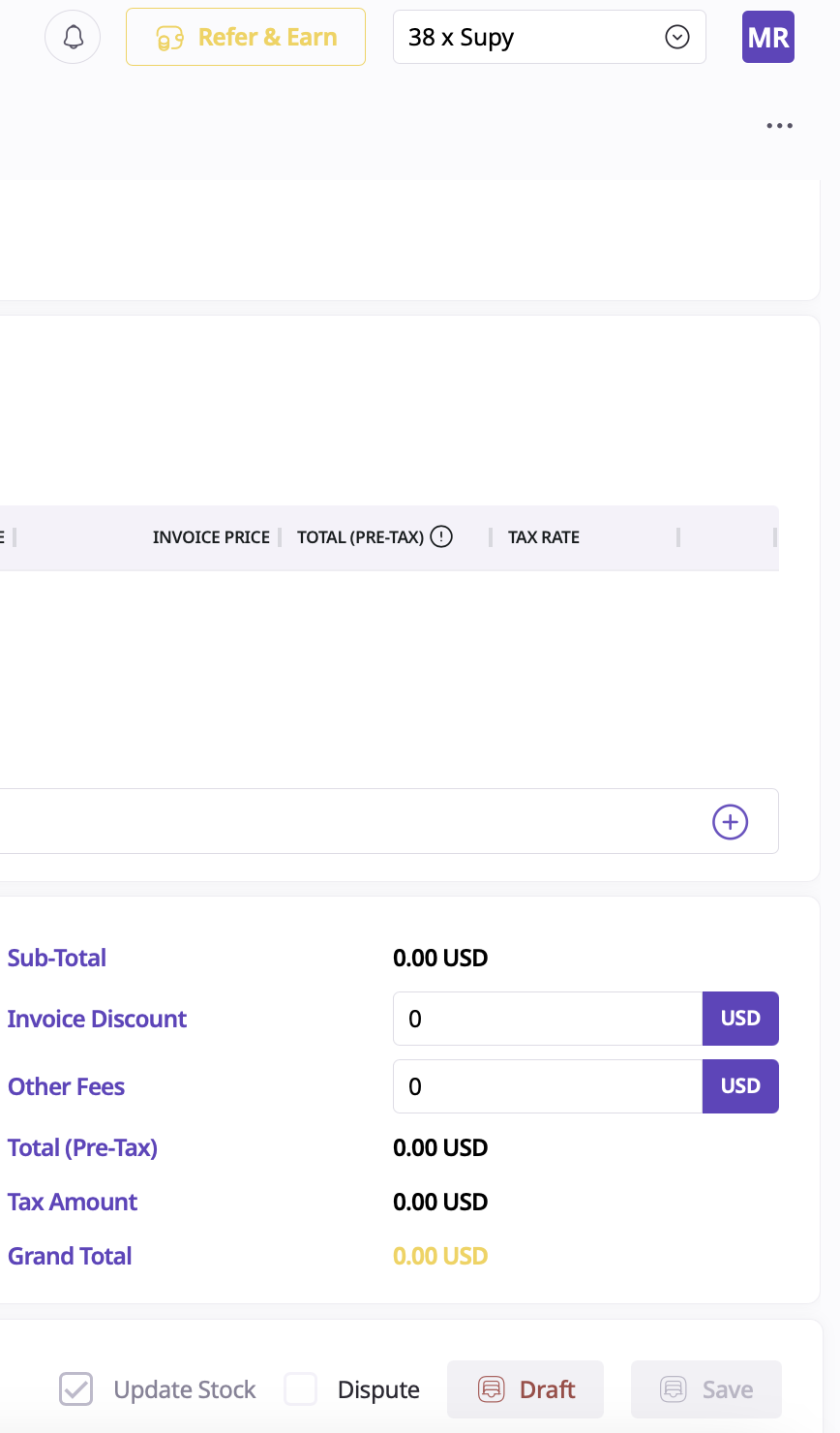
Save as Draft: If you need to gather more information or wait for approval, save your entry as a draft.
Submit: If everything is correct, submit the Goods Received Note (GRN). This action finalizes the entry and updates your inventory and accounting records.
After submission, you’ll see the newly created GRN listed on the page. You can review, print, or export these records as needed for audits or internal reviews.
Best Practice: Regularly review your submitted GRNs to ensure all received goods are accounted for and any discrepancies are addressed promptly.