Efficient inventory management starts with organizing your items into clear, logical categories. In Supy, the retailer portal provides a straightforward way to manage item categories, allowing you to add, edit, and remove categories as your business evolves. Here’s a simple guide on how to manage item categories in Supy.
Access Settings
Start by logging into your Supy retailer portal.
Click on the Settings menu to access system configuration options.
Go to the Item Categories Tab
Within Settings, find and select the Item Categories tab.
This section is dedicated to organizing and managing the various categories your items belong to.

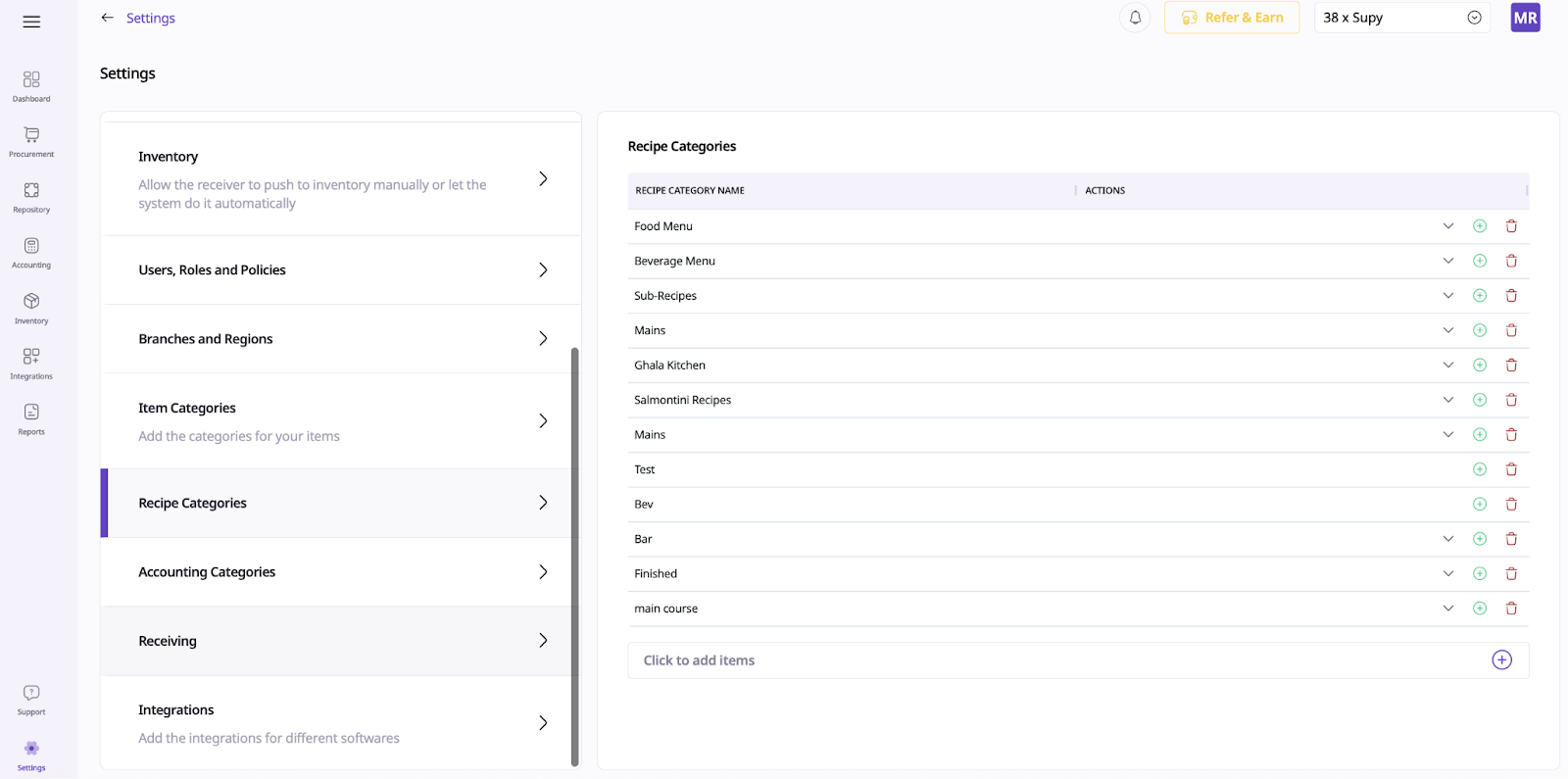
Add a New Category
Click the Add Category button.
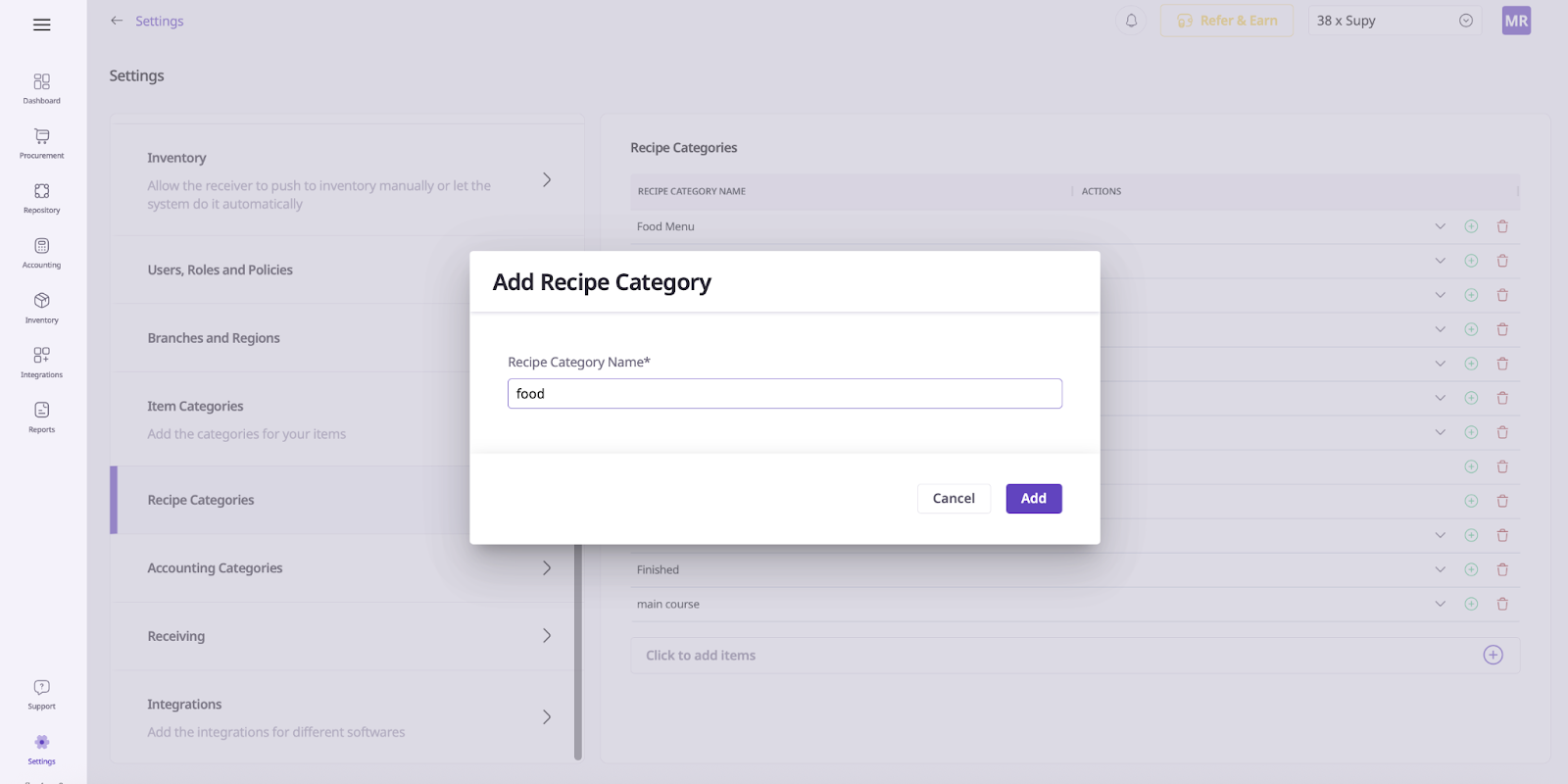
Enter the name of your new category (e.g., "Food").
Save your changes to create the category.
Add Subcategories
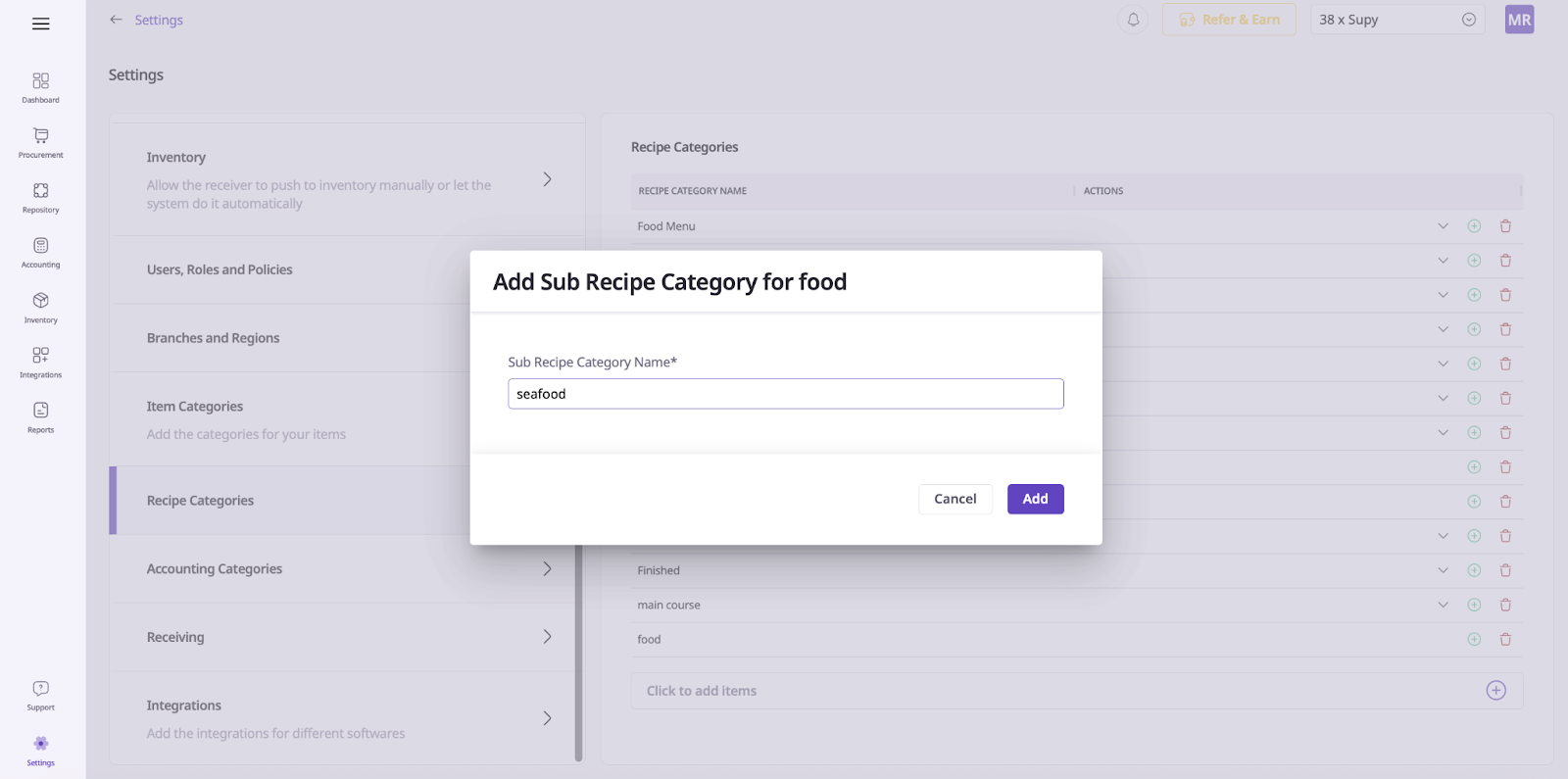
You can further organize your inventory by adding subcategories under a main category.
For example, under "Food," you might add "Seafood" as a subcategory.
Click to expand the main category, then use the Add Subcategory option.
Enter the Subcategory name and Save.
Delete a Category or Subcategory
To remove a Category or Subcategory, locate it in the list.
Click the Delete icon or button next to the category or subcategory you wish to remove.
Confirm your choice when prompted.
The selected category or subcategory will be deleted from your inventory structure.
Streamlined Inventory: Well-organized categories make it easier to find, track, and manage items.
Simplified Reporting: Categories help generate more accurate and meaningful inventory reports.
Enhanced Efficiency: Staff can quickly locate items and maintain inventory accuracy.
Suppose you want to organize your food inventory:
You add a main category called "Food."
Under "Food," you add a Subcategory called "Seafood."
If you no longer need "Seafood," simply delete it using the steps above.
You can repeat this process for any type of item category, adding or removing as your inventory changes.
Managing item categories in Supy is a quick and effective way to keep your inventory organized. By regularly updating your categories and subcategories, you ensure that your inventory remains clear, logical, and easy to navigate—making stock management more efficient for everyone on your team.
