Stock count templates are essential tools for streamlining and customizing your inventory management process. In Supy, the retailer portal makes it easy to create, manage, and use these templates to ensure accurate and efficient stock counts across multiple branches and locations. Here’s a step-by-step guide to creating and utilizing stock count templates.
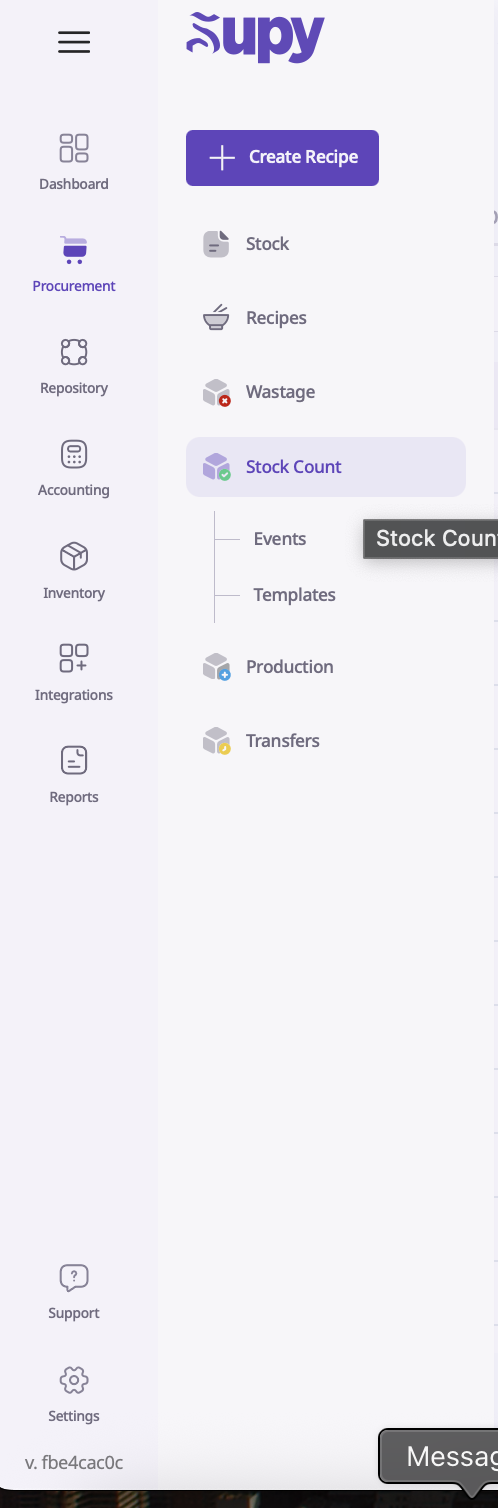
Navigate to Inventory Stock Count Templates
Log in to the Retailer Portal.
Go to the Inventory section and select Stock Count Templates.
In the top right corner, click New Template. This will redirect you to the stock count template creation page.

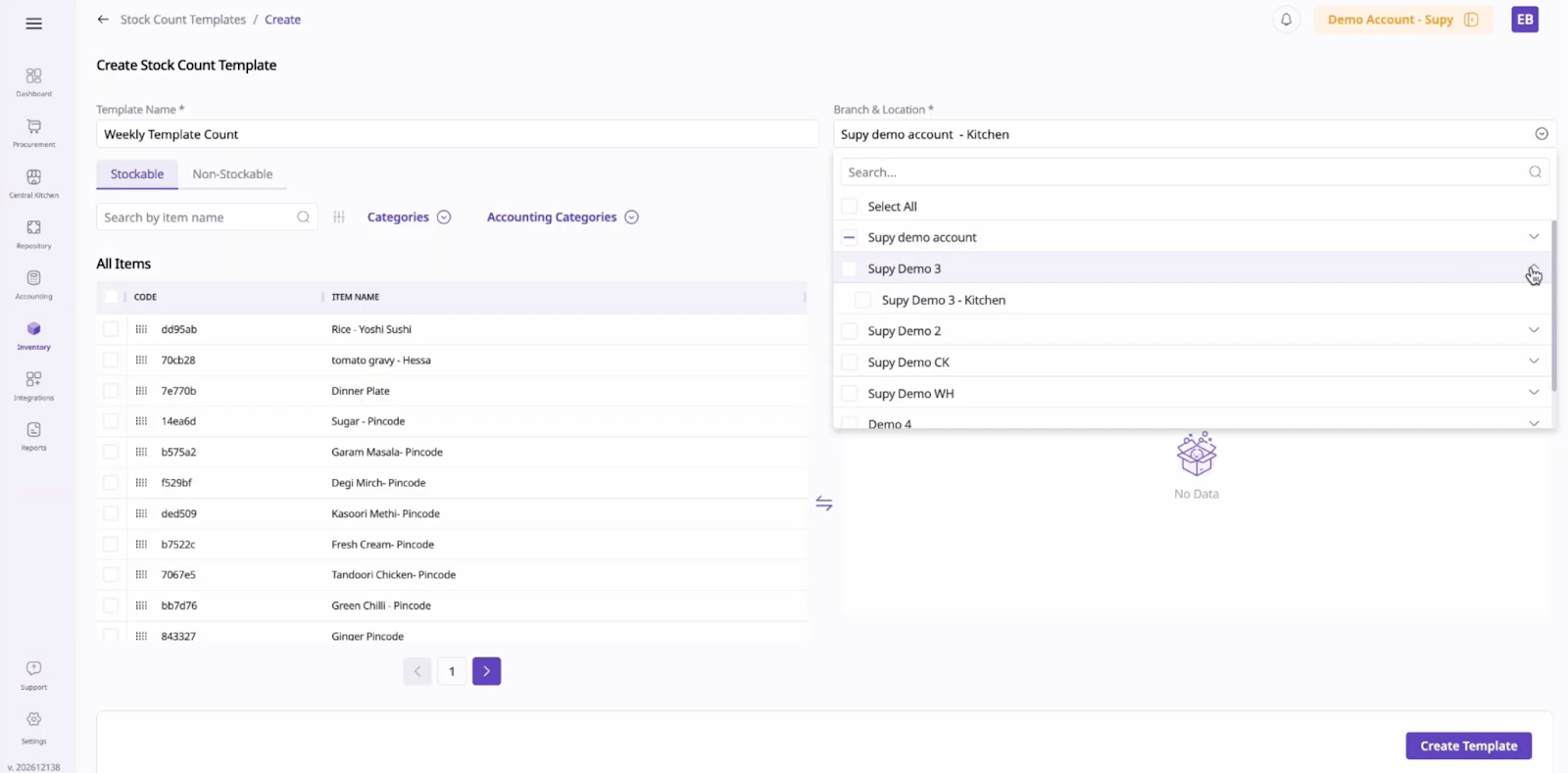
Template Name: Provide a clear, descriptive name for easy identification.
Branch and Location: Select where this template will be used. You can choose multiple branches and locations if you want the same template to be available across different sites.
Add Items to the Template
Search and Filter: Use the search bar to find specific items. You can also filter items by categories or accounting categories to narrow your selection.
Stockable vs. Non-Stockable Items: Switch between stockable and non-stockable items (such as batch recipes) using the tab options.
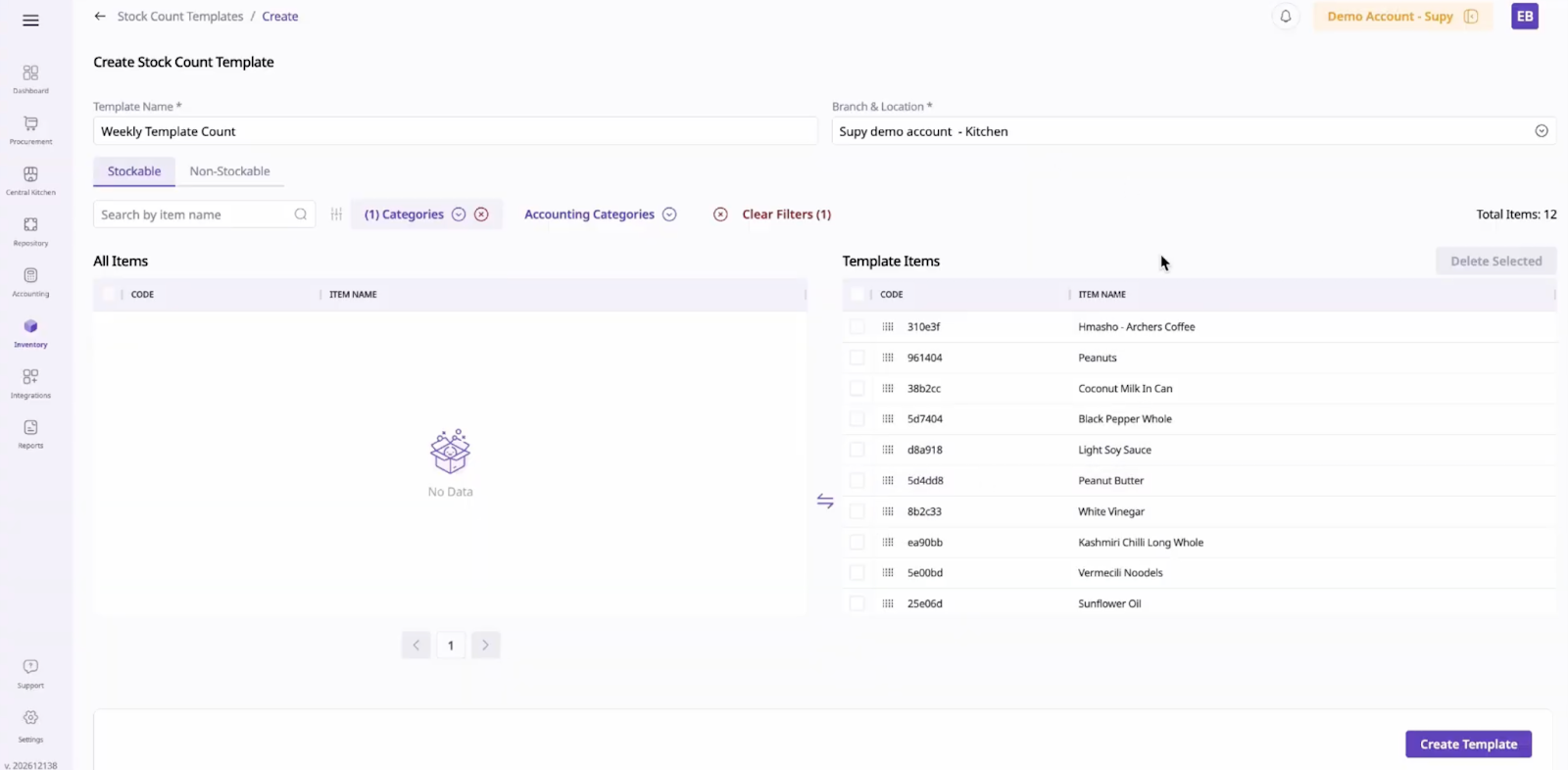
Selecting Items:
Drag items individually using the drag icon.
For multiple items, tick each one or use bulk selection, then drag them to the template item section.
You can add items from different categories by repeating this process.
Finalize the Template
Once all required items are added, click Create Template at the bottom right.
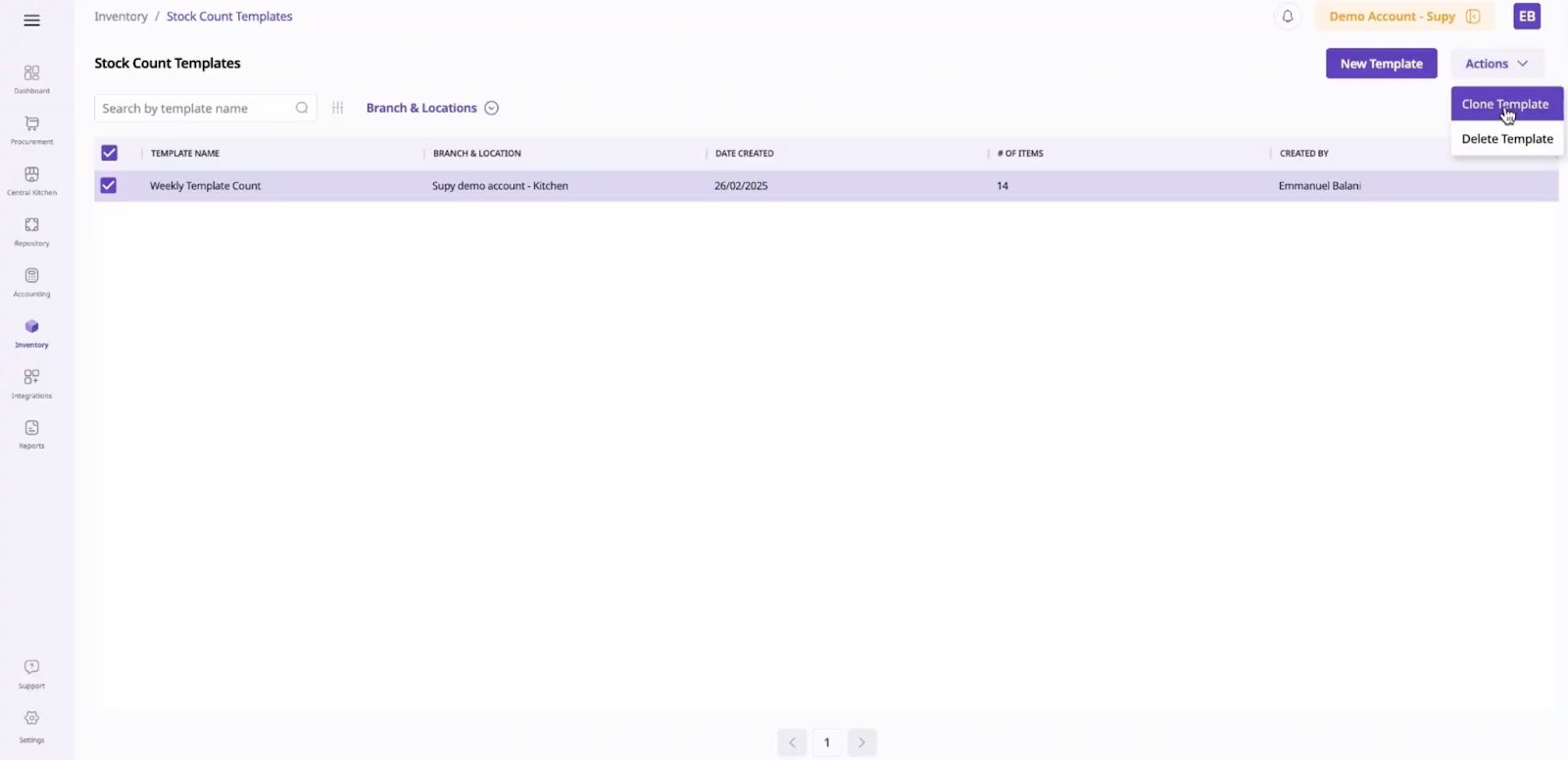
To manage existing templates, select the checkbox beside a template and use the Actions dropdown in the top right to clone or delete templates as needed.
Templates can be updated or duplicated for different inventory needs, improving flexibility and efficiency in stock management
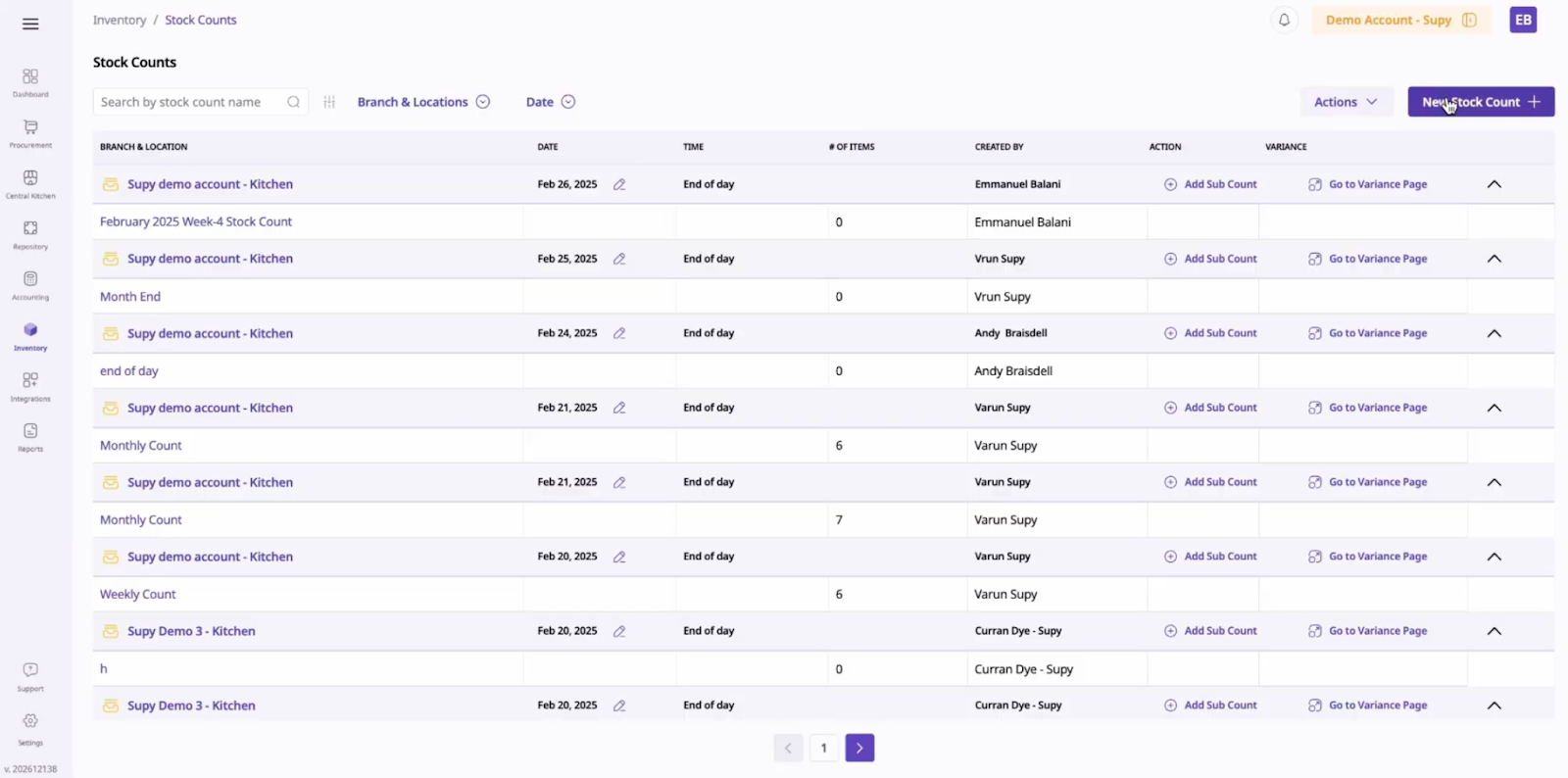
Start a Stock Count Event
Go to Inventory > Stock Count > Events.
Click New Stock Count.
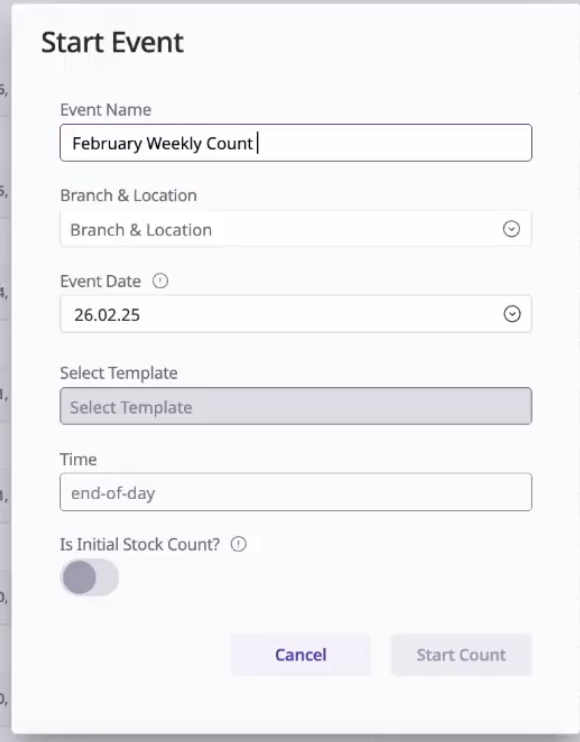
Enter Event Details
Provide the event name, select the branch and location, and set the stock count date.
Choose the relevant stock count template to be used for this event.
Begin the Inventory Count
Click Start Count to begin.
The stock count page will display only the items included in your selected template, simplifying the counting process.
Update Quantities
Proceed with counting the items and updating their quantities directly in the system.
Customization: Select and arrange items in a preferred order for each branch or location, ensuring counts are relevant and manageable.
Efficiency: Templates reduce the time spent on repetitive data entry and minimize the risk of missing or duplicating items.
Error Reduction: A structured template ensures staff count only the intended items, reducing mistakes and improving inventory accuracy.
Scalability: Easily apply templates across multiple branches and locations, supporting business growth and operational consistency.
